
Strategy One
Import an Existing Mosaic Model
Starting in Strategy One (January 2026), importing existing Mosaic models is available out-of-the-box.
Starting in Strategy One (December 2025), you can import an existing Mosaic model which enables you to link attributes across models to establish relationships between disparate Mosaic models and enrich analytical content.
-
Create a Mosaic model or edit an existing one.
-
In the Sources tab, click Add Models.
-
A grid displays with the following views. Choose the view that best meets your needs or use search:

-
All Models: All models in the current project.
-
Recent: Recently edited models the current session.
-
Favorite: Models marked as Favorites by the current user.
-
-
View the following columns for each model. Hover over a column to Filter or Sort by:
-
Model name: Name of the model.
-
Certified: Displays whether a model is certified.
-
Created by: User that created the model.
-
Usage: Count of model executions in downstream reporting.
-
Model Linked: Count of other models that use this model.
-
Last Update: Date and time the model was last edited and saved.
-
-
To save a model as a Favorite, hover over the model row and click Favorite to the right of the row.
-
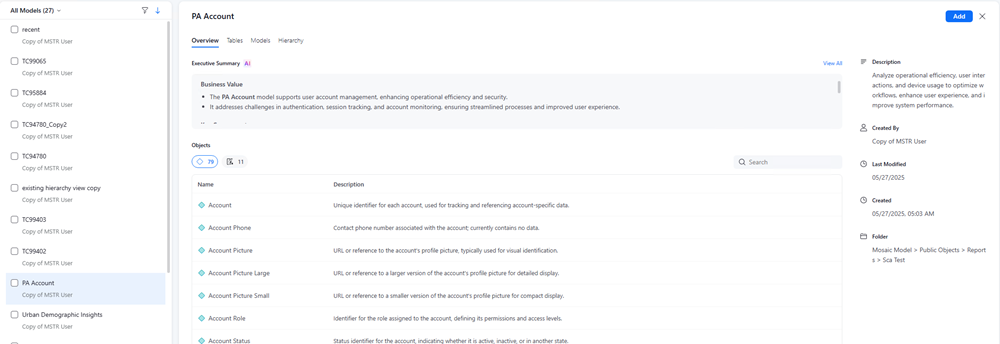
To view additional model information, click the model. The following information displays:
Overview
-
Executive Summary: An AI-generated summary of the data included in the model.
-
Objects: List of attributes and metrics included in the model.
-
Description: User-created description of the model.
-
Created By: User that created the model.
-
Last Modified: Day model was last edited and saved.
-
Created: Date and time the model was created.
-
Folder: The model folder path.
-
-
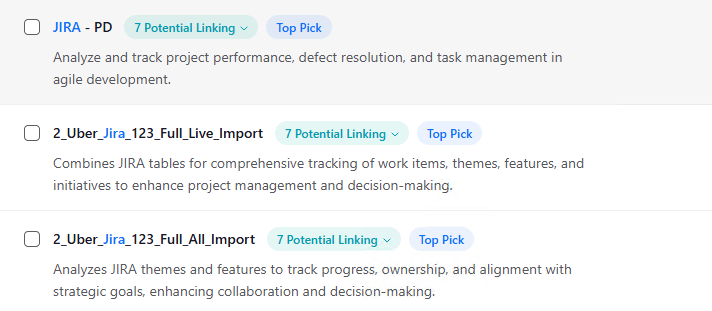
You can also use Search to locate models. The search uses AI to make model recommendations based on your query and based on previously selected models:
-
In Search, type a prompt and press
Enter.
For example. type "Show models owned by Administrator and also contains Jira".
-
Search results display that fit the criteria. Highly related models display a Top Pick tag.
-
-
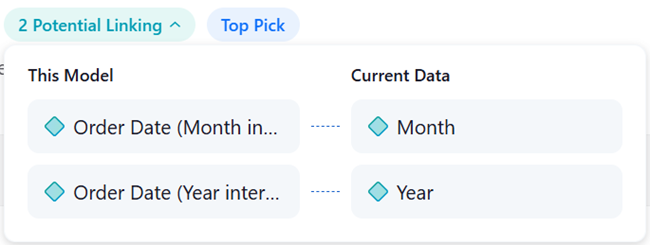
Click Potential Linking next to a model name to expand detailed potential attribute linking based on string comparison.
-
Select the check box next to the Mosaic model(s) you want to add and click Add.
-
Click Proceed.
-
Use the Prep and Model page to continue to create your Mosaic model using Data Preparation and to Accept and Dismiss Suggestions.