
Strategy One
Mosaic Model Logical Modeling
Building a robust logical model in Mosaic Studio lays the foundation for accurate data storytelling and high-performance analytics. Mosaic Studio automates logical model definitions using AI with a Human-in-the-Loop (HITL) paradigm. Understanding the semantics of Mosaic logical model is essential for fine-tuning. Use the following topic to define how attributes and relations interact across your schema and ensure query integrity and system efficiency.
Attribute Foundation and Primary Key Mapping
A logical model begins with defining where an attribute is natively stored.
-
Attribute Lookup Tables: Every attribute or entity must have a designated primary lookup table. This table represents the source of truth for that field.
-
Primary Key Definition: In the Attribute Editor, you must map the attribute to its primary key in that lookup table. This mapping ensures the system understands the unique grain of the entity (for example, mapping
Customer IDas the key for theCustomerattribute).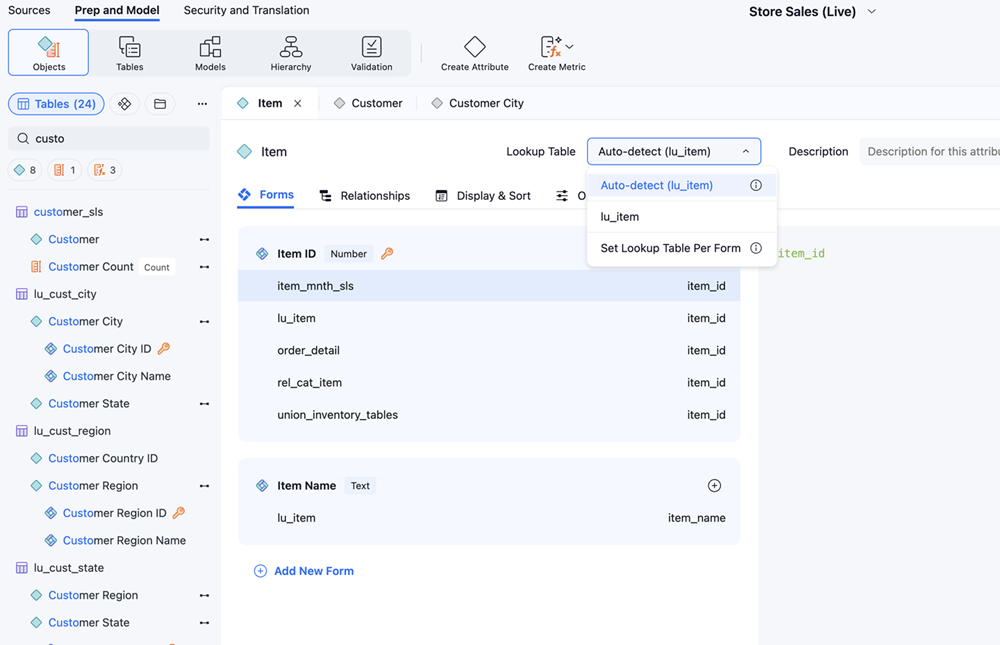
Physical-to-Logical Mapping (Foreign Keys)
To enable cross-table analysis, attributes must be mapped across all tables where they reside. In other tools, mapping one column and attribute to multiple tables is called in a relationship. In Mosaic Studio, it is an attribute mapping to tables.
-
Cross-Table Visibility: When an attribute, such as
Store ID, appears in multiple tables, for exampleSales_FactandStore_Dimension, it should display in these tables in the Table View. Similarly, the attribute editor displays that the key form lists all tables where the attribute is mapped to. -
Foreign Key Integrity: Mapping these occurrences allows the engine to leverage these foreign key relationships, which enables the logical model to traverse different tables during a join.
Define Attribute Relations
Attribute relations dictate the most efficient pathway the engine should take when generating queries that involve two different attributes.
-
Relationship Logic: Relations define how to get from point A to point B.
For example: You want to display
Regional Sales, but the data exists at theStorelevel, a relation table that maps everyStoreto everyCity, andCitytoRegioncan be used to joinStore Sales Datato theRegionlevel. -
The Preferred Path: Relations are critical when two related attributes appear in multiple tables. If you define a relation, it explicitly tells the engine which table is the preferred table to use for that specific join.
-
Relations Visualized: You can view relations using the following methods:
-
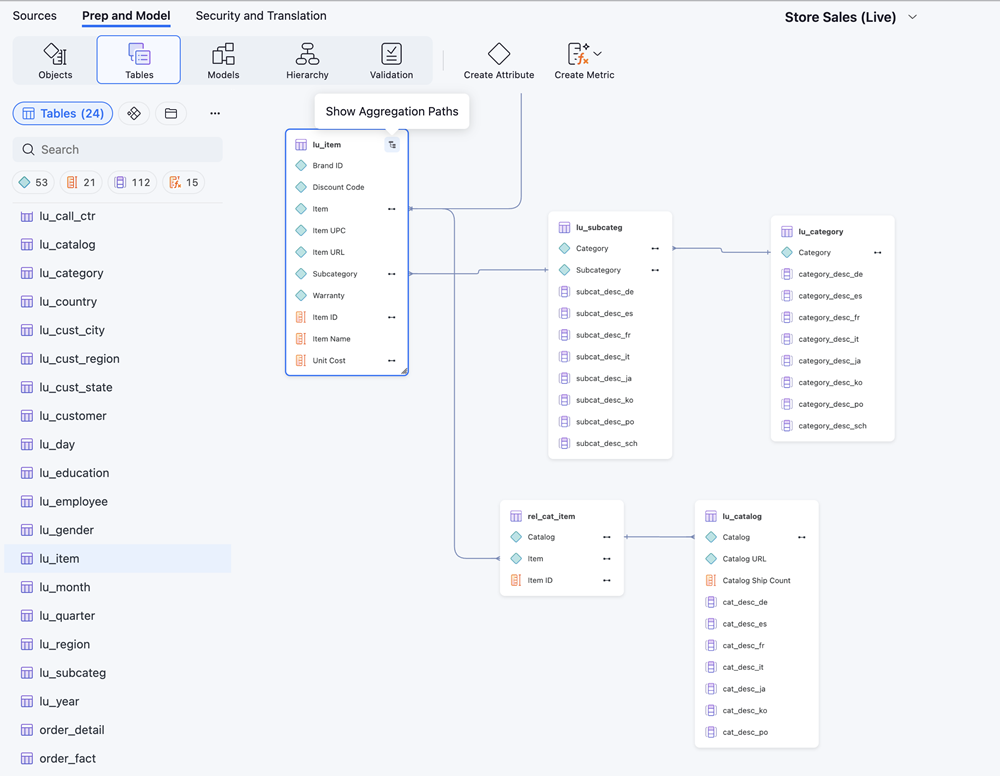
Table View: This view displays Aggregation Paths, which depict how relation tables can be used to drive joins.
-
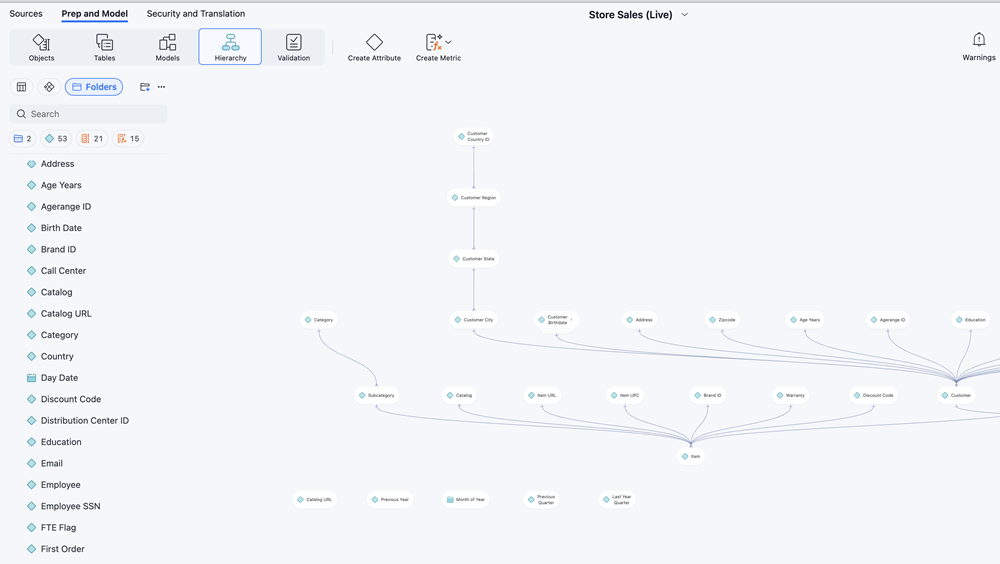
Hierarchy View: This view displays only attributes and how they are related.
-
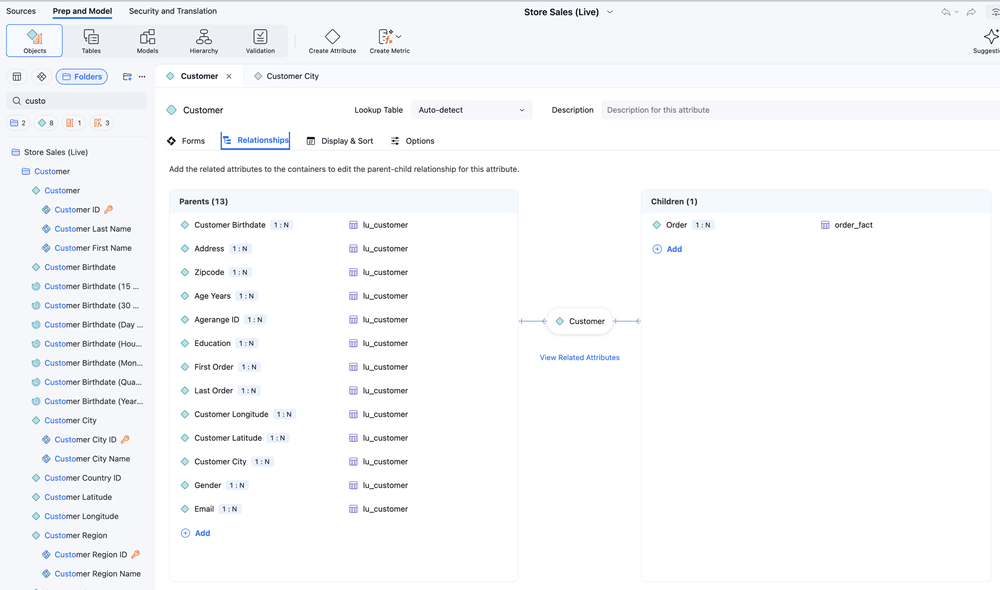
Attribute View: This view displays attributes' immediate parent and children attributes.
-
Why Relations Matter
Defining explicit relationships is not just a housekeeping task, it directly impacts accuracy and speed.
-
Performance Optimization
-
In import mode, Mosaic Studio automatically creates a Relation Table for every defined attribute relationship. Import mode pre-calculates the link, which causes data rollups to be significantly faster and reduces the computational load during runtime.
-
Live mode uses the preferred table that relates attributes through a specific table and ensures the best performance.
-
-
Data Validation and Quality: Relations act as a guardrail. If you define a relationship as 1:N (one-to-many), but the underlying data is actually N:M (many-to-many), the system will validate and highlight these discrepancies when in import mode after publication. Relations are a vital tool to catch data integrity issues before they reach the end-user.
Limitations to Operating Without Relations
Mosaic models can work without defined relations. The system will use an Auto-join behavior, which is enabled by default. When the data is pulled from multiple tables, the tables are initially joined based on user-defined relationships or automatically generated relationship tables. If the relationships do not exist, the system automatically joins tables using common attributes to maintain flexibility.
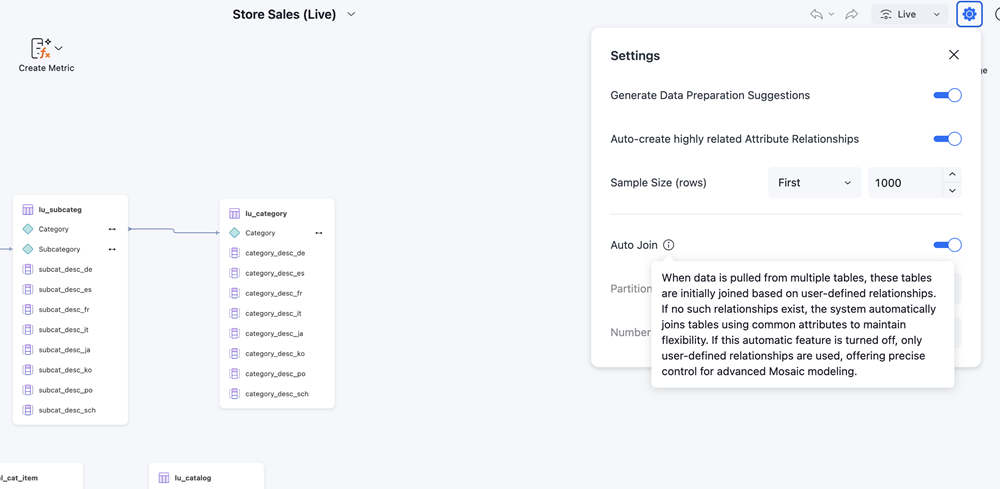
If this automatic feature is turned off, only user-defined relationships are used, which offers precise control for advanced Mosaic modeling.
If no relations are defined and Auto-Join is enabled, the engine will join data based on common attributes. However, the engine might inadvertently use a Fact Table as a bridge (relation table). This issue may lead to expensive joins and performance degradation (both live or import modes), or incorrect data as a fact table may not have a complete relation.
Although, you can omit relations if two attributes, for example Store ID and Store Name only exist within a single table. In this scenario, the engine only has one path to take.
Strategy recommends that you define the relationship regardless to receive performance benefits of the automated relation tables mentioned above.