
Strategy One
Integrate Strategy with Microsoft Entra ID OIDC Single Sign-on for SQL Server
Prerequisites
-
Set up Entra ID authentication. For more information, see SQL Server Microsoft Entra ID Authentication Setup.
-
Create an Azure app and note the Client ID, Client Secret, and Directory/Tenant ID. You must also have access to at least one Azure account.
-
Strategy version Strategy One (February 2026) or later
Create a Data Source Using OIDC Single Sign-On Authentication Mode
-
Open the Workstation window.
-
Connect to an environment.
-
Create an IAM object using Manage OAuth Enterprise Security with Identity and Access Management (IAM) Objects.
-
In the Navigation pane, click
 , next to Data Sources.
 -
Search for and choose Microsoft SQL Server from the data source list.
-
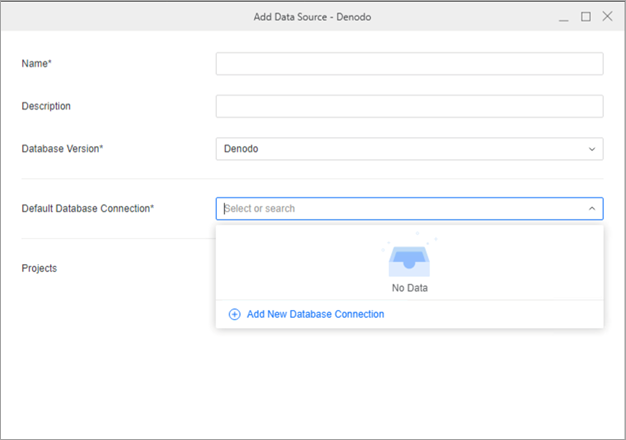
In the Default Database Connection drop-down list , click Add New Database Connection.
-
Type a Name.
-
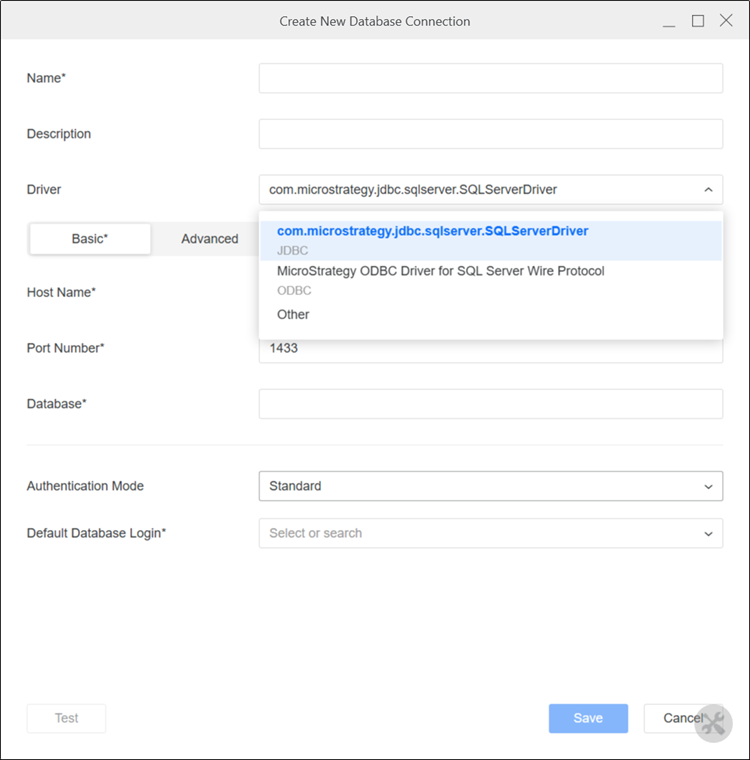
In the Driver drop-down list, choose the SQL Server ODBC or JDBC driver.
-
Type a Server Name, Port Number, and Database.
-
In the Authentication Mode drop-down list in the Basic tab, choose OIDC Single Sign-On.
-
In the Authentication Service drop-down list, choose the authentication service you created above or click Add New Authentication Service.
For more information on creating Identity and Access Management objects, see Manage OAuth Enterprise Security with Identity and Access Management (IAM) Objects.
Parameters such as Client ID, Client Secret, Directory (tenant) ID, and Scope can be found in SQL Server Microsoft Entra ID Authentication Setup.
-
In Scope, enter
https://database.windows.net/user_impersonation. -
Click Save.
-
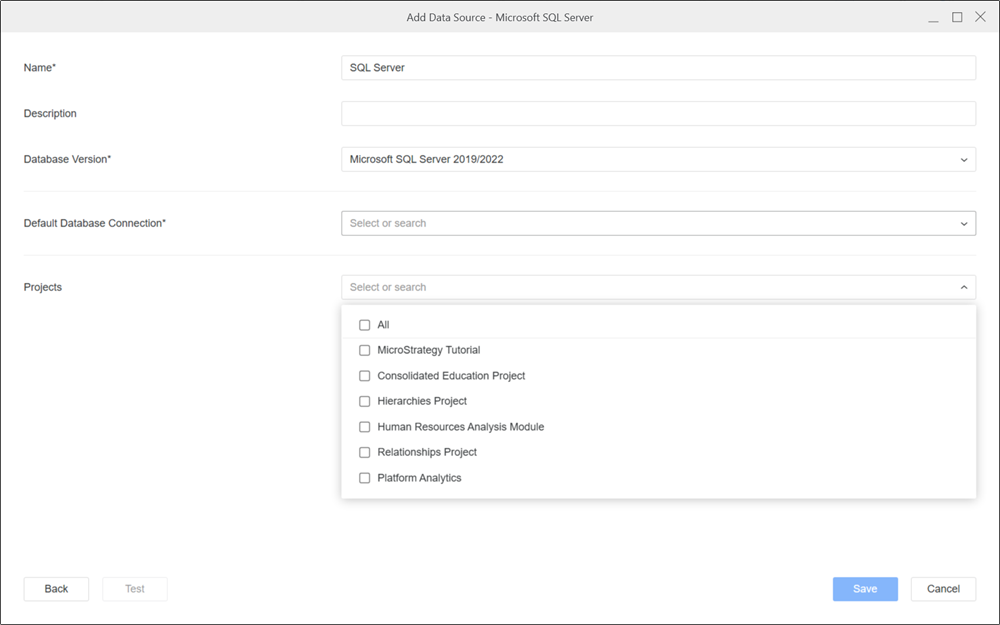
In the Add Data Source dialog, enter a Name and Database Version, and choose Projects for further data manipulation.
-
Click Save.
Create and Map Users to Azure Entra ID
- Open the Workstation window.
- In the Navigation pane, click Environments.
- Log in to your environment with administrator privileges.
- In the Navigation pane, click Users and Groups.
- Click next to All Users.
- In Account and Credentials, enter values in Full Name, Email Address, Username, and other optional fields.
-
In the left pane, click Privileges and add the following privileges:
- Access data from Databases, Google BigQuery, BigData, OLAP, BI tools
- Create and edit database instances and connections
- Create and edit database logins
- Create configuration objects
- Create dataset in Workstation
- Configure project data source
- Monitor Database Connections
- Use Workstation
- In the left pane, click Authentication.
- Enter the user's email address in Trusted Authenticated Requires User ID.
- Click Save.
Configure OIDC
For more information, see Enable OIDC Authentication for Strategy Library.
-
Open Workstation and connect to your environment using standard authentication and administrator credentials.
-
Right-click the connected environment and choose Configure Enterprise Security > Configure OIDC.
-
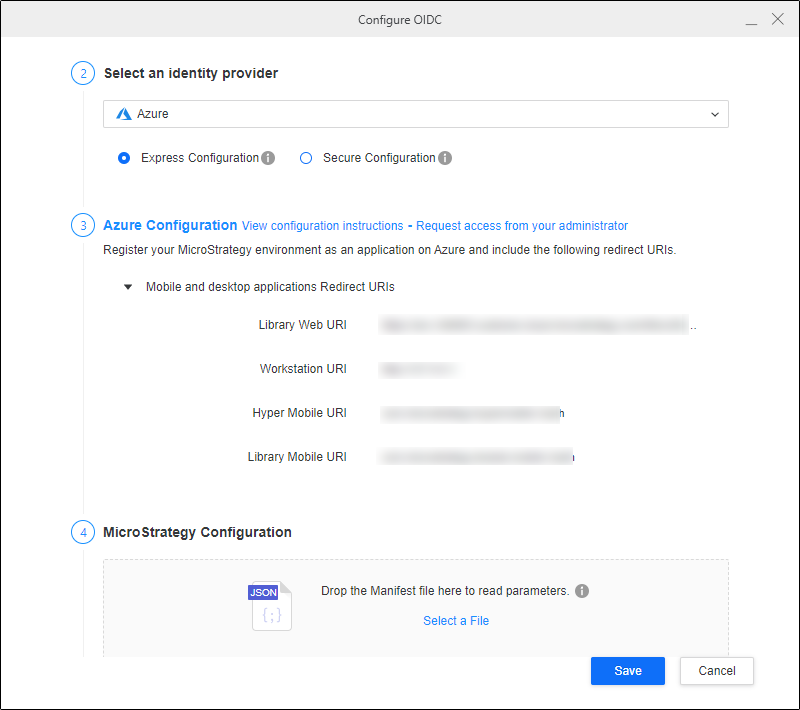
In Step 2: Select an identity provider, choose Azure from the drop-down list.
-
Copy the Library Web URI, Workstation URI, Hyper Mobile URI, and Library Mobile URI into the web and mobile application's sign-in redirect URIs in the Microsoft Entra ID application you created.
-
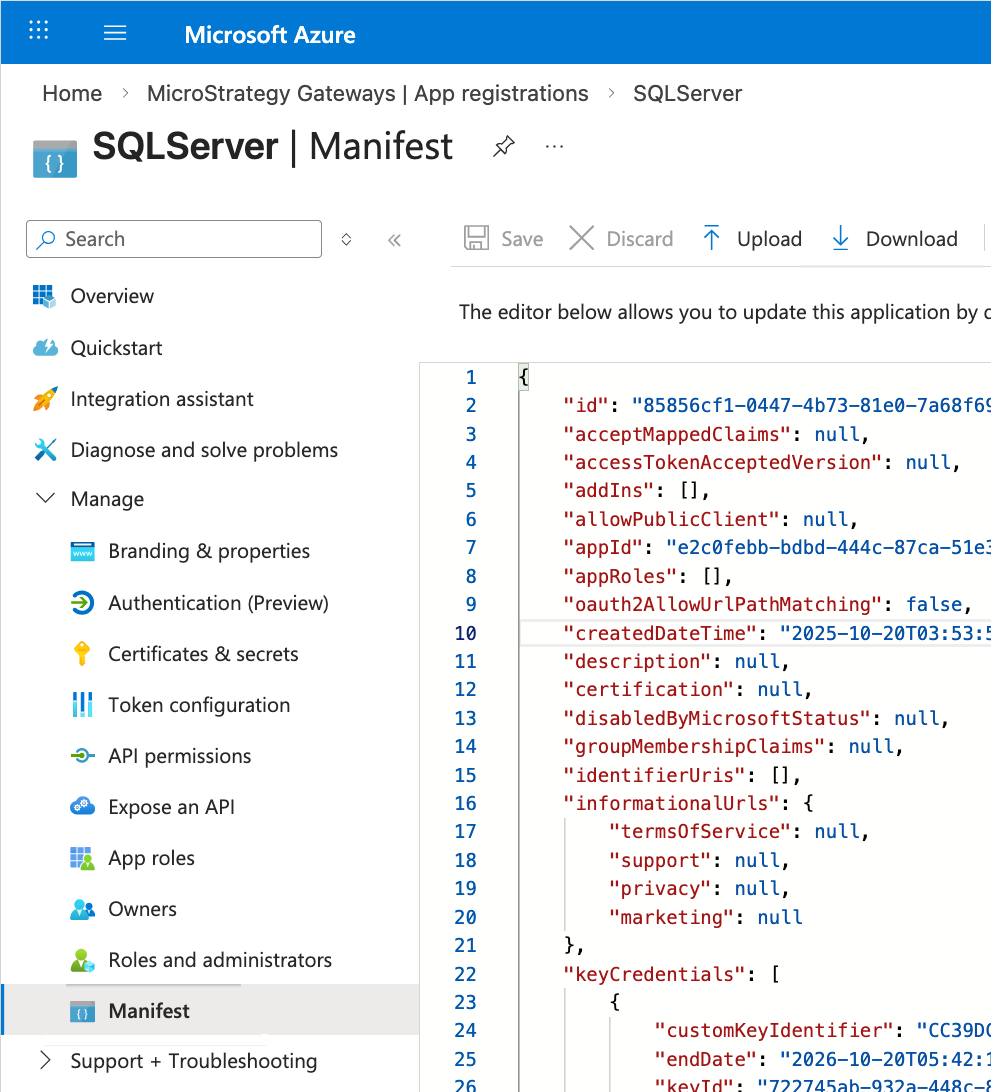
In the Microsoft Entra ID left pane, click Manifest under Manage.
-
Click Download.
-
In Strategy Workstation, upload the manifest file in Strategy Configuration.
-
Click Save.
-
Restart the web server.
Single Sign-On with OIDC
-
Open the Workstation window.
-
Connect to an environment.
-
Right-click the environment and choose Edit > Environment.
-
Select Default OIDC and click Continue.
-
A browser displays. Log in using your Microsoft Entra ID credentials.
-
Use a Strategy Administrator account to assign privileges to the new user.
You do not need to perform this step if you mapped a Strategy user to an Entra ID account and granted privileges.
-
In the Navigation pane, click
, next to Datasets. -
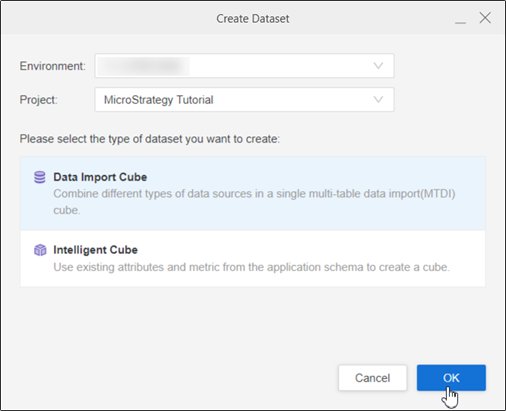
Choose a Project and select Data Import Cube.
-
Click OK.
-
Choose the data source you created.
The namespaces and tables display.