
Strategy One
SQL Server Microsoft Entra ID Authentication Setup
Microsoft Entra authentication is supported since SQL Server 2022 on-premises for Windows and Linux Operating Systems.
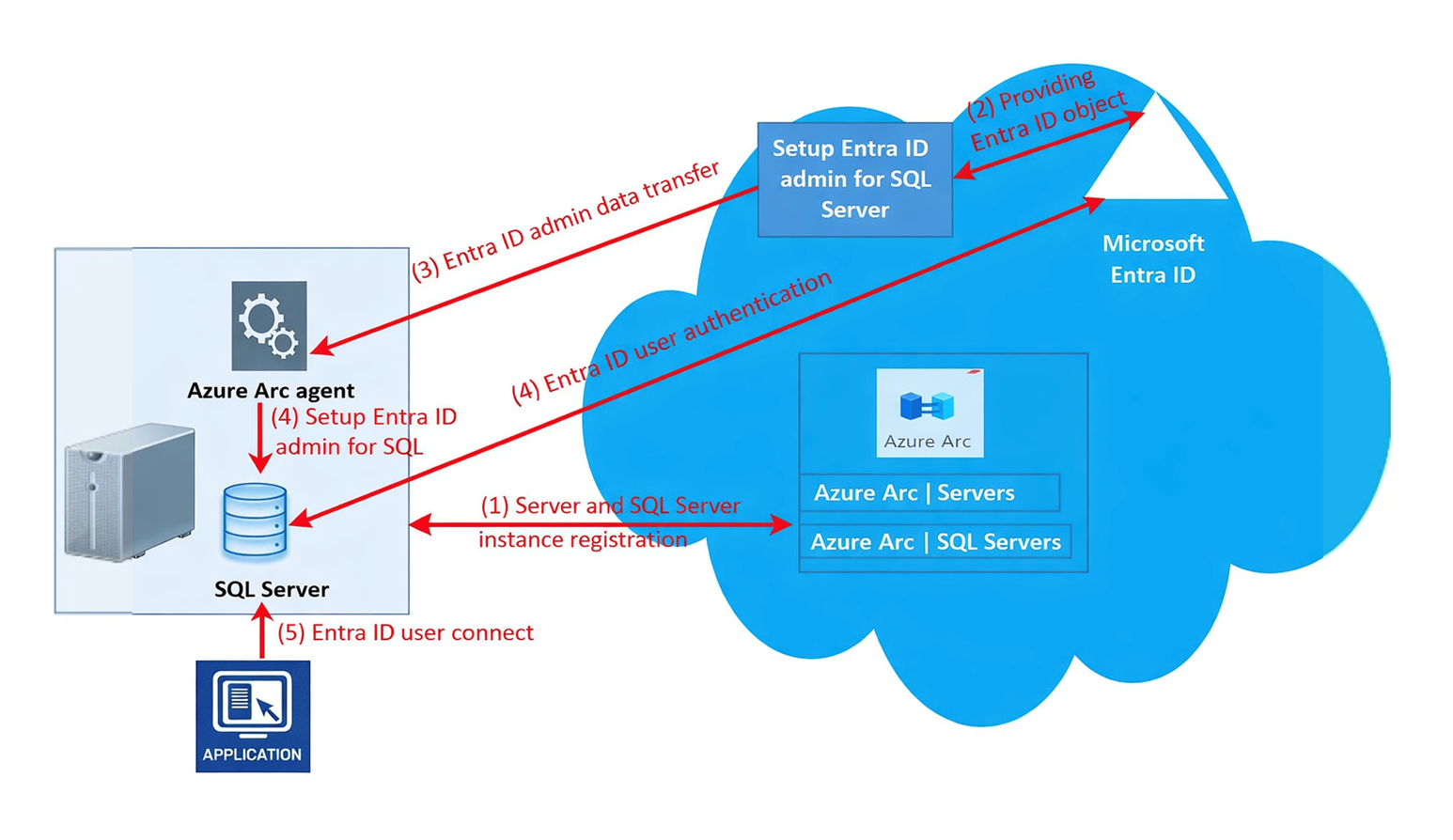
The following diagram displays the two stages required for a SQL Server 2022 instance to support Microsoft Entra ID authentication using Microsoft Entra ID/Azure Arc setup and Microsoft Entra ID user authentication configuration and validation.
-
Server and SQL Server instance registration.
-
Provide Entra ID object.
-
Entra ID administrator data transfer.
-
Set up Entra ID administrator for SQL and Entra ID user authentication.
-
Entra ID user connect.
Prerequisites
-
Access to a SQL Server 2022 instance on-premises (Windows or Linux)
-
An Azure subscription and Microsoft Entra ID tenant
-
Permissions to the following:
-
Register resource providers in the subscription
-
Create Microsoft Entra ID applications
-
Manage Key Vault and certificates
-
Configure Azure Arc for servers/SQL Server
-
-
Access to PowerShell on the target server
-
Install Azure AZ PowerShell module. For more information, see How to install Azure PowerShell.
-
Strategy version Strategy One (February 2026) or later
Register On-Premises Windows Server and SQL Server with Azure Arc
For more information, see Connect your SQL Server to Azure Arc.
Register Resource Providers
In the Azure subscription, register the following resource providers:
You can register these providers from the Azure Portal or Azure CLI/PowerShell.
-
Microsoft.AzureArcData -
Microsoft.HybridCompute
Connect Machine and Instance to Azure Arc
-
Choose to connect using
AzureExtensionForSQLServer.msior without app registration (machine only). -
To connect using
AzureExtensionForSQLServer.msi:-
Download and install the Azure Extension for SQL Server from the following link: Azure Extension For SQL Server.
-
Run the following command on the target server, replacing the temporary text with your values:
Copy& "$env:ProgramW6432\AzureExtensionForSQLServer\AzureExtensionForSQLServer.exe" `
--subId <subscriptionid> `
--resourceGroup <resourceGroupName> `
--location <AzureLocation> `
--tenantid <TenantId> `
--service-principal-app-id <servicePrincipalAppId> `
--service-principal-secret <servicePrincipalSecret> `
--proxy <proxy> `
--tags ""
-
-
To connect without app registration and only connect the machine or instance without specifying an app, run the following command:
Copy'& "$env:ProgramW6432\AzureExtensionForSQLServer\AzureExtensionForSQLServer.exe" --subId <subscriptionid>--resourceGroup <resourceGroupName> --location <AzureLocation> --tenantid <TenantId> --proxy <proxy> --tags ""' -
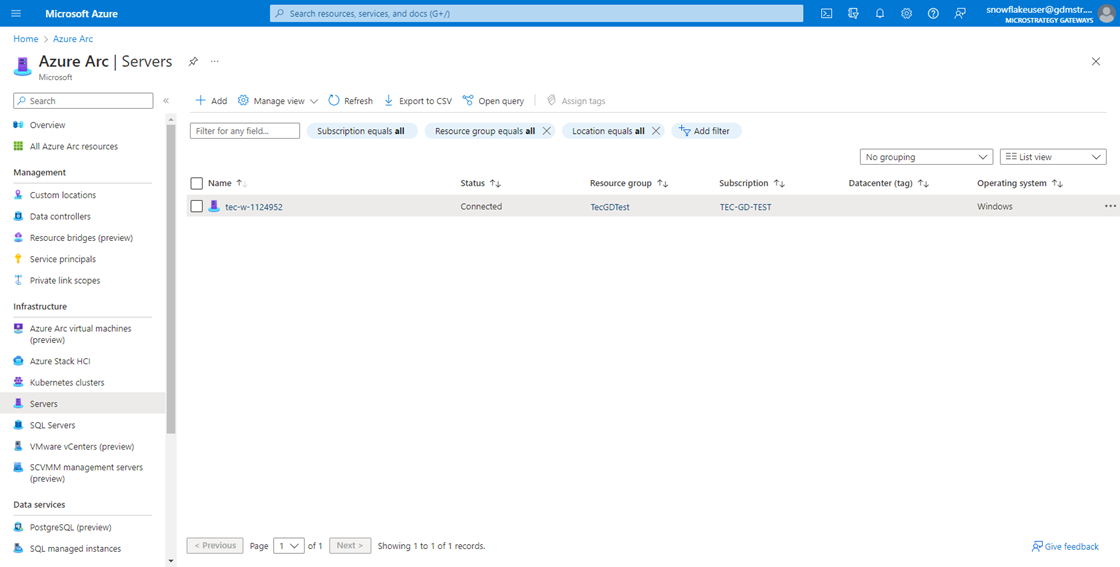
In the Microsoft Azure Arc left navigation, under Infrastructure, click Servers and verify the server is available.
-
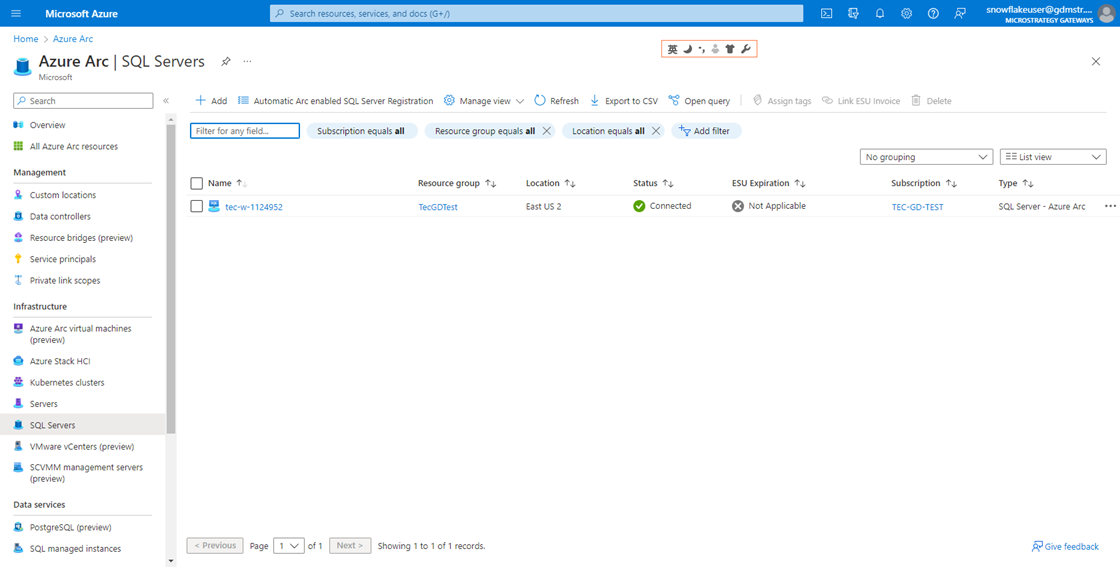
In the left navigation, click SQL Servers and verify the server is available as an Azure Arc-enabled SQL Server instance.
Configure Microsoft Entra ID Authentication
For a full Microsoft tutorial, see Tutorial: Set up Microsoft Entra authentication for SQL Server with app registration.
Create and Register an Azure Entra ID Application
-
In Azure Entra ID > App registrations, create a new application for SQL Server Azure Entra ID auth.
-
Note the Application (client) ID and Directory (tenant) ID values.
Grant Application Permissions
In your newly created app registration:
-
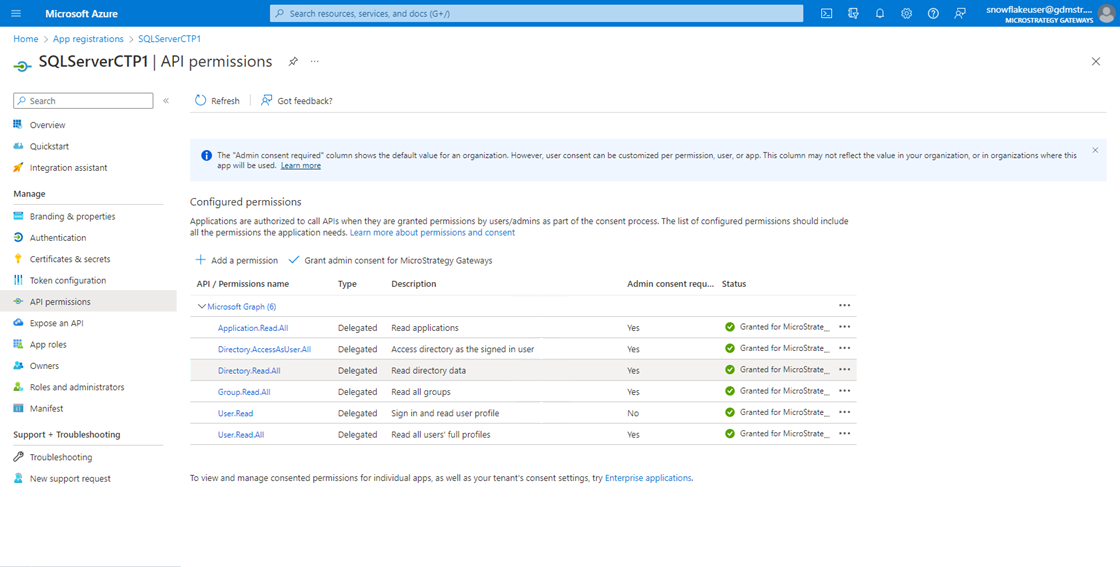
Go to API permissions.
-
Add the required permissions as specified in the tutorial (for example, to manage tokens and access).
-
Grant administrator access for the tenant, if needed.
-
Note the
https://database.windows.net/user_impersonationScope value to use when creating a data source in Strategy.
Create Certificate in Azure Key Vault
-
In Key Vault, create a new certificate or import an existing one to use for the app.
-
Download the public key (CER) for the certificate.
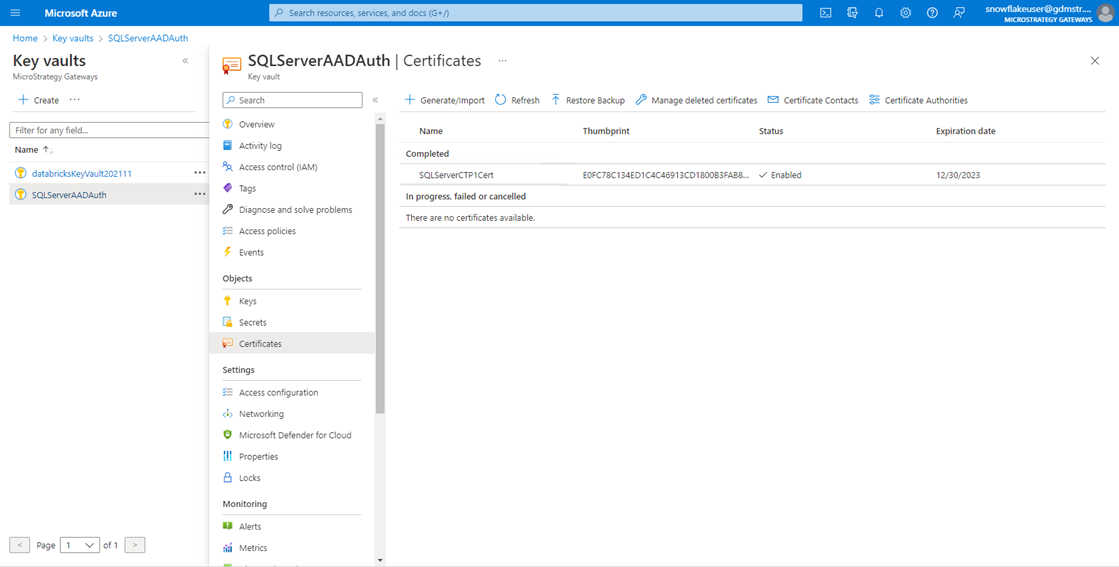
Upload Certificate to the Azure Entra ID Application
-
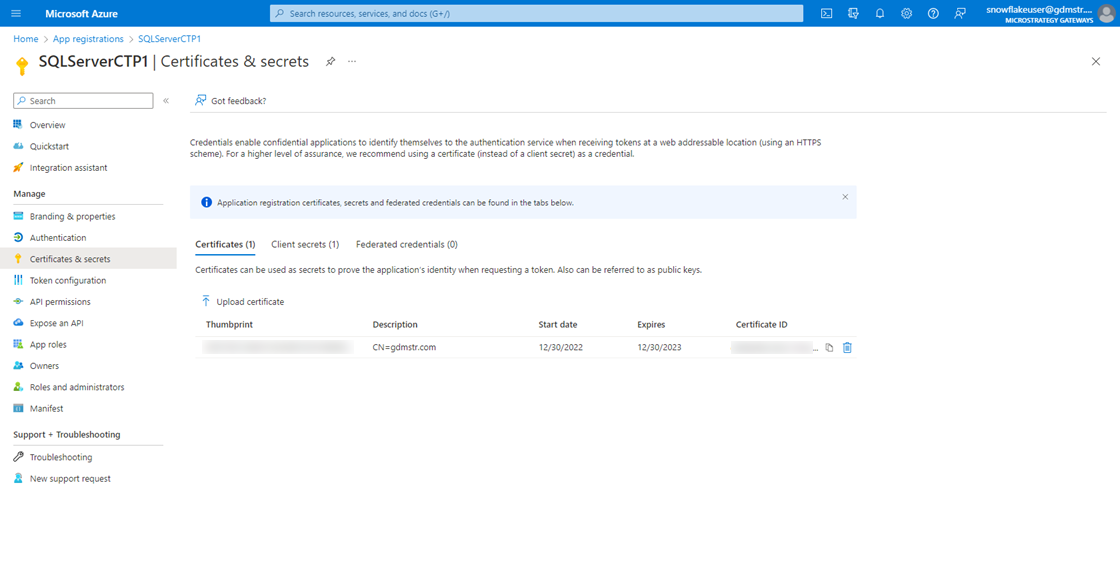
In the app registration, go to Certificates & secrets.
-
Upload the certificate public key file that you downloaded from the key vault above.
-
In Azure, go to App registrations and select your app.
-
In the left navigation click Certificates & secrets under Manage.
-
Verify the certificate is available.
Configure Key Vault Access Policy
In the key vault that contains your certificate:
-
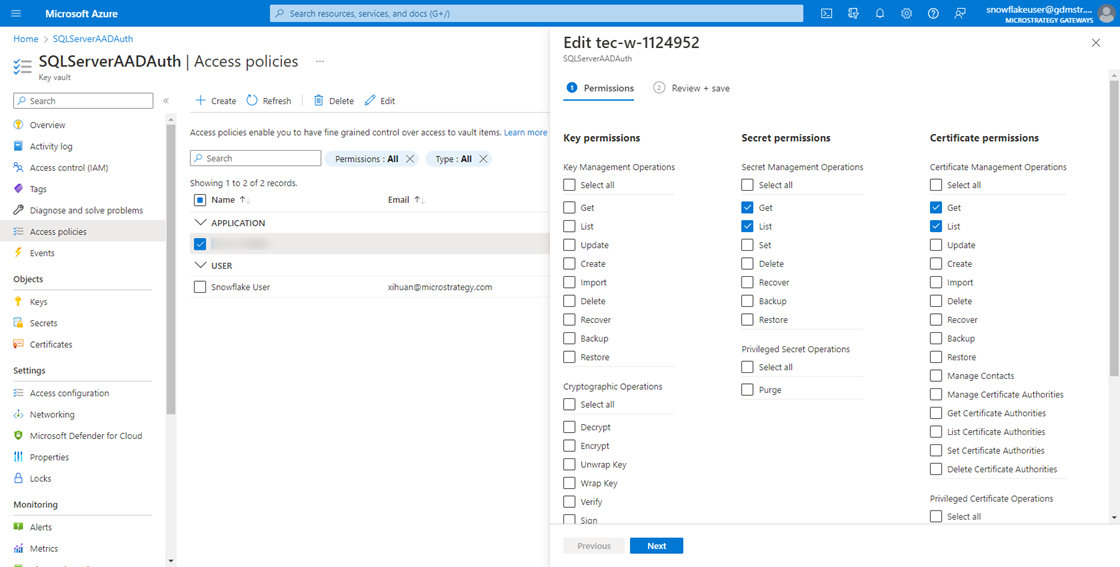
In the left navigation, click Access policies.
-
Click Create.
-
In Permissions under Secret and Certificate permissions, select the check box next to the permissions you want to add for the certificate. You must add Get.
-
Click Next.
-
In Principal, search and select the host or service principal that will access the certificate.
-
Click Next.
-
Click Create.
Configure Entra ID Administration on Arc-Enabled SQL Servers and Validate
Set Azure Entra ID Administrator
-
Go to the Azure portal and click SQL Server - Azure Arc.
-
Choose the instance for your SQL Server host.
-
Under Settings in the resource menu, select Microsoft Entra ID and Purview.
-
Select Set Admin to open the Microsoft Entra ID pane and choose an account to set as an administrator login for the SQL Server.
-
Click Save.
Configure SQL Server Certificates and App Registration
-
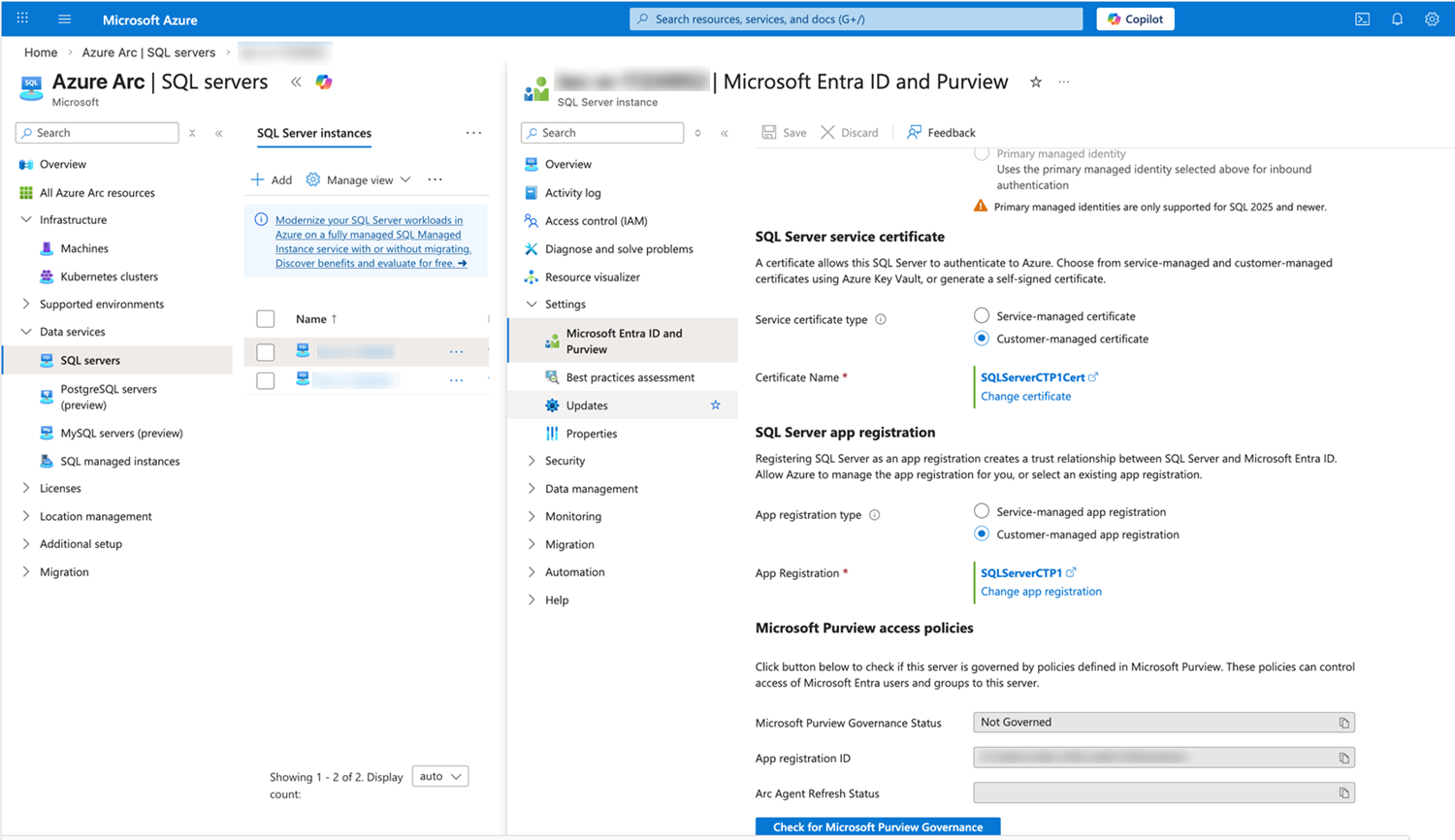
In the Azure left navigation, under Data services, click SQL servers.
-
Edit your Arc-enabled SQL server.
-
In SQL Server service certificate, next to Service certificate type, select Customer-managed certificate.
-
Upload the certificate you created in Create Certificate in Azure Key Vault.
-
In SQL Server app registration, next to App registration type, select Customer-managed app registration.
-
Choose the application you created in Create and Register an Azure Entra ID Application.
-
Click Save.
Client Connectivity and Verification
-
Using your Azure Entra ID authentication, connect to SQL Server Management Studio (SSMS) and a native SQL client library or driver that supports Azure Entra ID authentication.
-
Validate that log in succeeds and the Azure Entra ID administrator/user displays in
sys.server.principals.
Encryption Considerations
-
Connections authenticated by Azure Entra ID are always encrypted.
-
If your SQL Server is using a self-signed certificate, add the following to your connection string:
trust server cert = true.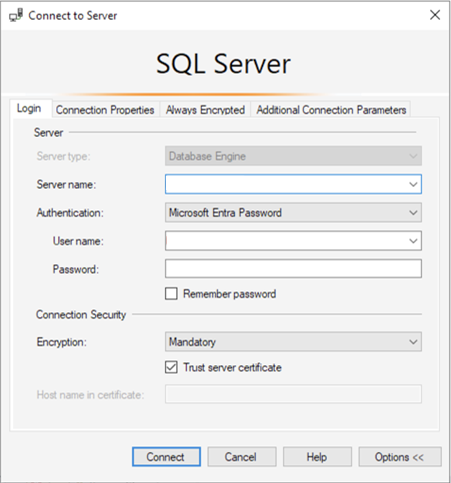
-
SQL Server and Windows authenticated connections do not require encryption by default, but using encrypted connections is recommended.