
Strategy One
Google BigQuery Service Account Authentication
Starting in Strategy One (February 2026), you can use vault connections to store and use service account authentication to connect your Google BigQuery data rather than uploading a JSON file.
Prerequisites
-
Use the Google official documentation to perform the following prerequisites:
-
To access BigQuery resources, the following minimal roles are required:
-
roles/bigquery.dataViewer -
roles/bigquery.jobUser -
roles/serviceusage.serviceUsageConsumer
-
Credential File Fetch Method
Use one of the following options to store the credential file (JSON format).
Upload the credential file from local client machine
-
Copy the credential file to a local directory for storage
-
Record the path to the files
Maintain credential file content in Credential Managers
Store the credential file in a third party credential manager so users can manage their own key rotation schedule. Strategy can fetch key content on the fly from third party credential managers while the connection is established.
Some credential managers do not support storing keys for Google BigQuery service accounts, therefore Strategy only supports AWS Secrets Manager, Azure Key Vault, and Google Secret Managers to store Google BigQuery credentials.
Use a Credential Manager
See the following configuration information if you choose to store the credential file in a credential manager.
AWS Secrets Manager
Create a secret in AWS Secret Manager. For more information, see Create an AWS Secrets Manager Secret.
In key/value pairs, click Add row and add the following key/value pairs:
-
usernameand type your<username>Username can be the service account email or leave the field null.
-
gbq_service_account_private_key_base6and enter your<credential-file-content-base64>
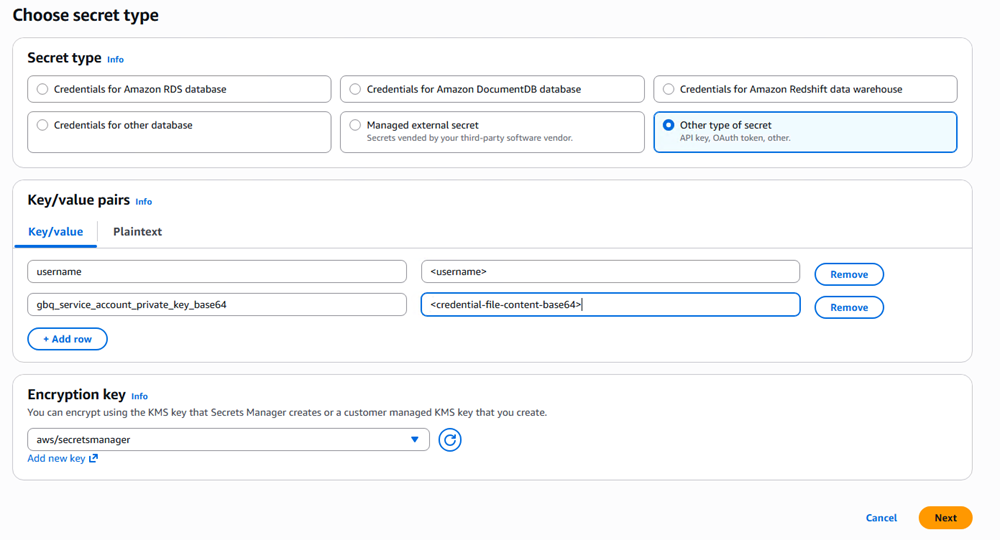
You can also create the key/value pairs using Plaintext. Paste the following text, replacing the values specific to your details:
{"username":"<username>","gbq_service_account_private_key_base64":"<credential-file-content-base64>"}
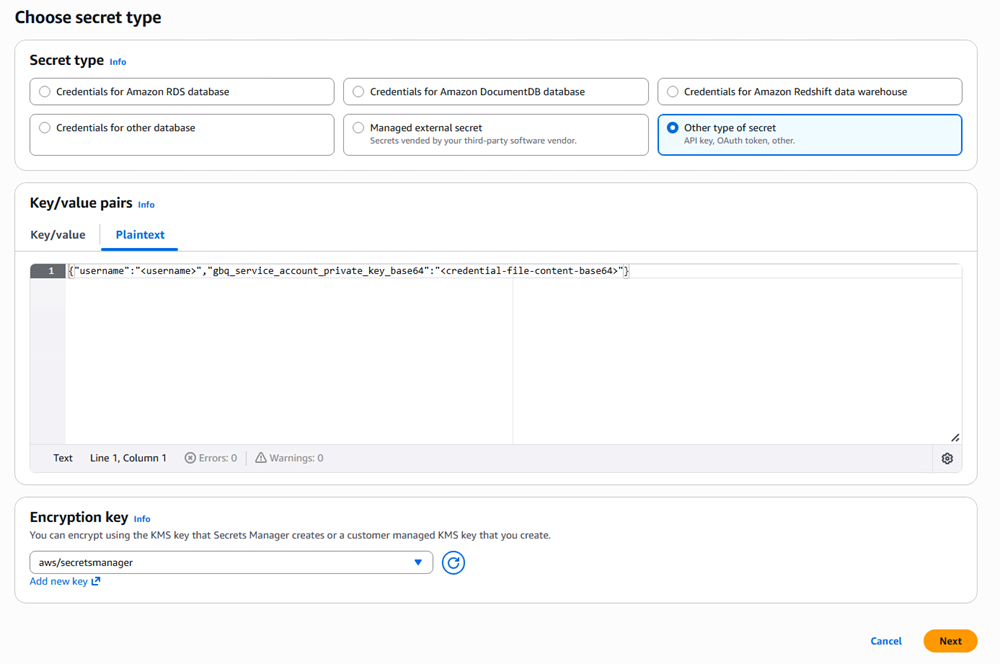
Replace <username> with your service account email or leave the field null.
Replace <credential-file-content-base64> with your base64 encoded credential file content.
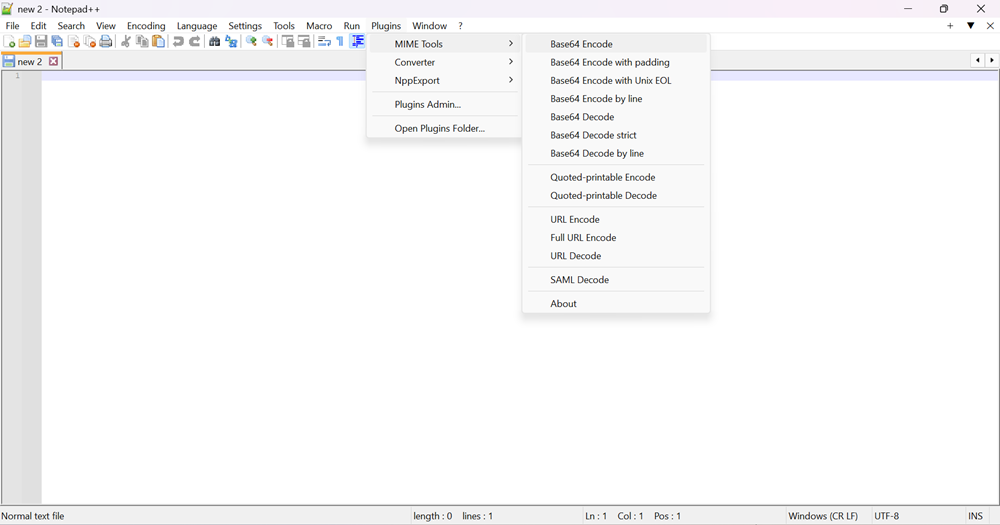
You can copy and select the credential file content in Notepad++. In Notepad++, click Plugin in the top navigation, choose MIME Tools > Base 64 Encode, and paste the generated base64 encoded content in the above field.
Azure Key Vault
Create a secret in Azure Key Vault. For more information, see Set and retrieve a secret from Azure Key Vault using the Azure Portal.
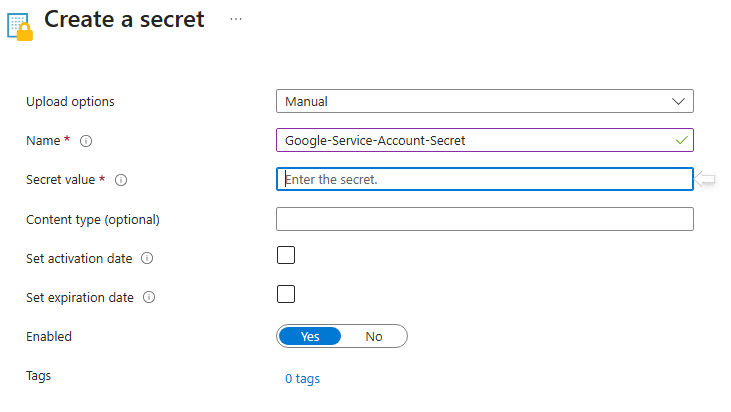
In Secret value, use the following format:
{"username":"<username>","gbq_service_account_private_key_base64":"<credential-file-content-base64>"}Replace <username> with your service account email or leave the field null.
Replace <credential-file-content-base64> with your base64 encoded credential file content.
Google Secret Manager
Create a secret in Google Secret Manager. For more information on creating secrets in Google Secret Manager, see Create a secret.
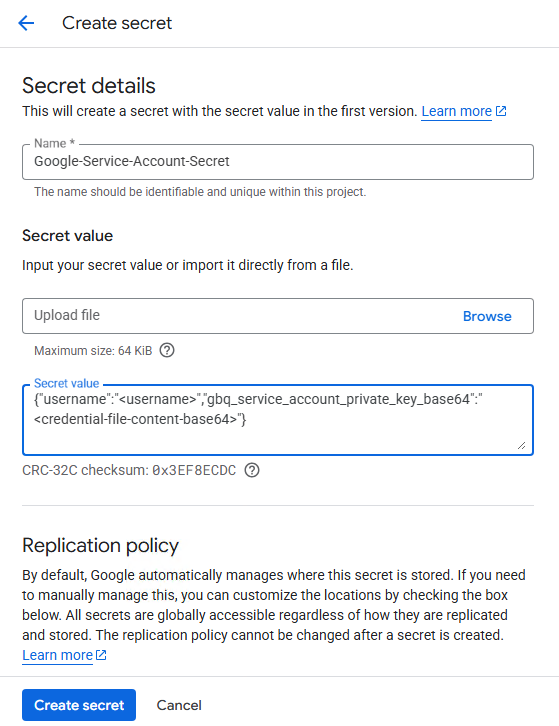
In Secret value, use the following format:
{"username":"<username>","gbq_service_account_private_key_base64":"<credential-file-content-base64>"}Replace <username> with your service account email or leave the field null.
Replace <credential-file-content-base64> with your base64 encoded credential file content.
Create Vault Connection
The user must have a vault connection assigned. For more information on creating vault connections, see Create, Edit, and Delete Vault Connections.
Create a Google BigQuery JDBC or ODBC Data Source with Service Account Authentication
- Open the Workstation window with the Navigation pane in smart mode.
- In the Navigation pane, click
 next to Data Sources.
 - Select Google BigQuery.
- Enter a Name for the data source and select the Project(s) that will use it.
- Expand the Default Database Connection drop-down list and click Add New Database Connection.
-
Enter values in the following fields:
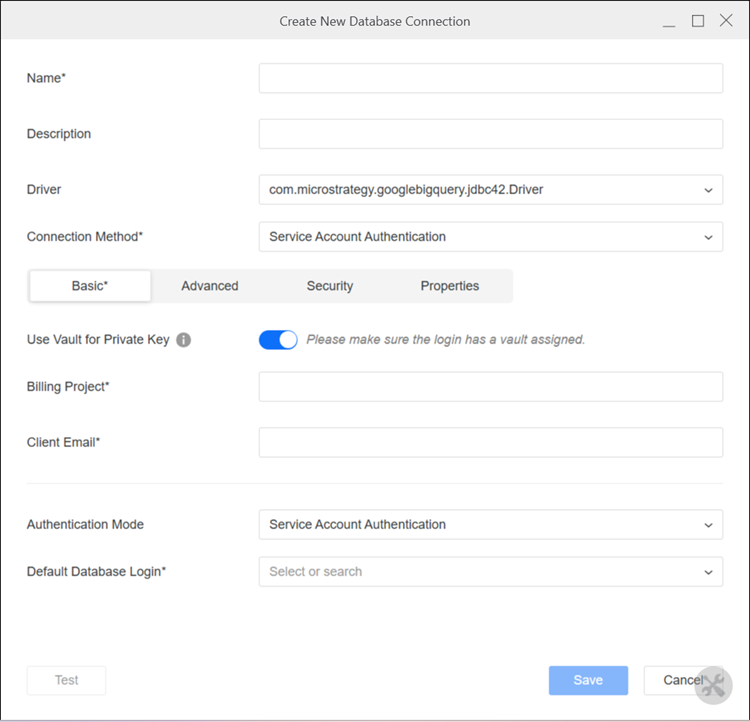
- Name: Type a name for the database connection.
- Driver: Select JDBC or ODBC.
- Connection Method: Select Service Account Authentication.
- Use Vault for Private Key: Toggle on to use a vault connection.
- Configuration File: If you are not using a vault connection, upload your access file. To generate the access file:
Go to the Google Cloud Platform.
- Select a project and service account.
- Select a JSON file.
- Click Create and download the file.
- Billing Project: Type the billing project you want to access.
- Client Email: Type your Google BigQuery email.
- Default Database Login: If you are using a vault connection, select an existing database login for your vault connection or click Add New Database Login. If you choose Add New Database Login:
- Type a Name.
- Choose a vault Type, Vault Connection, and Secret Name.
- Click Save.
- Click Save.
- Optionally click Test.
-
Click Save.
Your Google BigQuery data source is now available to use.