
Strategy One
Create New Mosaic Model Links
Starting in Strategy One (January 2026), Mosaic model linking is available out-of-the-box.
Starting in Strategy One (December 2025), you can link attributes between Mosaic models when creating and editing models. You can use Mosaic Studio's AI capabilities to create links between attributes or create them manually.
Suggestions
-
Click Prep and Model.
-
Click Models.
-
Click Suggestions.
Linking suggestions display as dashed lines.
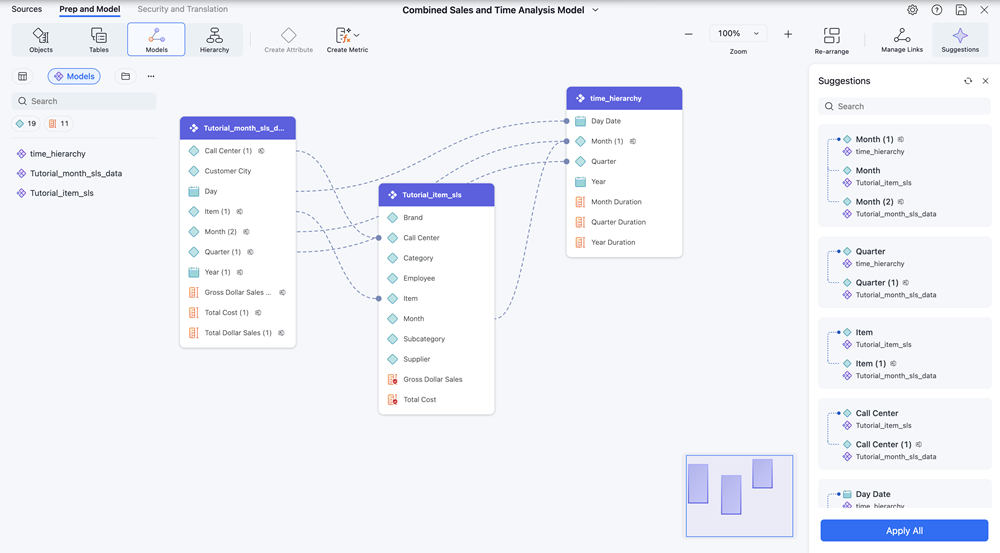
-
Click an attribute with a suggested link.
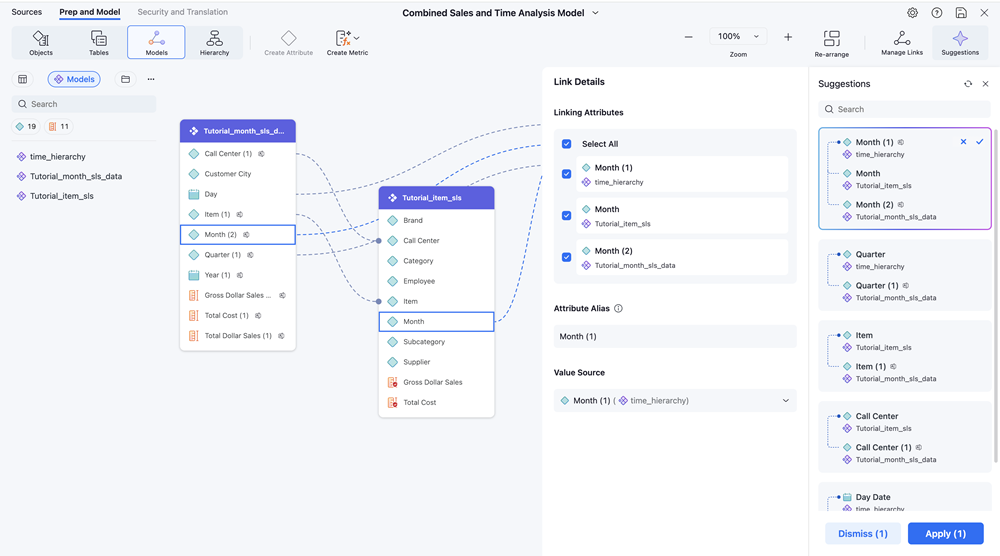
-
The following link details display:
-
Linking Attributes: List of detected attributes that should be linked.
To edit the list of attributes to link, select the check box next to the attribute.
-
Attribute Alias: The attribute name that displays in the model and dashboard.
To edit this value, click the text box, type a new name, and press Enter.
-
Value Source: The lookup table for the linked attribute.
To edit this value, expand the drop-down list and choose a new model.
-
-
Click Apply.
-
Click Save.
Manage Links
Create Links
You can also manually create attribute links.
-
Click Manage Links.
-
Click Add New Link.
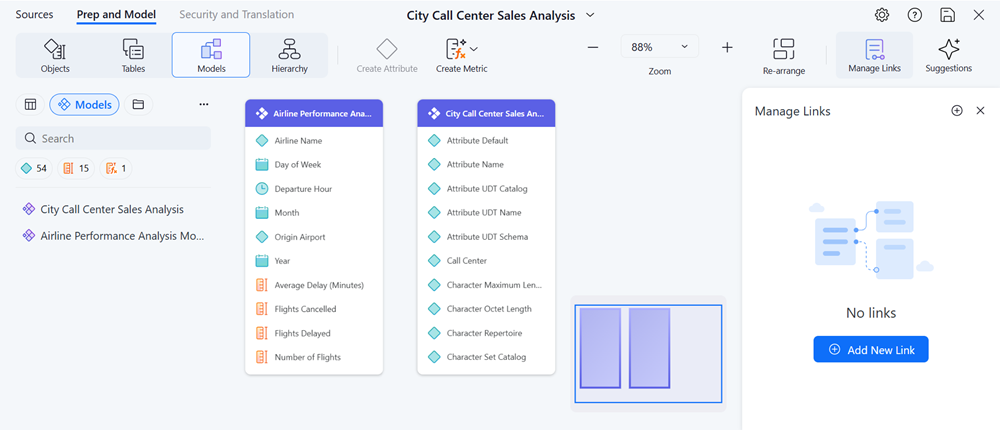
-
In Linking Attributes, expand the model drop-down list and choose a model.
-
Expand the attribute drop-down list and choose an attribute.
-
Repeat steps 3 and 4 for the attribute you want to link to.
-
If you want to link more attributes, click Add Attribute and choose and a model and attribute.
-
In Attribute Alias, type a name to display for the linked attributes.
-
In Value Source, expand the drop-down list and choose a look up table for the linked attribute.
-
Click Apply.
The attribute link is created.
-
Click Save.
Edit Links
-
Click Manage Links.
-
Hover over an attribute and click Edit
 .
. -
In Linking Attributes, expand the model drop-down list and choose a model.
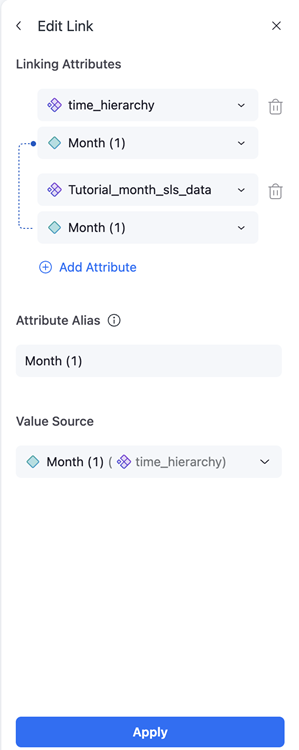
-
Expand the attribute drop-down list and choose an attribute.
-
Repeat steps 3 and 4 for the attribute you want to link to.
-
If you want to link more attributes, click Add Attribute and choose and a model and attribute.
-
In Attribute Alias, type a name to display for the linked attributes.
-
In Value Source, expand the drop-down list and choose a look up table for the linked attribute.
-
Click Apply.
The attribute link is created.
-
Click Save.
Additional Information
Mosaic Model Linking in Access Control Lists
When attributes are linked across Mosaic models, the system enforces the Access Control Lists of all underlying base attributes to maintain consistent governance. For example, if attribute A1 in your first model is linked to A2 in your second model and exposed as a linked attribute aliased as A3, the following behavior occurs:
-
A user must have at least view access to both A1 and A2 to use A3.
-
If a user is denied access to either A1 or A2, the user is denied access to A3.