
Strategy One
Schedule Mosaic Model Refresh
Prerequisite
Before scheduling a refresh, create or find an existing schedule to use as a schedule template for your Mosaic model. For more information on creating a schedule, see Create and Edit Schedules.
Schedule a Mosaic Model Refresh
-
In the left Navigation pane, click Data.
-
Right-click your Mosaic model and click Schedule Refresh.
-
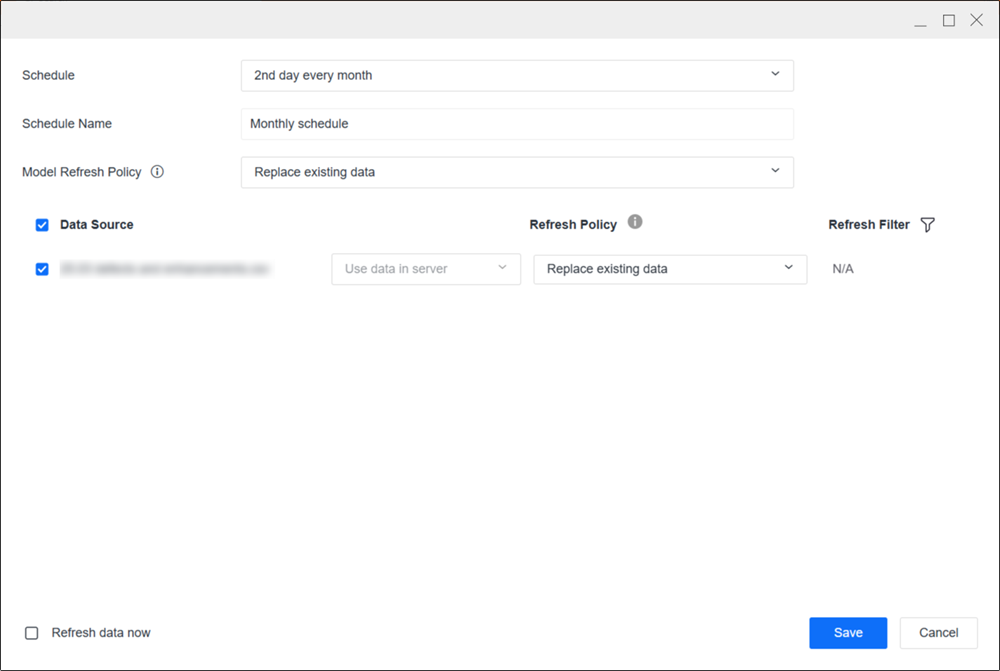
Expand the Schedule drop-down list and choose the schedule template you identified in the Prerequisite.
-
Type a Schedule Name.
-
Optionally select the check box next to the data sources you want to refresh.
-
Choose a Model Refresh Policy or Refresh Policy from the following options:
If a data source Refresh Policy value differs from the default Model Refresh Policy value, the Refresh Policy value will take precedence.
-
Replace existing data: Overwrites existing data.
-
Add new data: Retains existing data without modifying it, and adds new data not previously included.
-
Update existing data: Updates your existing data.
-
Update existing data and add new data: Updates your existing data and adds new data not previously included.
-
-
Optionally define a refresh filter:
-
Select Refresh Filter
 next to a Data Source.
 -
In the Based on drop-down list, choose an option and define the filter depending on your selection.
-
Click Save.
-
To add more filters for the data source, click Add New and define your new filter.
-
Click Save. Refresh Filter
 indicates that there is a refresh filter set on the schedule. Click here to see filter statuses.
-
Not Set: The refresh filter is not dependent on the table.
-
Set: The refresh filter is dependent on the table.
-
N/A: The table does not support refresh filters. The table may not be supported if the source is a local file or the table has saved wrangle operations.
-
-
-
To refresh your data source immediately, select the check box next to Refresh data now.
-
Click Save.
Edit Schedule
-
In the Library sidebar, click Subscriptions.
-
Hover over a schedule and click Edit
 .
. -
Make your changes and click Save.
Execute a Schedule
-
In the Library sidebar, click Subscriptions.
-
Hover over a schedule and click Run Now.
Unsubscribe to a Schedule
-
In the Library sidebar, click Subscriptions.
-
Hover over a schedule and click Unsubscribe.