
Strategy One
Mosaic Model Version Control with GitHub
Starting in Strategy One (March 2026), you can manage Mosaic models as version-controlled artifacts using GitHub. Leverage Git workflows for auditability, collaboration, and rollback.
The initial Strategy One (March 2026) release supports GitHub as the Git provider and allows one Git integration per environment.
Prerequisites
GitHub Repository
-
In GitHub, click Create new... and choose New repository.
-
Type a Repository name and note the URL.
For example,
https://github.com/{github_account}/mosaic_versioning.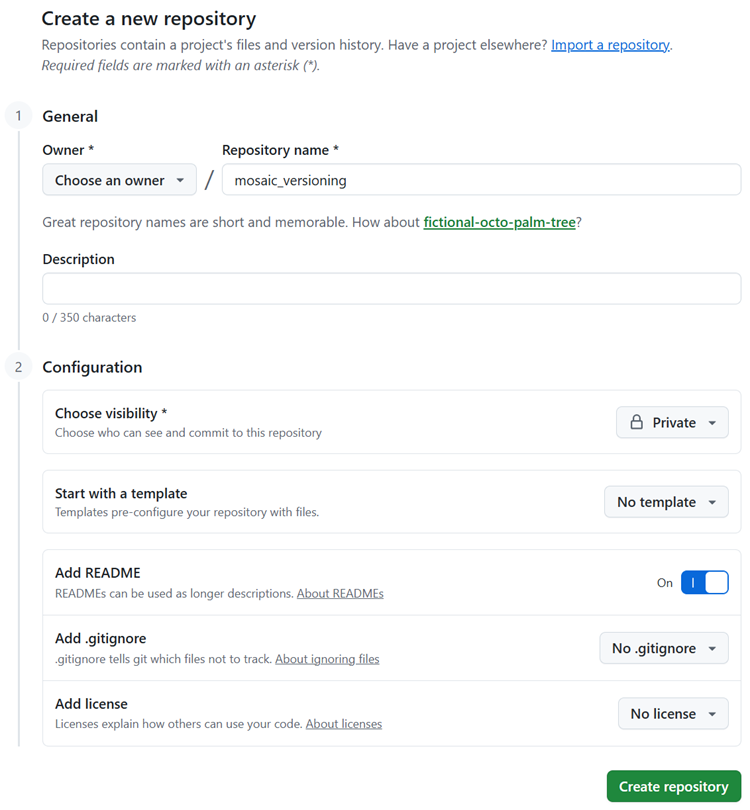
-
Toggle on Add README.
-
Click Create repository.
-
Ensure you have a main branch.
GitHub OAuth Application
You must create a GitHub OAuth App so Strategy can authenticate with GitHub on behalf of users.
-
Sign in to GitHub.
-
Click your profile picture to open the user navigation menu.
-
Choose Settings.
-
In the left navigation, click Developer Settings and OAuth Apps.
-
Click New OAuth app.
-
Enter values in the following fields:
-
Application name: Type any name. This value is displayed to users on authorization windows.
-
Homepage URL: Type a URL. This value is the main URL of your app or site (for example,
http://localhost). -
Application description: Optionally type a short explanation of what your application does.
-
Authorization callback URL: Type the URL where GitHub will send users after they authorize. You can update this value according to your Library URL (for example,
https://host.company.com/MicroStrategyLibrary/auth/DIOAuthRedirect.jsp). This field is required.
-
-
The Client ID displays on the app page. Note this value.
This value will be referred to as
GITHUB_CLIENT_IDin future steps. -
Click Generate a new client secret. Copy this value and securely store it (for example, using environment variables or a secret manager).
This value will be referred to as
GITHUB_CLIENT_SECRETin future steps.
Privileges
Your Strategy account must have the Manage Git Integration and Use Git Integration privileges.
Configure Strategy
Create an Identity and Access Management (IAM) Object
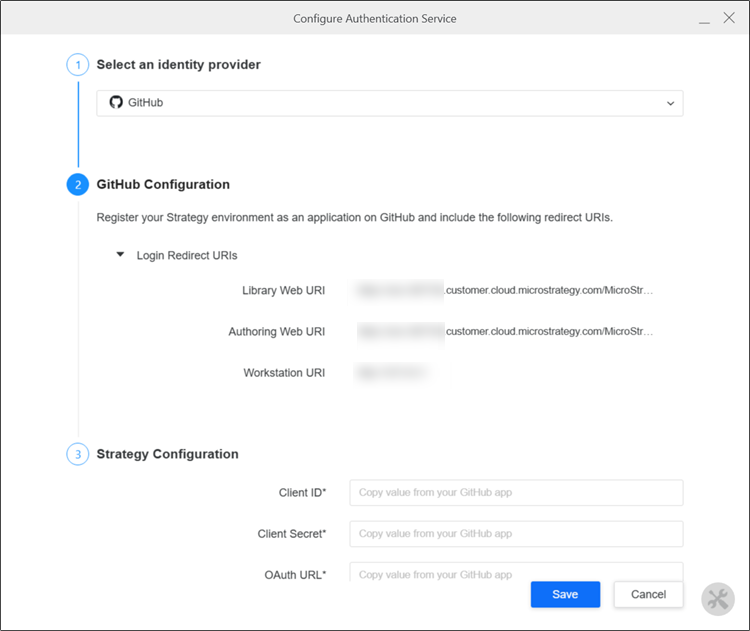
Create an IAM configuration is Workstation using the GitHub OAuth App credentials you noted above.
-
Open Workstation.
-
In the Navigation pane, click
 , next to Enterprise Security.
 -
Choose your Environment.
-
In Type, choose Gateway Authorization.
-
Click Next.
-
Type a Display Name.
-
In 1. Select an identity provider, choose GitHub.
-
In 3. Strategy Configuration add the following values in these fields:
-
Client ID: Enter the
GITHUB_CLIENT_IDvalue from the GitHub OAuth App you noted above. -
Client Secret: Enter the
GITHUB_CLIENT_SECRETvalue from the GitHub OAuth App you noted above. -
OAuth URL: Type
https://github.com/login/oauth/authorize. -
Token URL?
-
-
Click Save.
Configure Git Integration in Library
-
In Library, click Account settings.
-
Choose Git Integrations.
-
Click Add New Integration.
-
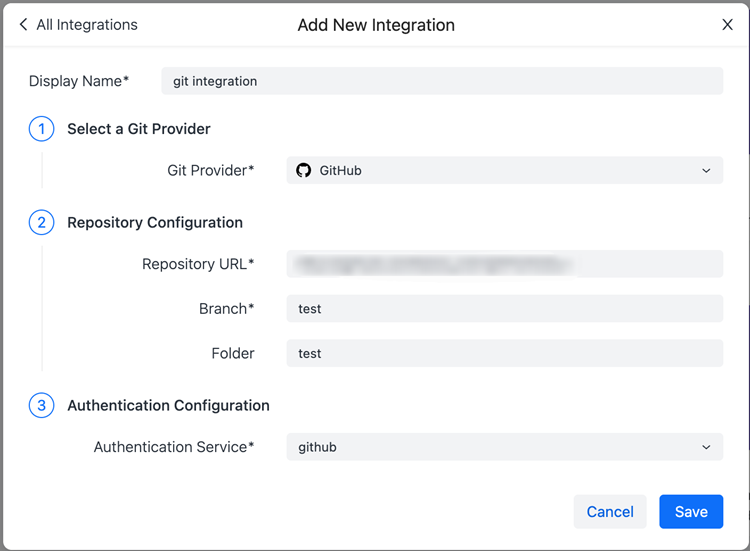
Type a Display Name.
-
Confirm GitHub is selected in 1. Select a Git Provider.
-
In 2. Repository Configuration, enter values in the following fields:
-
Repository URL: Enter the GitHub repository URL (for example,
https://github.com/<github_account>/mosaic_versioning). -
Branch: Type the branch you want to use with Mosaic.
-
-
In 3. Authentication Configuration, choose the IAM object you created above.
-
Click Save.
Use Git with Mosaic Studio
Save to Git
Save your Mosaic model to Git to serialize the current model to YAML and commit it to GitHub.
You must have the Use Git Integration privilege, Read access to the model, and Git integration must be configured for the environment.
-
In Library, right-click the model.
-
Choose Save to Git.
-
Type a commit message.
-
Confirm the push to GitHub.
If the operation fails (for example, permission or connectivity issues), an error displays.
Restore from Git
Pull a version of the model from GitHub and apply it to Strategy.
You must have the Use Git Integration privilege, Write access to the model, and Git integration must be configured for the environment.
-
In Library, right-click the model.
-
Choose Restore from Git.
-
Choose a version from History.
-
Confirm the import.
Strategy validates YAML and semantic dependencies. Invalid or incompatible definitions are rejected and error details display.