
Strategy One
Define Color Palettes Per Application
Starting in MicroStrategy 2021 Update 6, you can define color palettes in an application so that dashboard visualizations with color-by attributes display in one set of colors for one audience, and in a different set of colors for another audience. Configuring one or more color palettes in an application can also be used to limit the list of color palettes that users can select from when authoring content. This is helpful for organizations that may have multiple customers or tenants that need to adhere to their corporate colors.
Color palettes are not applicable to waterfall charts.


Add a Color Palette to an Application
-
Open the Workstation window in Navigation pane in smart mode.
-
In the Navigation pane, click Applications.
-
In the left pane, click Dashboard Settings.
-
Select the Specify color palettes for this application check box.

-
Click
 Add New.
 -
In the Add Custom Color Palettes dialog, select one or more custom color palettes or default color palettes.
You can also Create a New Custom Color Palette.
-
Click OK.
-
One of the selected color palettes must be configured as the default palette for the application. The default palette is automatically applied to dashboards when you access them in the application. Hover your cursor over the desired color palette and click Set as Default.

-
To delete a color palette, hover your cursor over the palette and click Delete
 .
. -
Click Save.
Users with the Web Create Dashboard, Web Edit Dashboard, and Web Save Dashboard privileges can access the Format menu of the Dashboard Editor and choose a different color palette from the list of palettes specified in the application. If a user chooses a palette other than the application's default and saves the changes, the application’s default palette is no longer automatically applied to this dashboard.
To reverse this change, edit the dashboard and select the application's default palette in the Format menu of the Dashboard Editor.
Create a New Custom Color Palette
You can create a palette using existing color swatches, customized colors you define yourself, or a combination.
-
Click
Add New. A color picker appears. -
Type a Name for the color palette.
-
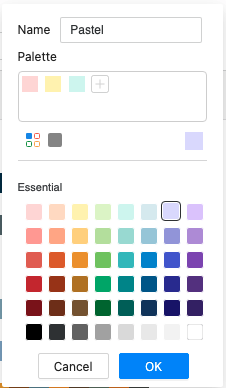
To select existing color swatches:
-
Click Swatches
 .
. -
From the Essential section, select a color swatch and click Add
 in the Palette section.
-
-
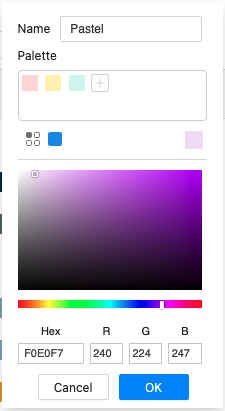
To define your own colors:
-
Click Solid Color
 .
. -
Pick a color, or type a hex code or RGB value. Click Add
in the Palette section.
-
-
To remove a color from the color palette, right-click a color in the Palette section and click Delete.
-
When you have selected all the colors for your new palette, click OK. Your new palette displays in the Custom Color Palette area.
Manage Custom Color Palettes
-
To delete a custom color palette, in the Add Custom Color Palettes dialog box, hover over a palette in the Custom Color Palette area and click Delete
 .
. -
To edit a custom color palette, hover over the palette in the Custom Color Palette area and click Edit
 .
.
You cannot delete or edit the default color palettes that display under Defaults.