
Strategy One
Use SDS for Mosaic Models
The following functionality is only available for MCE container environments.
You can import databases into Mosaic Studio. If your warehouse database is located on-premises, you can connect it to Mosaic Studio using SDS.
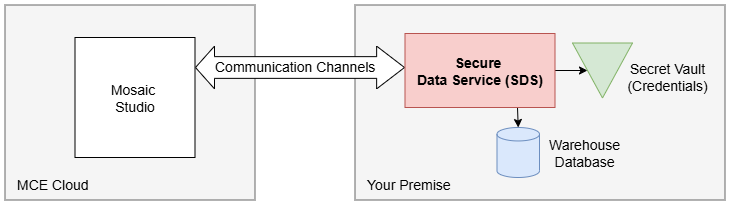
Prerequisites
-
Follow the steps in Deploy SDS.
-
The SDS agent is enabled and connected to your MCE environment.
-
If your warehouse database credentials are stored in a vault, configure the vault secret in SDS using Configure Secret Vaults for SDS.
Configure Mosaic Studio
-
Create a Mosaic model or right-click an existing Mosaic model and choose Edit.
-
In the Sources tab, click Add Database.
-
In the right pane, choose an Available Database.
-
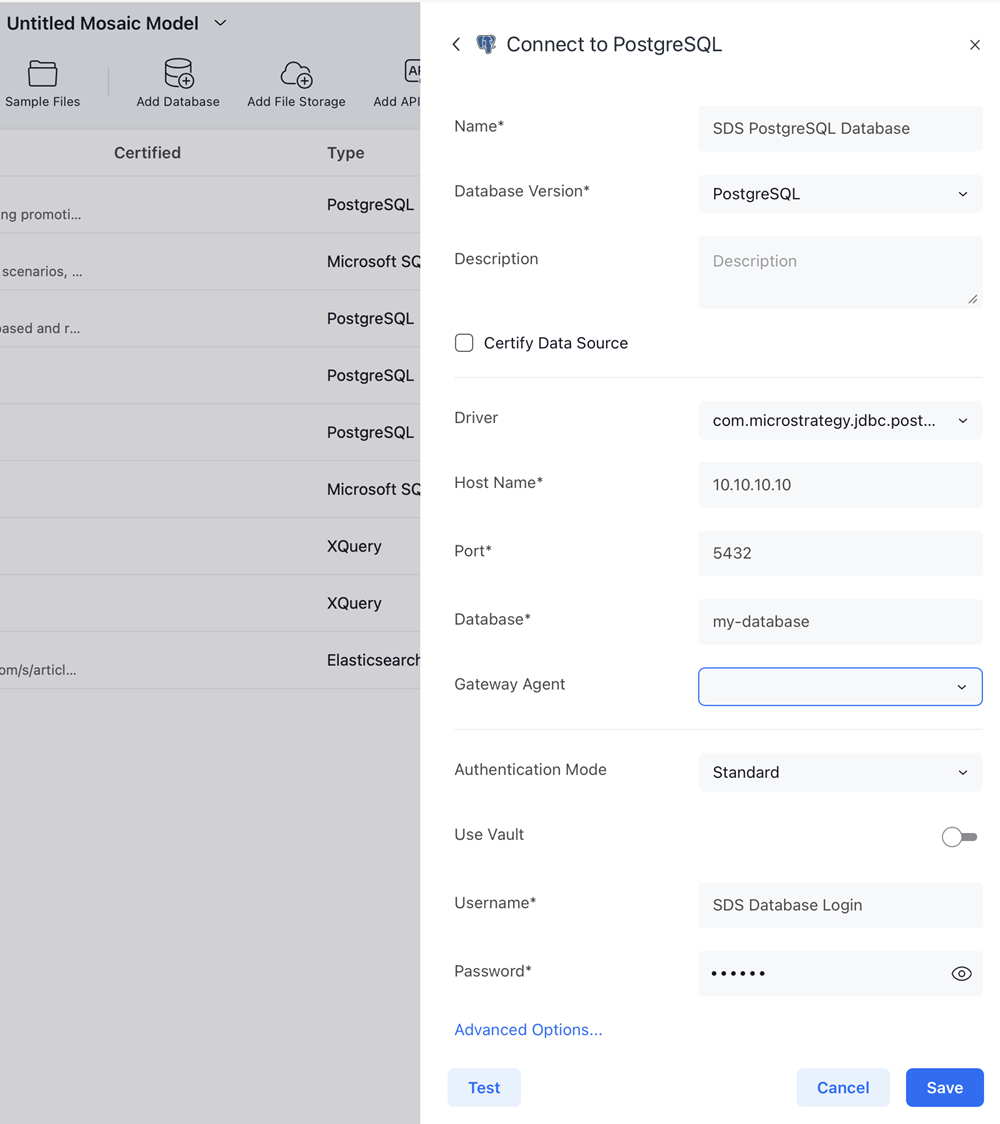
Enter values in the following fields:
-
Name: Type a name for the connection.
-
Driver: Expand the drop-down list and choose ODBC or JDBC.
-
Host Name: Type the hostname or IP address of your warehouse database server.
-
Port: Type the port used by your database server.
-
Database: Type the database name in your database server.
-
-
Enter your SDS requirements in the following fields:
-
Gateway Agent: Expand the drop-down list and choose your SDS agent.
-
Authentication Mode: Expand the drop-down list and choose Standard.
-
Use Vault: Ensure this option is disabled.
-
Username: Type the database login name you created when deploying SDS.
-
Password: Enter any value. This value is replaced with the password stored in SDS.
-
-
Click Test and verify the connection is successful.
-
Click Save.