
Strategy One
Configure Secret Vaults for SDS
The following functionality is only available for MCE container environments.
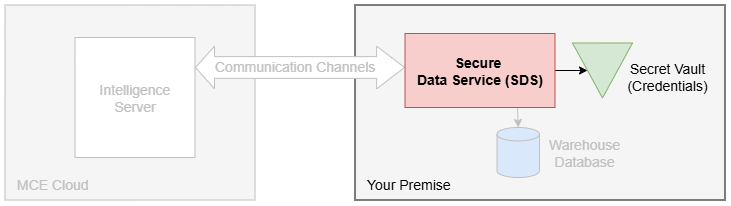
In addition to saving and encrypting database login credentials locally, SDS can also fetch credentials from secret vaults. The following vault types are supported:
-
CyberArk Vault
-
HashiCorp Vault (Community and Enterprise) and HashiCorp Cloud Platform Vault Dedicated
-
AWS Secrets Manager
-
Azure Key Vault
-
Google Secret Manager
Prerequisite
Follow the steps in Deploy SDS.
Create a Vault Connection
-
Using a web browser, open the SDS web using the following URL templates:
http://<sds-agent-host>:8080/orhttps://<sds-agent-host>:8443/.If you access the UI from a different machine, ensure that the SDS host firewall allows inbound connections on port 8080 and/or 8443. This is typically required when the Linux host has no graphical interface and is accessed remotely (for example, using a terminal session).
-
Log in to SDS.
-
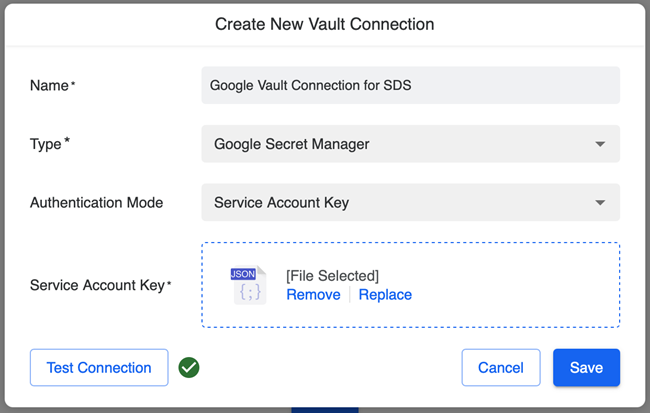
Click the Vault Connections tab and click Add.
-
Type a Name for the vault connection.
-
Expand the Type drop-down list and choose your vault type.
-
Type your authentication details or upload the corresponding credential file.
For more information on vault connections, see Create, Edit, and Delete Vault Connections.
-
Click Test and ensure the test passes, indicated by the green check mark.
-
Click Save.
Create Database Login
Create a new database login in SDS that uses the vault connection. A single vault connection can be used and shared by multiple database logins.
-
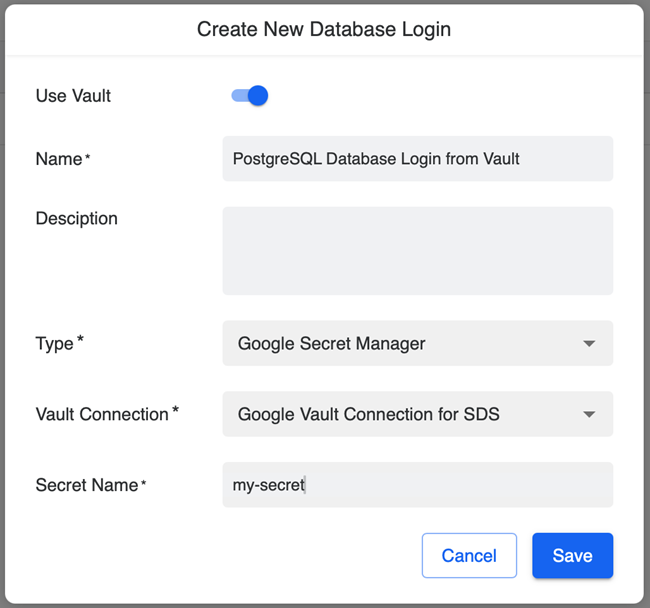
In SDS, click the Database Logins tab and click Add.
-
Toggle on Use Vault.
-
Type a Name for the login.
Note this value as you will use it when configuring Workstation in the future.
-
Expand the Type drop-down list and choose the vault connection type you created above.
-
Expand the Vault Connection drop-down list and choose the vault connection you created above.
-
Type the Secret Name that contains the database login credentials in your vault.
Your vault may contain multiple secrets. Contact your vault administrator, if needed.
-
Click Save.
Route Intelligence Server Database Connections Using SDS
To configure the Intelligence server to connect to warehouse databases through SDS using the vault connection and database login you created above, see Configure Intelligence Server-to-SDS Connection in Workstation.