
MicroStrategy ONE
Saving and Applying a Custom Graph Style
After a graph has been created, you can save its formatting settings as a template file to apply to other graphs later. The template file is saved with a .3TF extension.
Suppose you format a graph report in a certain way and want other graph reports to have the same look and feel as that graph report. For example, you format a Bar graph so the bars are green and bevelled, while the data labels are colored orange. You can name and save this formatted report as a template file. The template file is essentially a new graph style.
When you apply the new graph style to other graphs, the graphs are automatically formatted according to your custom style. For example, if your custom style's formatting includes Pie charts in an Impact color scheme, the graph's formatting is updated to include Pie charts in that specific color scheme.
Applying custom graph styles to reports is especially convenient if you want several graph reports in your project to have the same look and feel. Instead of manually adjusting the formatting elements of each graph, you can apply the same custom graph style to the reports.
The following procedures guide you in saving and then applying a custom graph style to a report.
For an example of how custom graph styles can be saved and applied, see Example: Saving and Applying a Custom Graph Style.
To Save a Custom Graph Style
- Select the report to use as a style template and display the report in Graph View.
- Choose Graph > Save Graph Style.
- Select the name of an existing file or enter a new name in the File name field. Notice that the file extension must be .3TF.
- Click Save.
Follow the procedure below to apply this graph style to another graph.
You cannot access the custom graph styles you create from the Graph Styles dialog box. You must follow the steps in this procedure to access and apply any custom graph styles.
To Apply a Custom Graph Style to a Graph
- Select the report to which you want to apply the custom graph style, and display the report in Graph View.
- Choose Graph > Apply Graph Style.
- Navigate to the custom graph style of your choice. The extension for custom graph styles is .3TF.
- Select the file and click Open.
Example: Saving and Applying a Custom Graph Style
The following example demonstrates how you can save a formatted graph as a new, custom graph style, and then apply the new graph style to another graph.
Notice the following formatting qualities of the graph report below:
- The large font of the title
- The Line graph style that uses different colors
- Markers are displayed as small triangles for each data point
- The legend appears below the graph rather than on the right side
- The legend labels do not include the metric name Revenue by selecting the Suppress last level labels option in the Graph Preferences dialog box within the Options: General category

You save this specific graph formatting as a new graph style. For the steps to take to save graph formatting as a new graph style, see Saving and Applying a Custom Graph Style.
Now that you have saved the new graph style, you are considering applying the style to the following graph report.
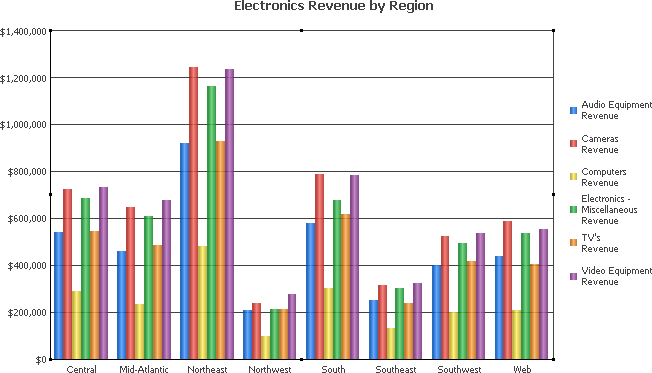
When you apply the custom graph style to the report above, the report's formatting changes according to your custom graph style, as shown in the image below.
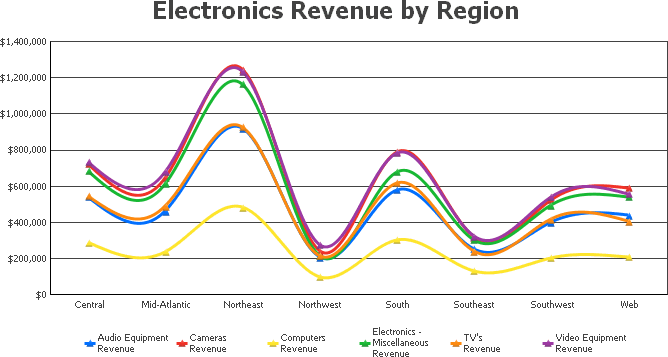
The overall formatting of the Sales by Region report was updated according to the custom graph style you created from another report.