
Strategy One
View Table Relationships in the Schema Editor
- Open the Workstation window with the Navigation pane in smart mode.
- Connect to your environment(s).
- In the Navigation pane, click Schemas.
- Right-click a project and click Edit Schema. The schema is locked for other users while you edit.
-
Click Table Relationships.
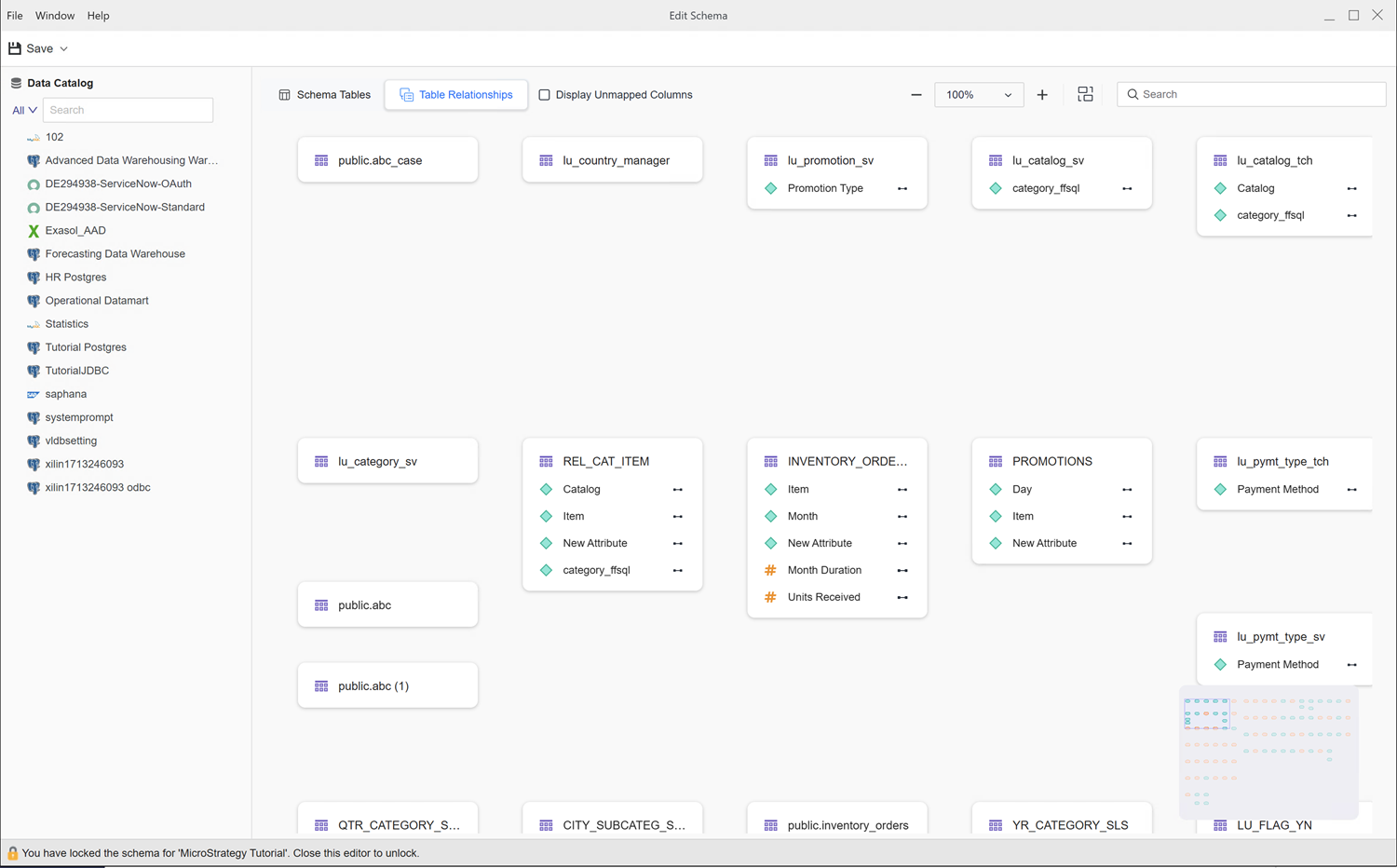
Relationship tables display.
Link Tables
View Aggregation Paths
Workstation offers the ability to view how your tables connect using aggregation paths. To view aggregation paths between tables in a schema:
- Open the Workstation window with the Navigation pane in smart mode.
- Connect to your environment(s).
- In the Navigation pane, click Schemas.
- Right-click the schema and select Edit Schema. The schema is locked for other users while you edit.
- To view relationship tables, click Table Relationships.
-
Hover over the table name and click Show Aggregation Paths.
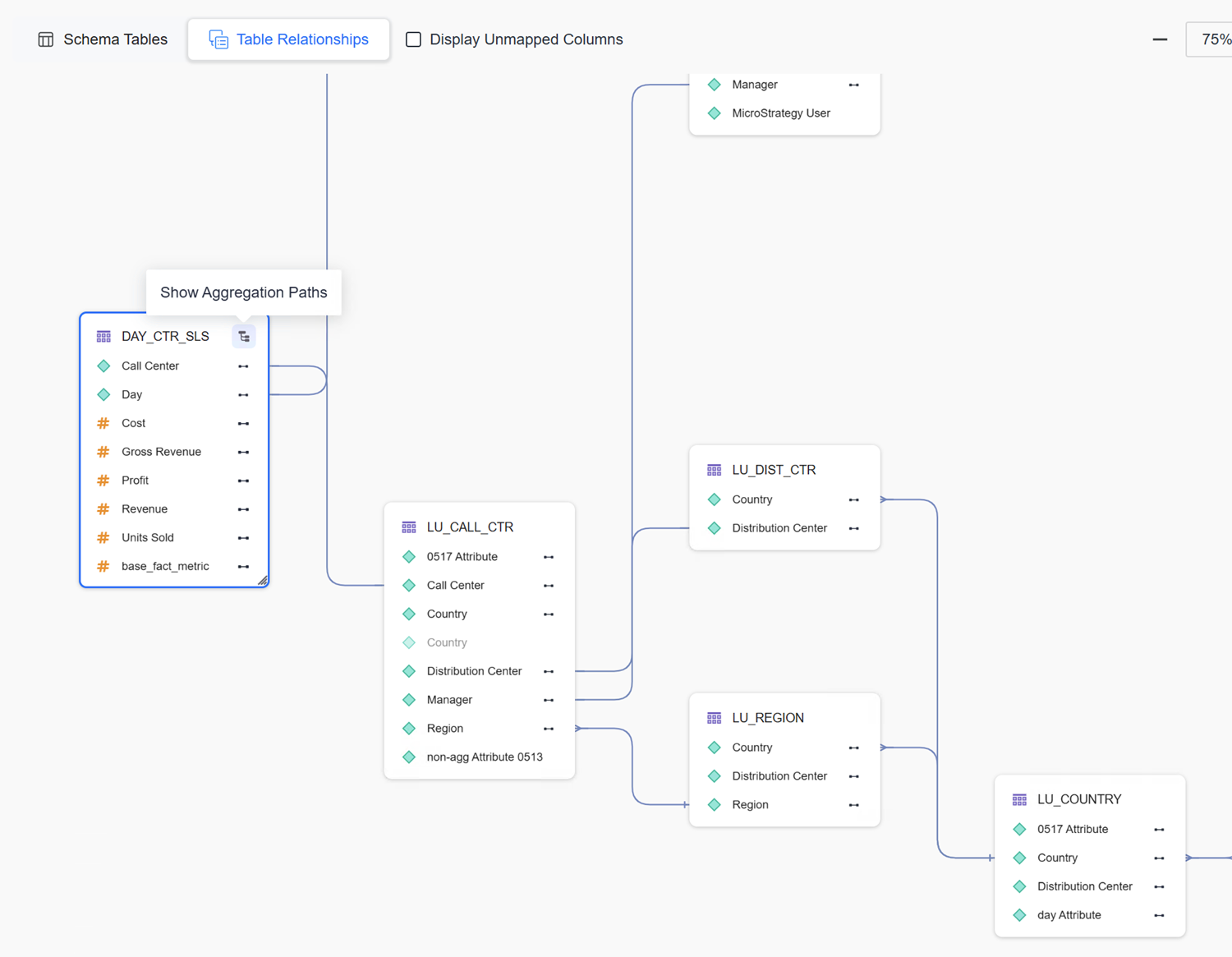
Lookup Table for an Attribute
When you view an aggregation path, the lookup table for an attribute displays on the right.
-
In the Table Relationships tab of the Schema Editor, select the check box next to Display Unmapped Columns.
-
Find all relationships where the attribute is the child attribute.
-
Use the following steps to connect the table to each related relationship and for each relationship table, connect the parent attribute on the relationship table to its own lookup table:
-
Double click a table to open the table details.
-
To apply Strategy suggested related relationships:
You can skip this step if the table is also the relationship table.
-
Expand the Recommendations section.
-
Select the check box next to the recommendations you want to apply.
-
Click Map.
-
-
To manually create related relationships:
You can skip this step if the table is also the relationship table.
-
Right-click an object and click Map to Existing Attribute or Map to Existing Fact.
-
Type the object name in the search and press
Enter. -
Choose an object.
The objects connect.
-
-
Relationship Table for an Attribute
If the attribute is a child attribute in the relationship, connect the attribute to its lookup table using the following steps:
-
In the Table Relationships tab of the Schema Editor, select the check box next to Display Unmapped Columns.
-
Use the following steps to connect the table to each related relationship and for each relationship table, connect the parent attribute on the relationship table to its own lookup table:
-
Double-click a table to open the table details.
-
To apply Strategy suggested related relationships:
-
Expand the Recommendations section.
-
Select the check box next to the recommendations you want to apply.
-
Click Map.
-
-
To manually create related relationships:
-
Right-click an object and click Map to Existing Attribute or Map to Existing Fact.
-
Type the object name in the search and press
Enter. -
Choose an object.
The objects connect.
-
-
If the attribute is the parent attribute in the relationship, connect the attribute to its lookup table and connect ancestor tables by linking relationship tables and lookup tables using the following steps:
-
In the Table Relationships tab of the Schema Editor, select the check box next to Display Unmapped Columns.
-
Use the following steps to connect the table to each related relationship and for each relationship table, connect the parent attribute on the relationship table to its own lookup table:
-
Double-click a table to open the table details.
-
To apply Strategy suggested related relationships:
-
Expand the Recommendations section.
-
Select the check box next to the recommendations you want to apply.
-
Click Map.
-
-
To manually create related relationships:
-
Right-click an object and click Map to Existing Attribute or Map to Existing Fact.
-
Type the object name in the search and press
Enter. -
Choose an object.
The objects connect.
-
-
Table Is Not the Lookup Table or Relationship Table for the Attribute
Connect the attribute to the lookup table and from the attribute lookup table, connect all ancestor tables by linking relationship tables and lookup tables using the following steps:
-
In the Table Relationships tab of the Schema Editor, select the check box next to Display Unmapped Columns.
-
Use the following steps to connect the table to each related relationship and for each relationship table, connect the parent attribute on the relationship table to its own lookup table:
-
Double-click a table to open the table details.
-
To apply Strategy suggested related relationships:
-
Expand the Recommendations section.
-
Select the check box next to the recommendations you want to apply.
-
Click Map.
-
-
To manually create related relationships:
-
Right-click an object and click Map to Existing Attribute or Map to Existing Fact.
-
Type the object name in the search and press
Enter. -
Choose an object.
The objects connect.
-
-
View Attribute Links
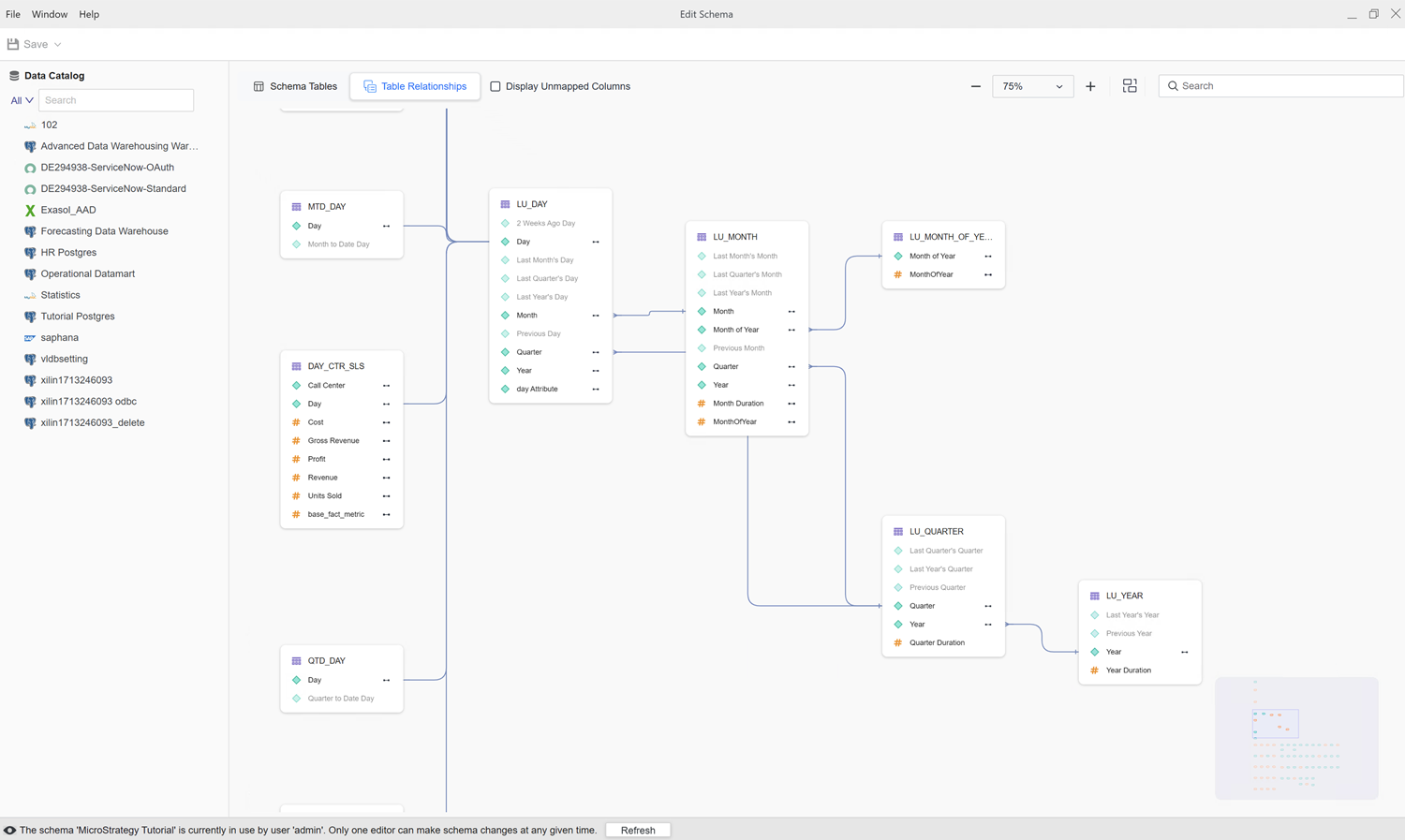
Linked attributes display a link icon. If the current table is not a relationship table, all tables that contain the selected attribute will connect to its lookup tables. To access linked attributes:
-
In the Table Relationships tab of the Schema Editor, locate the attribute.
-
Hover over the attribute and click the link icon
 .
.
View Metric Links
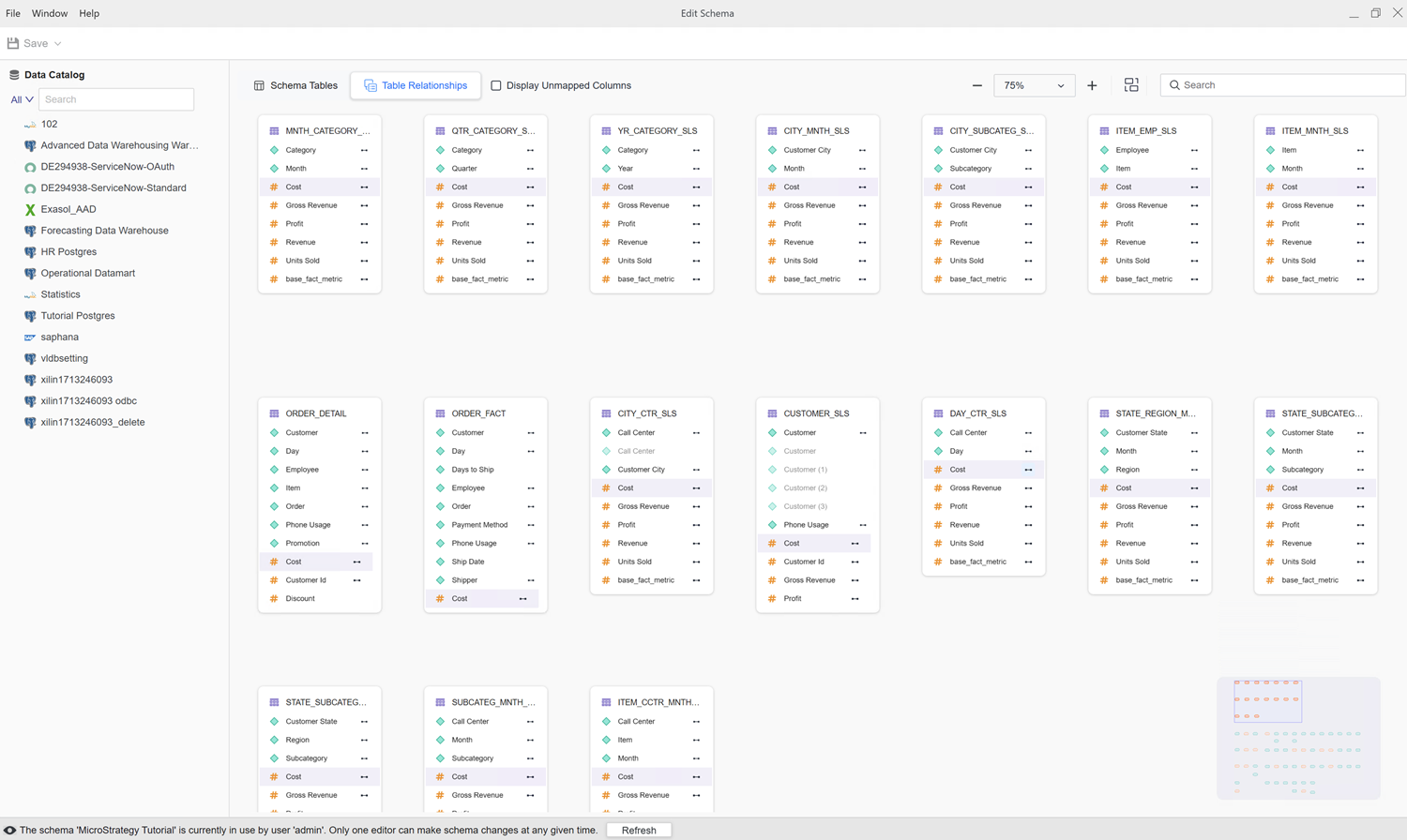
Linked metrics display a link icon. To access linked metric:
-
In the Table Relationships tab of the Schema Editor, locate the metric.
-
Hover over the metric and click the link icon
.
Context Menu
Right-click a table name, attribute, column metric, or column to view the following options depending on the object:
Table
-
Rename: Type a new name for the object.
-
Duplicate: Creates a copy of the object.
-
Update Structure: Refreshes the table to update to the latest table structure.
-
Delete: Deletes the object.
Attribute
-
Edit: Make changes to the object.
-
Rename: Type a new name for the object.
-
Set as Lookup Table: Defines the select attribute's table as the lookup table for linked attributes.
-
Unmap: Removes the fact or attribute relationship to the table.
Fact
-
Edit: Make changes to the object.
-
Rename: Type a new name for the object.
-
Unmap: Removes the fact or attribute relationship to the table.
Columns
To display unmapped columns, select the check box next to Display Unmapped Columns.
-
Create New: Creates a new attribute, attribute form, or fact from the existing object.
-
Map to Existing: Search and choose an existing attribute or fact to match the unmapped column to.
Toolbar
Use the toolbar in the top-right of the dialog for the following:
-
Auto Layout: Display tables in auto layout hybrid view.
-
Scale: Adjusts the canvas zoom level.
-
Search: Search the objects in the view.
Limitation
By default, the table view loads up to 2,000 tables. If the total number of tables exceeds this limit, the relationship tables and their related lookup tables are prioritized and load first.