
Strategy ONE
Use Voice Commands to Interact with an Agent
Beginning in Strategy One (January 2026), the voice agent has been improved. For example:
-
The agent remembers whether the voice command is enabled when you close and reopen it.
-
By default, answers are read aloud and display onscreen as subtitles. You can switch to immersive mode, where the subtitles are not displayed.
-
You can choose the voice that it is used, the output device, and the input device. For steps, see Update Voice Agent Settings.
-
The voice agent is available for mobile devices.
-
The interface and animations have been refined to deliver a more visually engaging and intuitive experience.
Beginning in Strategy One (December 2025), you can use voice commands to interact with the agent, if the agent's author enabled it. The agent displays the answers onscreen and reads them aloud.
You know that the voice agent has been enabled when the Send Voice Message icon  displays in the question box.

Prerequisites
-
You must have the Use Auto Voice privilege.
-
The agent must have auto voice enabled.
Interact with An Agent Using Voice Commands
-
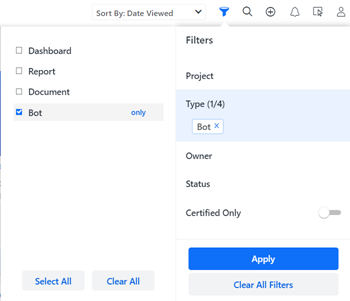
In Library, click an agent to open it. You can use the Filters panel to search for a specific agent name or filter to display only agents, as shown below:
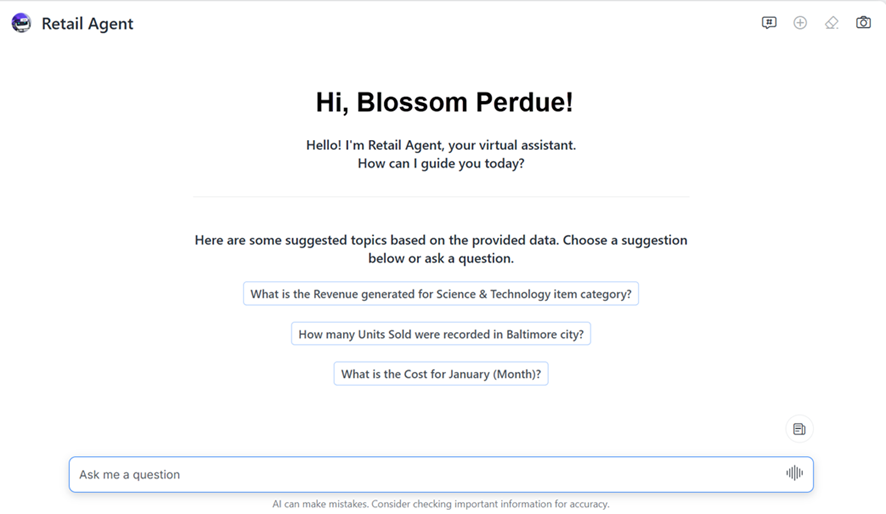
Your agent opens and displays a customized greeting and suggestions based on the agent's datasets.
-
In the question box, click the Send Voice Message icon
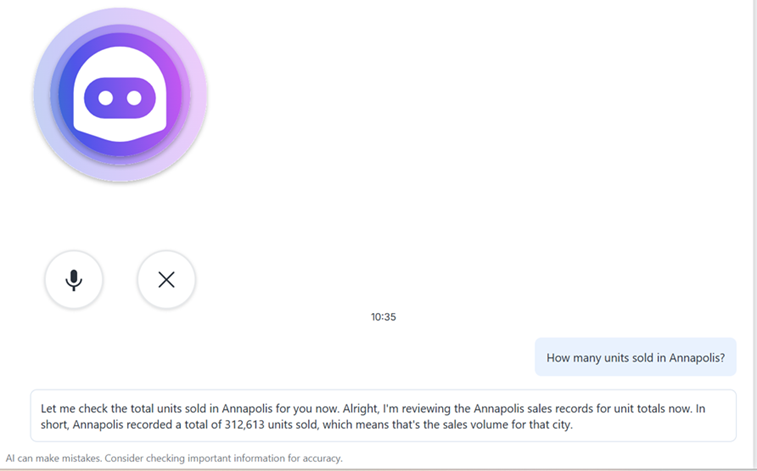
. The voice agent displays, as shown below:
-
If this is the first time you have used the voice agent, you are prompted to allow access to your microphone. You can allow it for just the session or always (so you do not have to answer the prompt again).
-
-
Ask your question. In the example below, the question "What is the average delay for flights departing between 9:00 and 10:00" was spoken. The voice agent copies the question, reviews the agent's data, and responds with the answer. The answer is read aloud and also displays onscreen.
-
To switch to immersive mode (beginning in Strategy One (January 2026)), where the answer does not display as subtitles, click Subtitle in the upper right.

-
To end immersive mode, click Subtitle again.
-
-
You can continue asking questions.
-
To mute the microphone, click the microphone icon
 . To unmute it, click the disabled microphone icon
  .
. -
To close the voice agent, click the X. You can then resume typing questions or otherwise continue to work with the agent.
Update Voice Agent Settings
Beginning in Strategy One (January 2026), you can update settings, including the voice that it is used, the output device, and the input device. The voice selection is persisted in this agent for the user; you do not have select it each time you open the agent.
-
If the voice agent is not displayed, in the question box, click the Send Voice Message icon
. -
Click the Settings icon
 in the upper right.
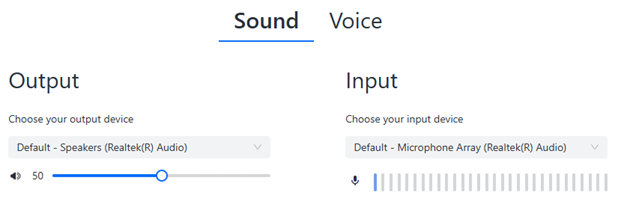
The Settings interface opens on the Sound page.
-
Select your Output Device from the drop-down list.
-
Adjust the volume using the slider.
-
Select your Input Device from the drop-down list.
-
Check the live volume meter under the input device to confirm that the device is properly connected.
-
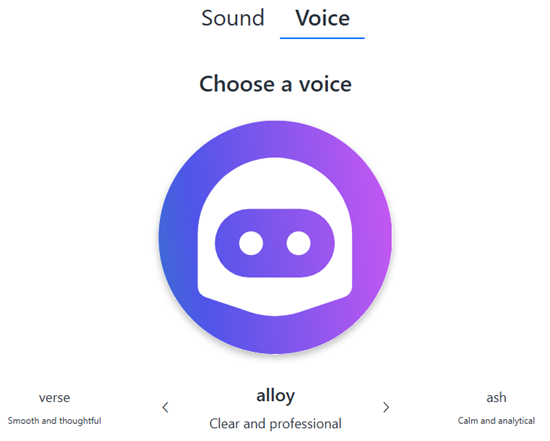
The default voice is called alloy, which is described as clear and professional. To select a different voice, click Voice at the top of the page. The selected voice speaks a sample script.
-
Use the arrow keys < and > to scroll through the voice selections. Each speaks a sample script, so you can hear each voice in a real interaction, including the kind of phrasing it would use. This allows you to compare the voices and decide which is the best fit for your agent.
-
To close the settings interface, click X in the upper right corner.