
Strategy ONE
Apply Filter Options for Queries Against In-Memory Datasets
Apply Filter Options for queries against in-memory datasets is an advanced property that is hidden by default. See Viewing and Changing Advanced VLDB Properties. for information on how to display this property.
Apply Filter Options for queries against in-memory datasets determines how many times the view filter is applied, which can affect the final view of data.
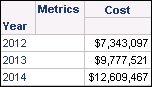
Consider this simple report, which shows yearly cost:
You create a Yearly Cost derived metric that uses the following definition:
Sum(Cost){!Year%}
The level definition of {!Year%} defines the derived metric to ignore filtering related to Year and to perform no grouping related to Year (for explanation and examples of defining the level for metrics, see the Advanced Reporting
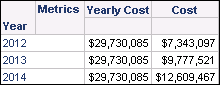
Help ). This means that this derived metric displays the total cost for all years, as shown in the report below:
You can also further filter this report using a view filter. For example, a view filter is applied to this report, which restricts the results to only 2014, as shown below:
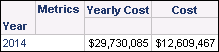
By default, only Cost for 2014 is displayed, but Yearly Cost remains the same since it has been defined to ignore filtering and grouping related to Year. This is supported by the default option Apply view filter to passes touching fact tables and last join pass of the Apply Filter Options for queries against in-memory datasets VLDB property.
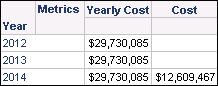
If analysts of this report are meant to be more aware of the cost data that goes into the total of Yearly Cost, you can modify the Apply Filter Options for queries against in-memory datasets VLDB property to use the option Apply view filter only to passes touching fact tables. This displays the other elements of Year, as shown in the report below:
You have the following options for the Apply Filter Options for queries against in-memory datasets VLDB property:
- Apply view filter only to passes touching fact tables: This option applies the view filter to only SQL passes that touch fact tables, but not to the last pass that combines the data. As shown in the example above, this can include additional information on the final display by removing the view filter from the final display of the report.
- Apply view filter to passes touching fact tables and last join pass (default): This option applies the view filter to SQL passes that touch fact tables as well as the last pass that combines the data. As shown in the example above, this applies the view filter to the final display of the report to ensure that the data meets the restrictions defined by the view filter.
Levels at Which You Can Set This
Project, report, and template