
Strategy ONE
Best Practices for Mapping Cube Data to Project Attributes
Import MDX cubes from your MDX cube source into Strategy.
For general best practices of using the MDX Cube Catalog to map MDX cube data, see Best Practices for Mapping MDX Cubes.
When mapping MDX cube data to project attributes, consider these recommendations:
-
You can map MDX cube data to a project attribute by right-clicking the attribute in the Logical view column and choosing Map.
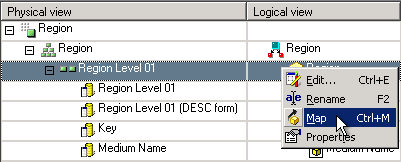
You can then browse to the attribute within your relational project schema to map to the MDX cube data.
-
When mapping SAP BW data to project attributes, you should map the SAP BW characteristics to project attributes rather than mapping the levels of SAP BW hierarchies. For example, in the scenario shown below you must map the Region project attribute to the level in the highlighted Region characteristic rather than to a level within the Reg Org hierarchy.

The concept of SAP BW characteristics versus hierarchies is discussed in Importing Levels and Suffixes for Characteristics.
- To map MDX cube data to the ID form of a project attribute, you must adhere to the following guidelines:
The ID form of the project attribute must be mapped to the column in your MDX cube source you have created to relate the two systems of data. The columns must share the same data type. For example, the Key form in SAP BW can use the same numeric data type standards as is used most commonly for Strategy attribute ID forms.
The Key form is not displayed by default. Within the MDX Cube Catalog, from the View menu, choose Display All Columns to display all available forms for an MDX cube.
- Once you map the correct column to the ID form of the project attribute, you must define the column data type of your MDX cube data as the same data type used for the attribute's ID form. This is because MDX returns all attribute data for MDX cube sources as strings by default. For information on and steps for defining column data types for MDX cube data, see About Defining Column Data Types for MDX Cube Data.
-
You can map the columns to project attributes either when an MDX cube is first imported or at a later time. It is recommended that you immediately perform this mapping during the initial import to maintain a consistent reporting environment. This also prevents maintenance issues such as having to modify MDX cube reports when MDX cubes are modified after the reports are created.
If you map a column to the incorrect project attribute, do one of the following:
- Once you save your changes, you can unmap the column from the project attribute.
- You can close the MDX Cube Catalog without saving your changes. The mapping is not changed for the column. Be aware that any other changes made after the last time you saved your changes will also be lost.
- If you need to unmap a column that was previously mapped to a project attribute, it is recommended to unmap the column and then save immediately after performing this unmapping. This ensures that the unmapping is processed correctly. You can then open the MDX cube and perform any additional mapping or unmapping of columns as needed.