
MicroStrategy ONE
About the Report-As-Filter
Report as filter allows you to create a report and use it as a filter to generate another report. It is a different way to achieve the same results as a metric qualification. Because the logic used to generate the final report is clearer, MicroStrategy recommends using it rather than the metric qualification.
In MicroStrategy Developer, select Add a Shortcut to a Report to access the report as filter functionality. For more information, see Shortcut-to-a-report qualification in the MicroStrategy Web Help.
Report as Filter Example
To create the same report as the metric qualification example, open the Sort by Revenue Rank report in the Report Editor. Add a new report filter. Select Add a Shortcut to a Report and choose the Revenue by Brand report. Execute the report. Sample report results are shown in the following figure.
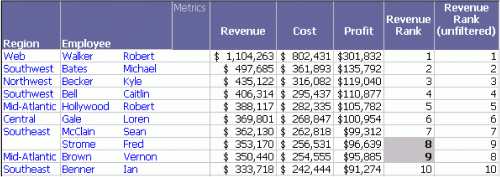
This report is saved as Sort by Revenue Rank - Report Filter - Report as Filter at the Brand Level.
As with the metric qualification report, the metric values differ from the unfiltered Sort by Revenue Rank report. The values shown in the earlier figure are calculated only for the brands that are returned on the Revenue by Brand report chosen as the filter.
Freeform SQL and Query Builder reports can also support this functionality, as described in Reporting Analysis Features and Reporting Analysis Features.