
MicroStrategy ONE
Reporting Analysis Features
This section discusses the following MicroStrategy reporting analysis features as they relate to Query Builder reports:
Filters
A filter specifies the conditions that data must meet to be included in the report results. For more information on filters, refer to Advanced Filters: Filtering Data on Reports, in this guide.
You cannot use existing filters in a Query Builder report; however, you can filter report data by including a qualification that will be used in either the WHERE or HAVING clause of the SQL statement. The Conditions pane (the middle pane on the right) allows you to create qualifications for your queries.
The Conditions pane reflects whether your qualification is used in the WHERE or HAVING clause of the SQL query.
WHERE Clause
Qualifications within the WHERE clause of a SQL statement are evaluated before any aggregation is performed. For example, if your report includes Year, Category, and Revenue you can include a qualification that restricts your result set to data for the year 2026 only. This restriction is performed first, and then Revenue data is aggregated only for the year 2026, instead of aggregating data across all years.
If the qualification does not contain an aggregated column expression, it is included in the WHERE clause and appears at the top of the Conditions pane.
To Create a WHERE Clause Qualification
This procedure uses the Query Builder Demo report created in the section Access and Analyze Multiple Data Sources with Query Builder.
- In MicroStrategy Developer, right-click the Query Builder Demo report and select Edit.
- Choose Data > Query Builder Definition.
- Select Click here to start a new qualification in the Conditions pane.
- From the Field drop-down list, select LU_YEAR.YEAR_ID.
- From the Operator drop-down list, select Not in list.
- From the Value drop-down list, select Type Values.
- Enter 2025, 2026 in the text field and click OK.
- Click OK.
- Choose File > Save as and save the report as QB Demo - Where Clause Filter.
- Run the report in SQL view. The
WHEREclause of the SQL statement restricts the result set to exclude data for years 2026 and 2027, as shown in the image below.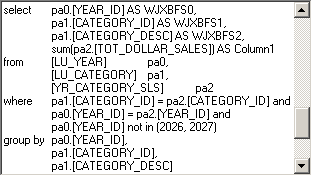
You can use the view filter functionality for Query Builder reports in the same way as for regular reports. For more information on view filters, see the In-memory Analytics Help.
HAVING Clause
Qualifications within the HAVING clause of a SQL statement are evaluated after any aggregation statement is performed. Therefore, any column expression with an aggregation function applied to it should be in the HAVING clause. For example, if your report includes Revenue aggregated with the sum function, you can include a qualification that restricts your result set to data with Revenue greater than $200,000. This restriction is performed after the Revenue data is aggregated.
If the qualification contains an aggregated column expression, it is included in the HAVING clause and appears at the bottom of the Conditions pane (the middle pane on the right).
To Create a HAVING Clause Qualification
This procedure uses the Query Builder Demo report created in the section Access and Analyze Multiple Data Sources with Query Builder.
- In MicroStrategy Developer, right-click the Query Builder Demo report and select Edit.
- Choose Data > Query Builder Definition.
- Select Click here to start a new qualification.
- From the Field drop-down list, select Column1.
Column1 is the alias that has been automatically assigned to the column expression
SUM(YR_CATEGORY_SLS.TOT_DOLLAR_SALES). - From the Operator drop-down list, select Greater than.
- From the Value drop-down list, select Type a value. Enter 200000 in the Value field.
- Click OK.
- Choose File > Save as and save the report as QB Demo - Having Clause Filter.
- Run the report in SQL view. The
HAVINGclause of the SQL statement restricts the result set to data with Revenue greater than $200,000, as shown in the image below.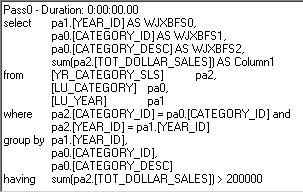
You can use the view filter functionality for Query Builder reports in the same way as for regular reports. For more information on view filters, see the In-memory Analytics Help.
Prompts
A prompt is a MicroStrategy object that allows user interaction at report run time. For general information on prompts, refer to Advanced Prompts: Enabling User Input, in this guide.
For Query Builder reports, only two types of prompts are supported, which includes value prompts and element list prompts. Prompts can be included using different methods for the following panes in the Query Builder Editor:
- Conditions pane (the middle pane on the right): You can include element list prompts and value prompts in qualifications for your Query Builder reports. These prompts are inserted in the
WHEREorHAVINGclauses of your SQL query, depending on the type of qualification they are included in. For more information on creating qualifications in the Query Builder Editor, see Filters. - Selections pane (the bottom pane on the right): Element list prompts and value prompts can be referenced within a column expression in the Selections pane, and are then used in the
SELECTclause of the SQL query.
Include Element List Prompts in Attribute Qualifications
Element list prompts must be created before adding it to your Query Builder report. For more information on creating element list prompts, see Filtering Data on Attributes, Attribute Forms, Attribute Elements, or Metrics: Filter Definition Prompts .
You can use existing element list prompts to qualify on a column which has been mapped to an attribute in the project. For more information on mapping columns to attributes in the project, see Access and Analyze Multiple Data Sources with Query Builder.
Only project attributes can be used to create element list prompts in Query Builder reports.
Using an Rlement List Prompt in the WHERE Vlause
This procedure uses the Query Builder Demo report created in the section Access and Analyze Multiple Data Sources with Query Builder.
- In MicroStrategy Developer, create an element list prompt that lists all elements of the attribute Year without restrictions. Save the prompt as Year Element List Prompt.
- Right-click the Query Builder Demo report, and select Edit.
- Choose Data > Query Builder Definition.
- Select Click here to start a new qualification.
- From the Field drop-down list, select LU_YEAR.YEAR_ID.
- From the Operator drop-down list, select In list.
- From the Value drop-down list, select Select a Prompt.
- Browse to the Year Element List Prompt you created and click Open. The prompt is inserted into the Value field.
- Click OK.
- Choose File > Save as and save the report as Query Builder Demo - Where Clause Element List Prompt.
- Run the report in grid view, selecting the Year element 2028 in the Prompt Answer Wizard. The report output is restricted to Year 2028, as shown in the image below:
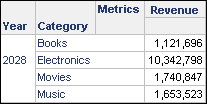
Notice that revenue data is displayed with a general format by default. You can format the Revenue metric's values to apply a currency format to the revenue data.
Include Value Prompts in Attribute and Metric Qualifications
Value prompts can either be created prior to creating a Query Builder report, or value prompts can be created within the Query Builder Editor itself. For more information on creating value prompts, see Value Prompts.
These prompts can be used to qualify on a column which has been mapped to an attribute or metric. Value prompts do not require that attributes or metrics be included in the project schema. Therefore, you can use value prompts with columns which are mapped to managed objects. For more information on managed objects, see Map Data to Non-Project Objects: Managed Objects.
Creating a Value Prompt in the HAVING Clause
This procedure uses the Query Builder Demo report created in the section Access and Analyze Multiple Data Sources with Query Builder.
- In MicroStrategy Developer, right-click the Query Builder Demo report and select Edit.
- Choose Data > Query Builder Definition.
- Select Click here to start a new qualification.
- From the Field drop-down list, select Column1.
Column1 is the alias that has been automatically assigned to the column expression
SUM(YR_CATEGORY_SLS.TOT_DOLLAR_SALES). - From the Operator drop-down list, select Greater than.
- From the Value drop-down list, select Prompt a Value.
- Step through the creation of the value prompt and click Finish to create the prompt.
- Click OK.
- Choose File > Save as and save the report as Query Builder Demo - Having Clause Value Prompt.
- Run the report in grid view by entering 2000000 in the Prompt Answer Wizard and clicking Finish. The report output is restricted to Revenue greater than $2,000,000, as shown in the image below:
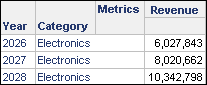
Notice that revenue data is displayed with a general format by default. You can format the Revenue metric's values to apply a currency format to the revenue data.
Include Prompts in Your Column Selections
You can include element list prompts and value prompts in the column selections for your Query Builder reports. These prompts are inserted in the SELECT clause of your SQL query, allowing you to control how data is selected and modified in the SQL statement before being returned for the resulting report. For more information on selecting columns for your Query Builder report, see Access and Analyze Multiple Data Sources with Query Builder.
You must create the element list prompt or value prompt prior to adding the prompt to a Query Builder report. For more information on creating prompts, see Advanced Prompts: Enabling User Input. To include a prompt in a column expression, you must type the prompt name in the expression using the following syntax: ?[prompt name]
How the prompt is used in the column expression is dependent on the column expression itself. An element list prompt can only be created with a project attribute but it can be used in the column expression of a managed object. For example, you can map the column expression YEAR_ID - ?[Choose from a list of years] to a new managed object rather than the Year attribute used to build the prompt.
Upon report execution, element list prompts are replaced by a comma-delimited list of attribute ID's. For example, if you select 2024 and 2025 in a Choose from a list of years prompt built from the Year attribute, then the SQL syntax includes "2024, 2025" where the prompt was placed.
It is recommended that you do not include optional prompts in a column expression. Prompts that are included in the SELECT clause of a SQL query should require a prompt answer to avoid execution errors due to unanswered prompts.
Using a Value Prompt in the SELECT Clause
This procedure uses the Query Builder Demo report created in the section Access and Analyze Multiple Data Sources with Query Builder.
- In MicroStrategy Developer, create a numeric value prompt and save the prompt as Select Clause Value Prompt.
- Right-click the Query Builder Demo report and select Edit.
- Choose Data > Query Builder Definition.
- In the Selections pane (the bottom pane on the right), right-click the column expression Sum(YR_CATEGORY_SLS.TOT_DOLLAR_SLS) and select Edit Column Expression.
- Modify the column expression to include your value prompt:
(Sum(YR_CATEGORY_SLS.TOT_DOLLAR_SALES) * ?[Select Clause Value Prompt])
- Click OK.
- Click OK.
- Choose File > Save as and save the report as Query Builder Demo - Select Clause Value Prompt.
- Run the report in SQL view by entering 1.06 in the Prompt Answer Wizard and clicking Finish.
The select statement includes
(Sum(YR_CATEGORY_SLS.TOT_DOLLAR_SALES) * ?[Select Clause Value Prompt])and replaces the prompt string with the value entered for the prompt in theSELECTclause, as shown in the syntax below: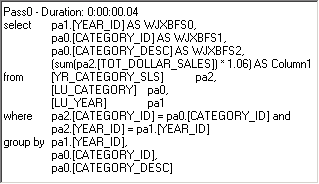
Drilling
Drilling allows you to look at specific data at levels other than what is originally displayed on the grid or graph. For standard reports, you can drill in different directions, such as down, up, or across attributes, based on the drill map. For Query Builder reports, support for drilling is limited to attributes within what is known as a personal Intelligent Cube. For a description of what a personal Intelligent Cube is, see the section Intelligent Cubes.
Drilling in Query Builder reports works in the following ways:
- This functionality is controlled by the Drill within Intelligent Cube privilege, and requires an OLAP Services license.
- You can only drill to attributes that are included in the Report Objects pane but are not on the report grid.
- You can only use drill maps with project attributes, since managed object attributes do not have associated drill maps.
- You can drill from managed objects to any other project objects that are included in the Report Objects pane but are not on the report grid. You cannot drill from a managed object to another managed object.
For more information on managed objects, see Map Data to Non-Project Objects: Managed Objects.
- You can drill down and drill up on project attributes. For example, a Freeform SQL report has the Year and Quarter attributes on the report grid. When you move Quarter off the report to the Report Objects pane, you can drill down from Year to Quarter on the report. Additionally, if Quarter remains on the report and you move Year off the report, you can drill up from Quarter to Year.
- You can drill to attributes that are not in the same hierarchy as the attribute you are drilling from. For example, if Quarter from the Time hierarchy is on the report and Category from the Product hierarchy is only in the Report Objects pane, you can drill from Quarter to Category.
Managed objects do not have an associated hierarchy, so they are able to drill to any other project attribute that resides in the Report Objects pane but is not on the report grid.
Using Query Builder Reports to Filter Other Reports
Query Builder reports can be used to filter other standard reports in MicroStrategy. This can be supported by using a Query Builder report as a shortcut-to-a-report qualification on a standard report. For information on shortcut-to-a-report qualifications, see About the Report-As-Filter.
However, there are additional configurations and requirements to allow Query Builder reports to be used as a shortcut-to-a-report qualification, as described below:
- The Query Builder report must map data to project attributes rather managed object attributes. This is required in order for the standard report to recognize the data that is available on the Query Builder report. For information on mapping data in Query Builder reports to project attributes, see Access and Analyze Multiple Data Sources with Query Builder.
- If the Query Builder report returns data from a data source that is not the primary data warehouse, you must have the Execute Multiple Source Report privilege. This privilege is available as part of MicroStrategy MultiSource. For information on MultiSource, see the Project Design Help.
To add a Query Builder report as a shortcut-to-a-report qualification in a standard report, open the standard report in MicroStrategy Developer. In the Report Filter area, double-click the arrow to add a new qualification. In the Filtering Options, select Add a Shortcut to a Report. Click OK. Click the ... (browse button) to select a Query Builder report, and click OK. Click OK again to create the filter qualification.