Strategy One
Show or Hide Objects
You can view or hide objects in your projects, including folders and applications. This allows you to see a less crowded view of objects.
The Show/Hide setting is inherent to the object, which means other users’ visibility is affected once it is changed. Other users might not see the object, unless they have enabled viewing of hidden objects in their personal preferences.
You do not need a particular privilege to show or hide objects. Access and privileges to hidden objects do not change.
If you need to view the hidden objects, you can display all the hidden objects in your environment.
To show or hide objects
- Open the Workstation window.
- Use the Navigation pane to locate the object you want show or hide. Click
- Right-click the object and choose Hide or Unhide.
To display hidden objects
- Open the Workstation window.
-
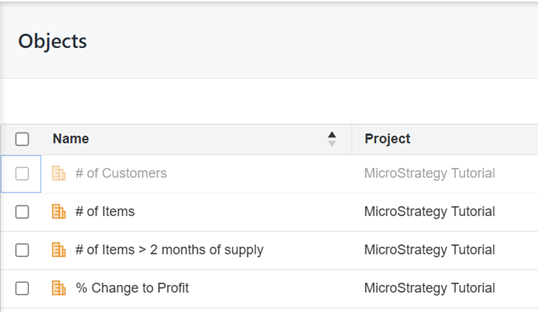
From the View menu, select Show Hidden Objects. All hidden objects display as semi-transparent.
All hidden objects display as semi-transparent.