
Strategy One
Browse and Search for Objects
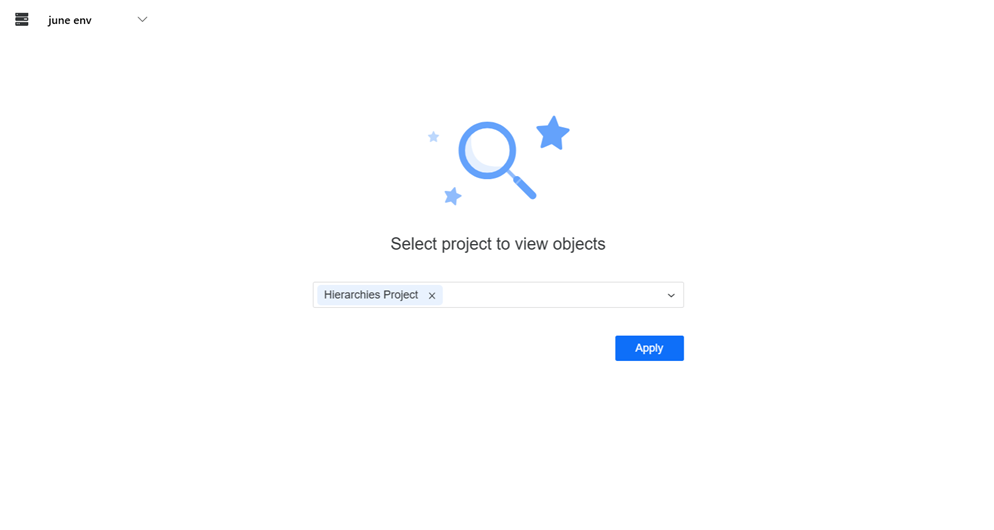
Starting in Strategy One (June 2025), when you are connected to more than one project, the Objects page includes a prompt to select the project(s) you want to view objects in.
Strategy Workstation allows you to browse and search for objects. You can sort, filter, search by name and ID, and change security access for attributes, metrics, filters, prompts, hierarchies, and other objects.
- Open the Workstation window.
- In the Navigation pane, click Objects.
- Starting in Strategy One (June 2025), if you are connected to more than one project:
- Expand the project drop-down list.
- Select the check box next to the projects you want to view objects for.
Click Apply.
-
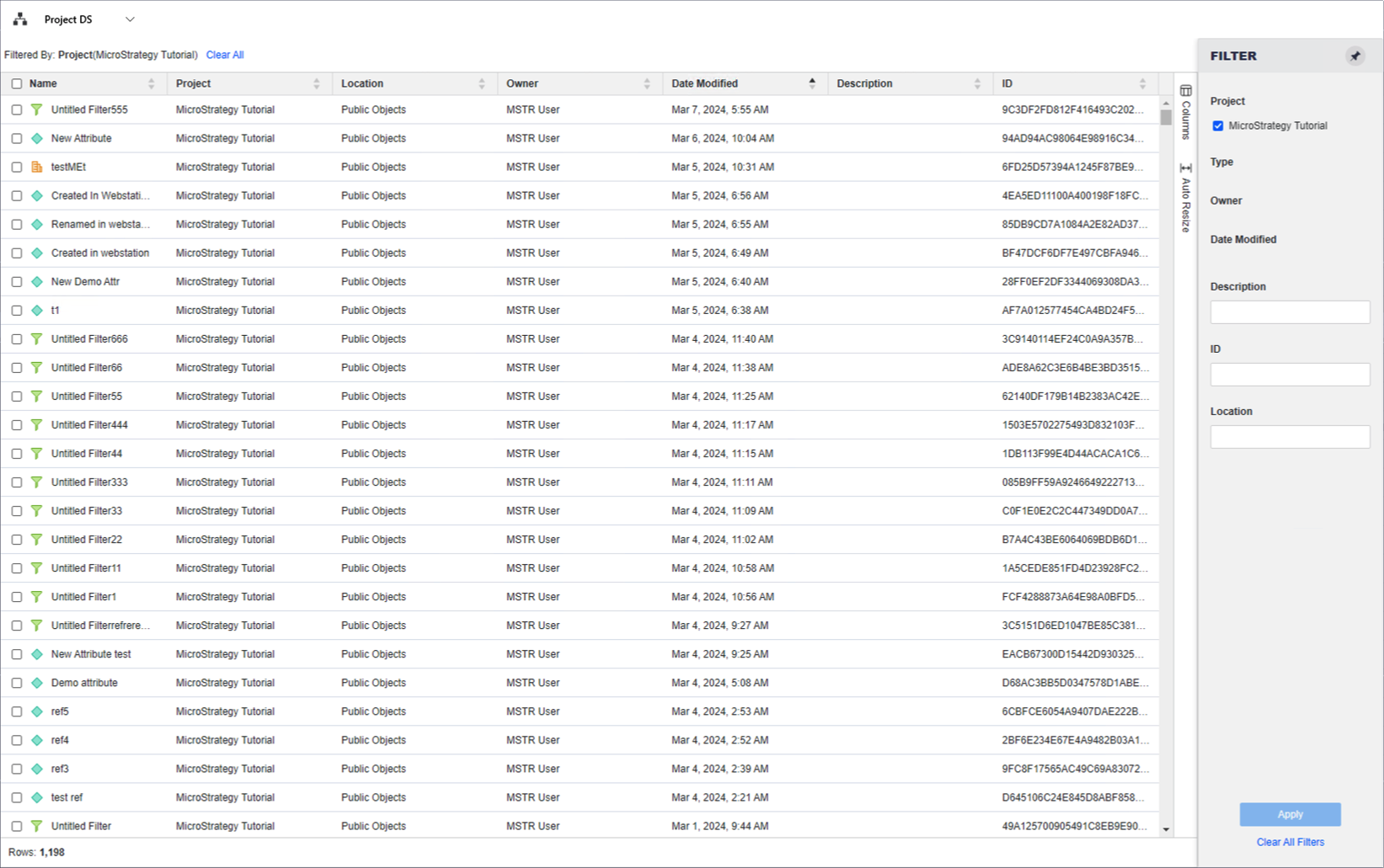
View your objects. The object grid lists details including object name, project, location, owner, date modified, description, and ID. To change which columns display, click Columns. Select the check boxes for the columns you want to display; clear the check boxes for the columns to hide.
-
If you are connected to multiple environments, you can change the environment. From the drop-down list in the upper left, select the environment to display.
-
Filter the objects grid to focus on specific objects. Make multiple selections in the Filter panel and Apply them to the grid. You can filter on Name,
The filter summary displays at the top of the grid. You can use it, as well as the Filter panel, to edit the filters.
-
To remove a specific filter, click Show More. Click the delete icon
 next to the filter. For example, you can remove the Owner filter but keep the Type filter.
 -
To edit a specific filter, click Show More. Click the edit icon
 next to the filter and make changes. Click Apply.
 -
To clear all filter selections, click Clear All.
-
-
To view additional object details and change security access for users and user groups, right-click the object in the grid and choose Properties. In the Properties window, you can:
-
View activity
-
Change security access
-
View scope filters
-
View internal comments
-
View the change journal
-
-
To edit an object, double-click it in the objects grid.
-
To delete an object from the metadata, right-click the object in the grid and choose Delete.
-
To copy an object ID to your clipboard, hover your cursor over the object and click the Copy ID icon
 . This object ID can also be used in the search bar at the top right of the Workstation window to locate a specific schema object.
 -
To save the object information to a .csv file, click Export
 . The .csv file includes the displayed objects and the applied filter.
 -
To refresh the list of objects every thirty seconds, enable Autofresh. You can also click Refresh to manually refresh when necessary.