
Strategy One
Create Drill Maps
Starting in Strategy One (October 2025), optionally enter a description of your change when saving a drill map.
Drill maps allow you to create fully customized drill paths that are available to your users while drilling on a report. By default, the paths available are based on the system hierarchy of the project.
The drill map's properties can be overwritten either:
-
At the report level, in the Report Properties
-
When users drill, if they use the Drill dialog box
To create and edit drill maps, you must have at least the UseDrillMapEditor privilege.
-
Open the Workstation window.
-
Choose File > New Drill Map.
-
Select an environment and project.
- Type a Name for the drill map.
-
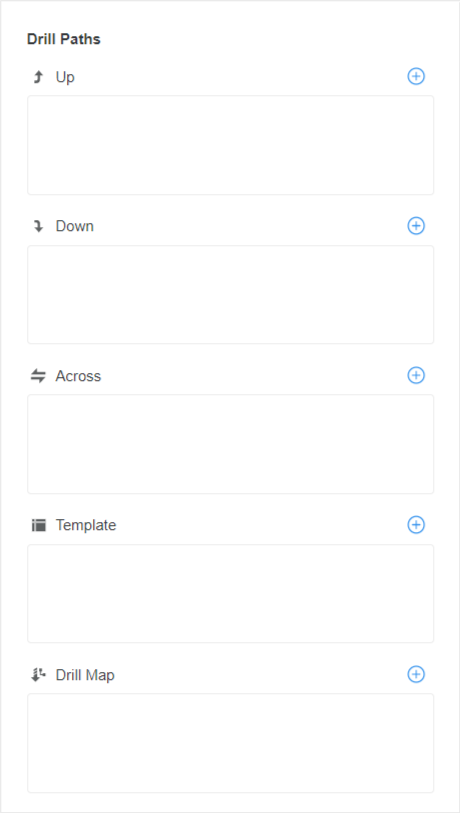
Define the drill paths of the drill map by clicking
 to add objects.
-
Up: The destination is shown as part of the Drill Up menu when the user right-clicks and selects Drill in the report. The destination can be any attribute, consolidation, custom group, or hierarchy. The destination does not have to be related to the original object.
-
Down: The destination is shown as part of the Drill Up menu when the user right-clicks and selects Drill in the report. The destination can be any attribute, consolidation, custom group, or hierarchy. The destination does not have to be related to the original object.
-
Across: The destination is shown as part of the Other Directions menu when the user right-clicks and selects Drill. The destination can be any attribute, consolidation, custom group, or hierarchy. The destination does not have to be related to the original object.
-
Template:Replace the template of the original report template with a completely different destination template.
-
Drill Map: Select an existing drill map as the destination. This option is a sort of shortcut to the drill paths of another drill map.
-
-
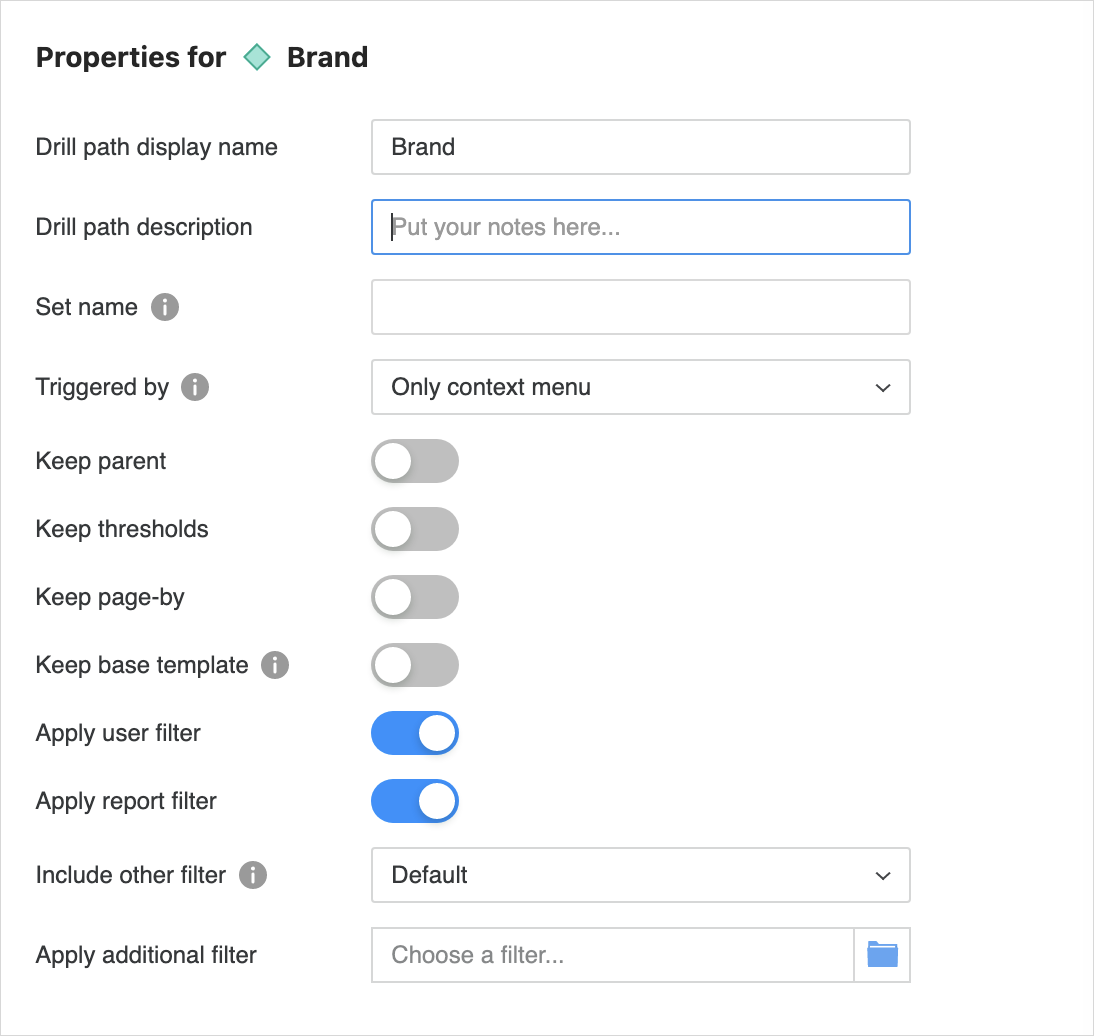
Configure the properties for each drill path. Select the Drill Path. In the Properties panel, complete the following:
- Drill Path Display Name: The name displayed in the right-click drill menu on a report. By default, the object's name is used, although you can type a new display name in the box. :
-
Drill Path Description: Enter a description of the drill path. The limit is 250 characters.
This is the only property available for drill maps.
-
Set Name: Use the same set name to group drill paths together in the right-click drill menu. Sets cannot cross drill types, so use them to group drill maps within a single drill type, such as Up. If a set name has been created in the drill type, you can select it from the drop-down list.
-
Triggered By: Determines how the drill is triggered. One drill path in the entire drill map can be triggered by a single click. All others are then automatically set to use the context menu only.
-
Keep Parent: Determines whether or not the drilled-to report includes the original object.
This property is not available for drill maps or templates.
This property is overridden by the Keep Parent While Drilling option set in the report, which specifies parent display for all drills in that specific report. To specify the parent property at the drill path level, set the report's Keep Parent While Drilling to Default in the Report Properties.
-
Keep Thresholds: Determines whether or not thresholds are displayed in the drilled-to report.
This property is not available for drill maps or templates.
This property is overridden by the Keep Thresholds While Drilling option set in the report, which specifies threshold display for all drills in that specific report. To specify the thresholds property at the drill path level, set the report's Keep Thresholds While Drilling to Default in the Report Properties.
-
Keep Page-By: Determines whether or not the drilled-to report is paged.
-
Keep Base Template: Determines whether or not the drilled-to report uses the base report's template.
-
Apply User Filter: Determines whether or not the object selected to drill from is used as a filter on the drilled-to report. By default, this setting is enabled.
-
Apply Report Filter: Determines whether or not the filter from the original report is applied to the drilled-to report. By default, this setting is enabled.
-
Include Other Filter: Determines whether attribute qualifications are merged or ignored when metric qualifications in the drilled-to report are resolved. Select one of the following:
-
Default: Uses the report filter's advanced option setting.
-
Yes: Other qualifications are included, regardless of the report's setting.
-
No: Other qualifications are ignored, regardless of the report's setting.
This property is available only if both Apply User Filter and Apply Report Filter are enabled.
-
-
Apply Additional Filter: Select an additional filter to use in the drilled-to report.
-
The following settings are available for templates only:
-
Display Mode: Determines how the drilled-to report is displayed. You can use the original report's display setting (Default) or display the drilled-to report as a Grid, Graph, or Grid and Graph.
-
Inherit VLDB: Determines whether or not the VLDB properties of the original report are applied to the drilled-to report.
-
-
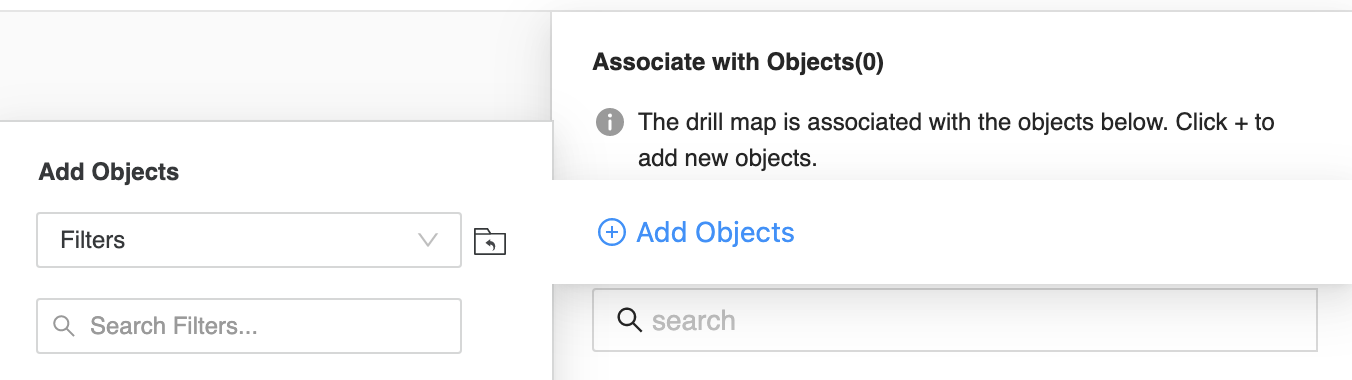
Select which objects use this drill map. In the Associate with Objects panel, click Add Objects to associate the drill map with existing objects.
-
Click Save.
-