
MicroStrategy ONE
Level Metrics Review: No Grouping
This section describes how level metrics can help you answer your report requirements. In particular, it discusses the interaction between grouping set to none and different filtering options. Report samples, SQL code, and metric definitions are used to explain the results.
Report Requirements
Your company has recently kicked off a new ad campaign targeted at certain areas that present high growth opportunities. In your regions, this consists of the Boston, New York, and the Washington, DC call centers. You need to perform an analysis from different perspectives and are looking for answers to the following:
- How did the sales of these three call centers compare to the total of all three?
- How did the sales of these three call centers compare to the total sales of all call centers within the targeted regions?
- How did the sales of each of the three call centers compare to the sales of the entire company?
- What were the sales in each region, based on the items sold in each call center in that region?
The answers to these questions give you an insight into how the new campaign is being received in the targeted areas of your region.
Report 1: Call Center Sales Compared to Total Sales of Targeted Call Centers
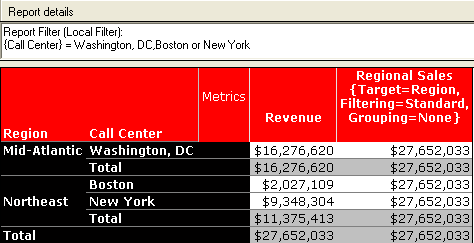
Level Metric: Grouping = None, Filtering = Standard
In this business scenario, the Regional Sales metric calculates the total sales for all call centers present in the report filter. By changing grouping to none, the metric does not group by anything directly related to the target attribute specified within the metric. The metric definition is shown below:
Sum(Revenue) {~+, !Region+}
Therefore, in this example, there is no GROUP BY statement in the SQL as the attributes call center and region are directly related to the metric target region. With standard filtering, the report filter elements are included in the WHERE clause of the SQL as shown in the following example.
select sum(a11.[ORDER_AMT])as REGIONALSALES
from [ORDER_FACT] a11,[LU_EMPLOYEE]a12
where a11.[EMP_ID] = a12.[EMP_ID]
and a12.[CALL_CTR_ID]in(5,11,12)
The report is displayed in the following figure:
Report 2: Call Center Sales Compared to Total Sales of Call Centers in Targeted Regions
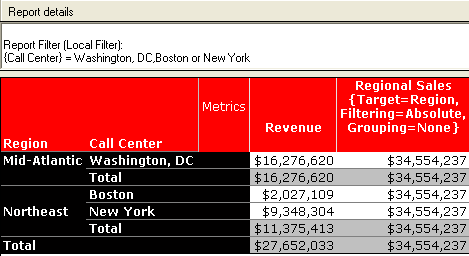
Level Metric: Grouping = None, Filtering = Absolute
In this scenario, the Regional Sales metric calculation includes the total for all the call centers present within all the regions listed in the report, and not just the call centers included in the report filter. The metric definition is shown below:
Sum(Revenue) {~+, !Region*}
With no grouping, the metric does not group by anything directly related to the target attribute specified within the metric. Since the attributes region and call center in this example are related to the target, there is no GROUP BY clause in the SQL as shown in the following example.
select sum(a11.[ORDER_AMT])as REGIONALDOLL
from [ORDER_FACT] a11,[LU_EMPLOYEE]a12,
[LU_CALL_CTR]a13
where a11.[EMP_ID] = a12.[EMP_ID]
and a12.[CALL_CTR_ID] = a13.[CALL_CTR_ID]
and ((a13.[REGION_ID])
in (select s21.[REGION_ID]
from [LU_CALL_CTR] s21
where s21.[CALL_CTR_ID] in (5,11,12)))
Also, with absolute filtering, the report filter is placed in the subquery only if it is of a lower level than the target. The report is shown in the following figure:
Report 3: Call Center Sales Compared to Total Sales of Entire Company
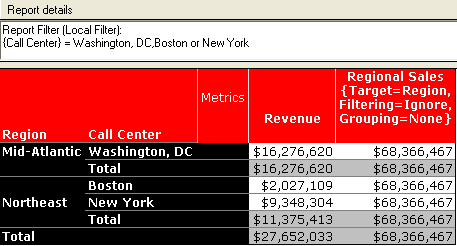
Level Metric: Grouping = None, Filtering = Ignore
The Regional Sales metric calculates the total company sales for all call centers, ignoring the three call centers that are filtered out in the report filter. The metric definition is shown below:
Sum(Revenue) {~+, !Region%}
With no grouping, the metric does not group by anything directly related to the target attribute specified within the metric. Since the attributes region and call center are related to the target, there is no GROUP BY clause in the SQL as shown in the following example:
select sum(a11.[TOT_DOLLAR_SALES])as REGIONALSALES
from [YR_CATEGORY_SLS] a11
The report is shown in the following image:
Report 4: Regional Sales Based on Items Sold in Each Call Center in the Region
Level Metric: Grouping = None, Filtering = None
The Regional Sales metric calculates the total sales based on the number of items sold in each call center. The metric definition is shown below:
Sum(Revenue) {~+, !Region}
With no grouping, there is no GROUP BY clause for this metric calculation. With no filtering, you can define a fact of your choice in the calculation of a metric. This is accomplished by adding as many additional target attributes as necessary to the metric to force it to use the fact table that you want. Any target attribute that has no filtering borrows its filtering criteria from the other target attributes specified in the dimensionality of the metric. This allows you to choose the fact table but not alter the original intent of the report. The SQL statements for this example are as follows:
Regional Sales (Target=Region, Filtering=Standard, Grouping=Standard)
select a12.[REGION_ID] as REGION_ID,
sum((a11.[QTY_SOLD]* a11.[UNIT_PRICE]-a11.[DISCOUNT]))) as REGIONALDOLL
from [ORDER_FACT] a11, [LU_CALL_CTR]a12,
[LU_EMPLOYEE]a13
where a11.[EMP_ID] = a12.[EMP_ID]
and a12.[CALL_CTR_ID] = a13.[CALL_CTR_ID]
and a11.[CALL_CTR_ID] in (5,11,12)
group by a12.[REGION_ID]
Regional Sales1 (Target1=Region, Filtering=Standard, Grouping=Standard, Target2=Item, Filtering=None, Grouping=Standard)
select a12.[REGION_ID] as REGION_ID,
sum((a11.[QTY_SOLD]* (a11.[UNIT_PRICE]-a11.[DISCOUNT]))) as REGIONALDOLL
from [ORDER_DETAIL] a11,[LU_CALL_CTR] a12
where a11.[EMP_ID]=a12.[EMP_ID]
and a11.[CALL_CTR_ID]=a12.[CALL_CTR_ID]
and a11.[CALL_CTR_ID]in (5,11,12)
group by a12.[REGION_ID]
In this business scenario, if you want to use the Order_Detail fact table instead of the Order_Fact table, you include the Item attribute as the target. Since the Item attribute is found in the Order_Detail table and not in the Order_Fact table, it forces the engine to use the Order_Detail fact table. The report is displayed in the following figure:
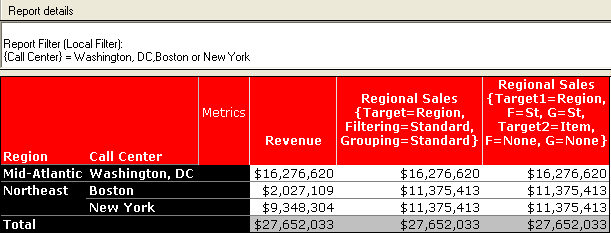
In this example, Regional Sales is calculated using both the Order_Fact table and the Order_Detail fact table just to show that the data in the Order Detail fact table adds up correctly to match the data in the Order fact table.