
MicroStrategy ONE
Benefits of Using a Custom Group
The benefit of a custom group is its ability to group attribute elements in a way that is not defined in the data warehouse. You can create "relationships" between the attribute and the custom group. A custom group can organize attribute elements through the following:
- Attribute qualification
- Set qualification
- Banding
- Advanced qualification
- Shortcut-to-a-report qualification
- Shortcut-to-a-filter qualification
- Shortcut-to-a-prompt qualification
Refer to Advanced Filters: Filtering Data on Reports, for more information on these qualification types.
Banding Qualification: Grouping by Metric Value Intervals
Banding qualifiers enable you to create banding custom group elements. Banding is a method of displaying the groups of custom group elements. Banding is defined by the output level of elements using the values of a metric. For example, you can slice the list of stores (Store attribute elements) using the values of the Total Sales metric. Suppose you have created a report that ranks stores according to the revenue generated by each store. You might decide to group the stores by creating one group for the top 10 stores, a second group for stores 11-20, and a third group for stores 21-30.
You can apply different types of banding:
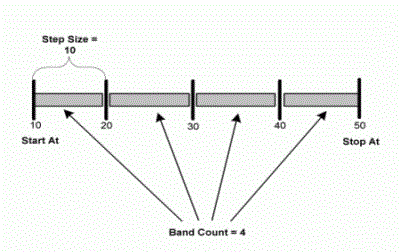
- Band size: To slice the range of metric values defined by "start at" and "stop at" values into a number of bands, each defined by the parameter "step size."
In the following diagram the "start at" value is 10, "stop at" is 50, and "step size" is 10. These settings slice the group into four bands.
- Band count: To define the number of equal bands into which the range of metric values is sliced. The range is defined by "start at" and "stop at" values, as band size is. However, band size defines the size of each band, while band count defines the number of bands.
To use band count to achieve the same results as the preceding diagram, set the band count to four, "start at" to 10, and "stop at" to 50. If you set the band count to five instead, each of the five bands have a size of eight.
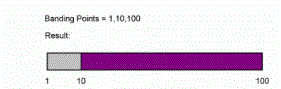
- Banding points: To specify the value where a band is placed. This enables you to produce bands of different sizes.
The engine uses its internal logic to create the bands based on the banding points that you specify.
You want to create a report with two bands, one band showing the top 10 stores and the second band showing stores 11-100. For this, you must use three points—1, 10, and 100—as shown in the following figure.
- Band for each distinct metric value: To create a separate band for each value calculated by the metric. This type of banding qualification directly uses the results of a metric as bands. It is very useful with metrics that already contain the logic needed to calculate sequential band numbers. Such metrics use mathematical formulas, NTile functions, Band functions, or Case functions.
A metric uses the NTile function to group revenue values into three groups. The custom group element is therefore sliced into three bands as well.
Banding Points Example
Report Requirements
You want to create a report that ranks employees according to the revenue that each employee generates. Based on their revenue, the report should segregate the employees into the following three groups: Top for the top 10%, Next for the next 40%, and Lowest for the lowest 50%.
Solution
To create the report in MicroStrategy Developer, create a custom group called Employee Revenue and specify the banding points as 0, 10, 50, and 100. Create a report that uses this custom group. A sample report is shown in the following image.
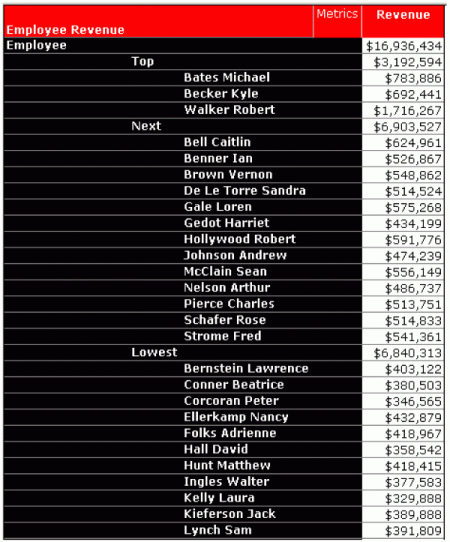
The engine considers 0 as the highest banding point and 100 as the lowest banding point; hence, based on the revenue, it places the highest 10% of employees in the first band and so on.
Metric Value Banding Example
Report Requirements
You want to create a report that ranks regions based on their revenue and provides the profit margin for each. The groups are Top Performers, Average Performers, and Under-performers.
Solution
First, create a metric that uses the NTile function to create three groups based on revenue. Use that metric in a custom group that bands based on metric value and for each metric value. Change the band names to Top Performers, Average Performers, and Under-Performers. Create a report that uses this custom group. A sample MicroStrategy Developer report is shown in the following image.
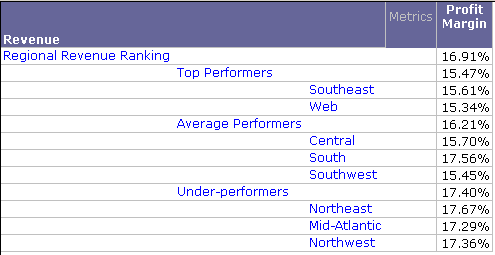
Note that this custom group shows the element names and items within the element. For more information on this option, see Custom Group Structure on Reports.