
Strategy One
View and Edit Log Configuration Settings
Check out the video below to learn more!
Configure Diagnostic Logs
- Open the Workstation window.
- In the Navigation pane, click Environments.
- Right-click a connected environment and choose Properties.
-
In the left pane, click Log Configuration.
-
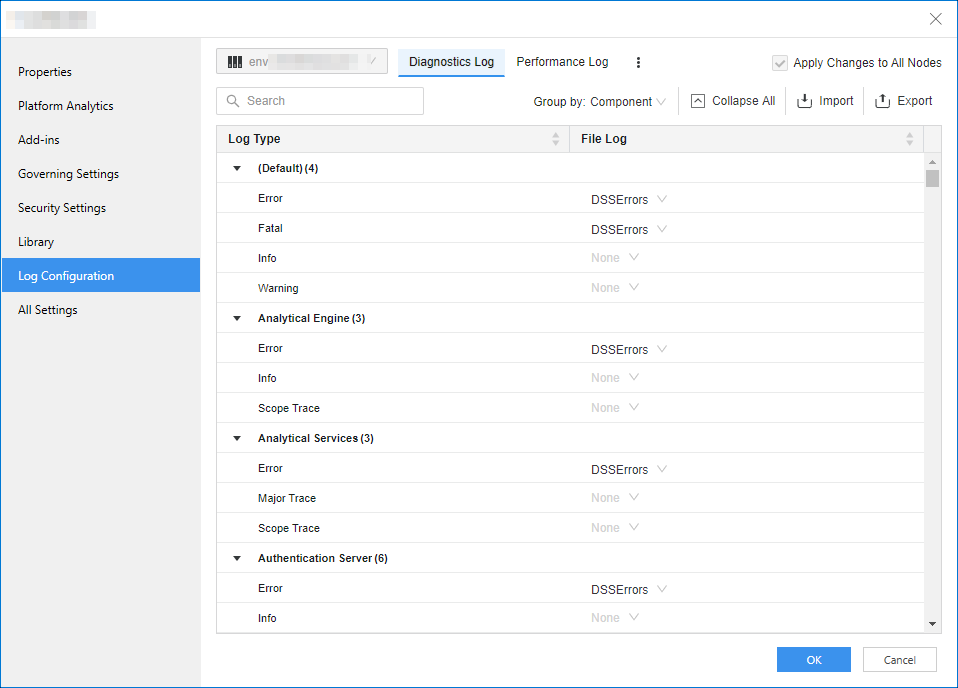
Select the Diagnostics Log tab.
-
By default, the logs are grouped by component, as shown above. To change the display, from the Group By drop-down list, select File Log.
-
If you have multiple nodes in this environment, do one of the following:
-
To apply the changes to all nodes, select the Apply Changes to all Nodes check box.
-
To specify the node, select it from the Apply Changes to all Nodes drop-down list.
-
-
In the File Log column, choose the Log Destination for each one of the Log Type Entries.
-
If the log destination does not exist, you can add it. In the Log Destination drop-down list, click New Log Destination. Specify the File Name and Max File Size. Click OK.
-
-
To export all the current settings, click Export.
-
Click OK.
Configure Performance Logs
- Open the Workstation window.
- In the Navigation pane, click Environments.
- Right-click a connected environment and choose Properties.
- In the left pane, click Log Configuration.
-
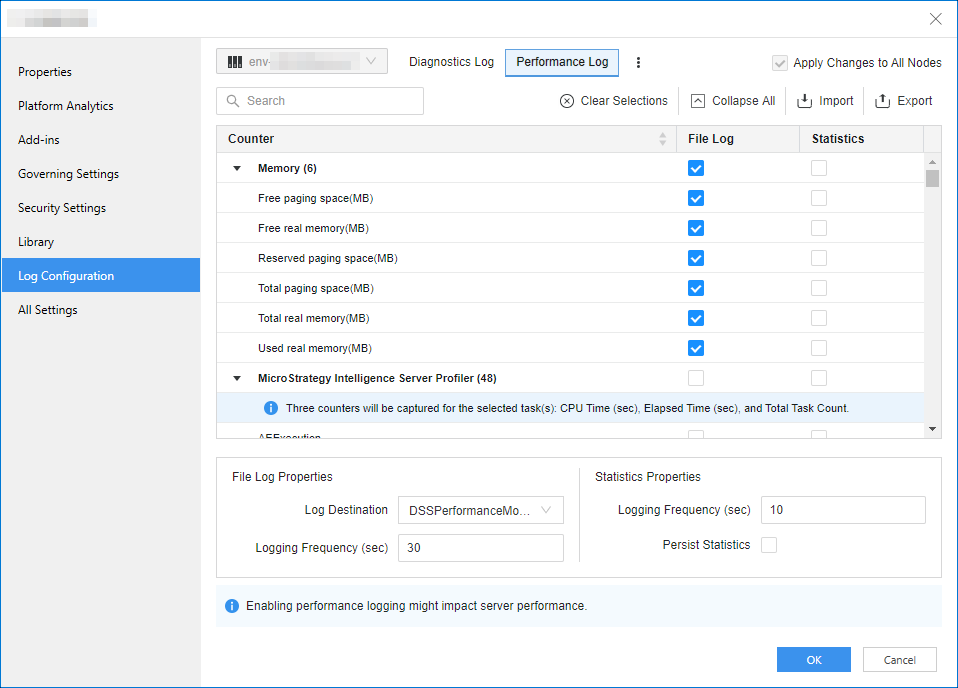
Select the Performance Log tab.
-
If you have multiple nodes in this environment, do one of the following:
-
To apply the changes to all nodes, select the Apply Changes to all Nodes check box.
-
To specify the node, select it from the Apply Changes to all Nodes drop-down list.
-
-
In the File Log column, select all the counters to log to a file.
-
In the File Log Properties area:
-
Choose the Log Destination from the available log destinations.
-
Type the Logging Frequency.
-
- In the Statistics column, select all the counters to log statistics.
- In the Statistics Properties area:
- Enter the Logging Frequency.
- Select whether to Persist Statistics.
-
To export all the current settings, click Export.
-
Click OK.
Manage Log File Destinations
You can view, delete and modify file log destinations.
- Open the Workstation window.
- In the Navigation pane, click Environments.
- Right-click a connected environment and choose Properties.
- In the left pane, click Log Configuration.
-
To the right of the Performance Log tab, click More
 . and choose Manage File Log Destinations.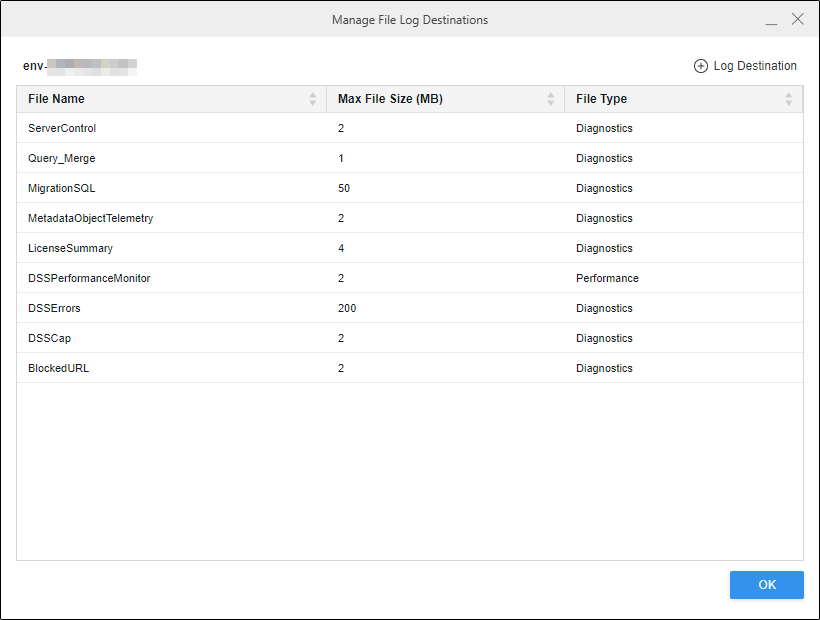
-
You can change the Max File Size for any file log destination.
-
To add a new file log destination:
-
Click
 Log Destination.
 -
Specify the File Name and Max File Size.
-
Select the File Type from the drop-down list.
-
Click OK.
-
-
To remove a file log destination, hover your cursor over the entry and click Delete
 .
. -
Click
Log Destination to add a new file log to the list of entries. -
Click OK to save the file log destination changes.
-
Click OK.