Strategy One
Baseline Tests
Starting in Strategy One (April 2026), you can archive errors generated by the baseline test.
A baseline test is a saved reference snapshot of the output generated by the content objects. This includes the data returned, formatting, and structural layout. The baseline represents the expected, correct result against which future executions are compared.
The purpose for baseline tests are the following:
-
Regression Verification: Ensure that modifications to the environment do not negatively impact the accuracy or appearance of existing objects.
-
Automation: Facilitate routine, automated checking of large numbers of objects.
You must have the Integrity Manager privilege to see any notes that have been added to the document.
Create a Baseline
- Open the Workstation window.
- In the Navigation pane, under Administration, click Test Center.
-
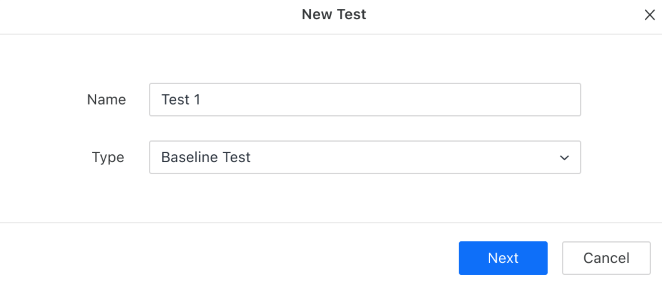
In the Type drop-down list, choose Baseline Test and click Next.
-
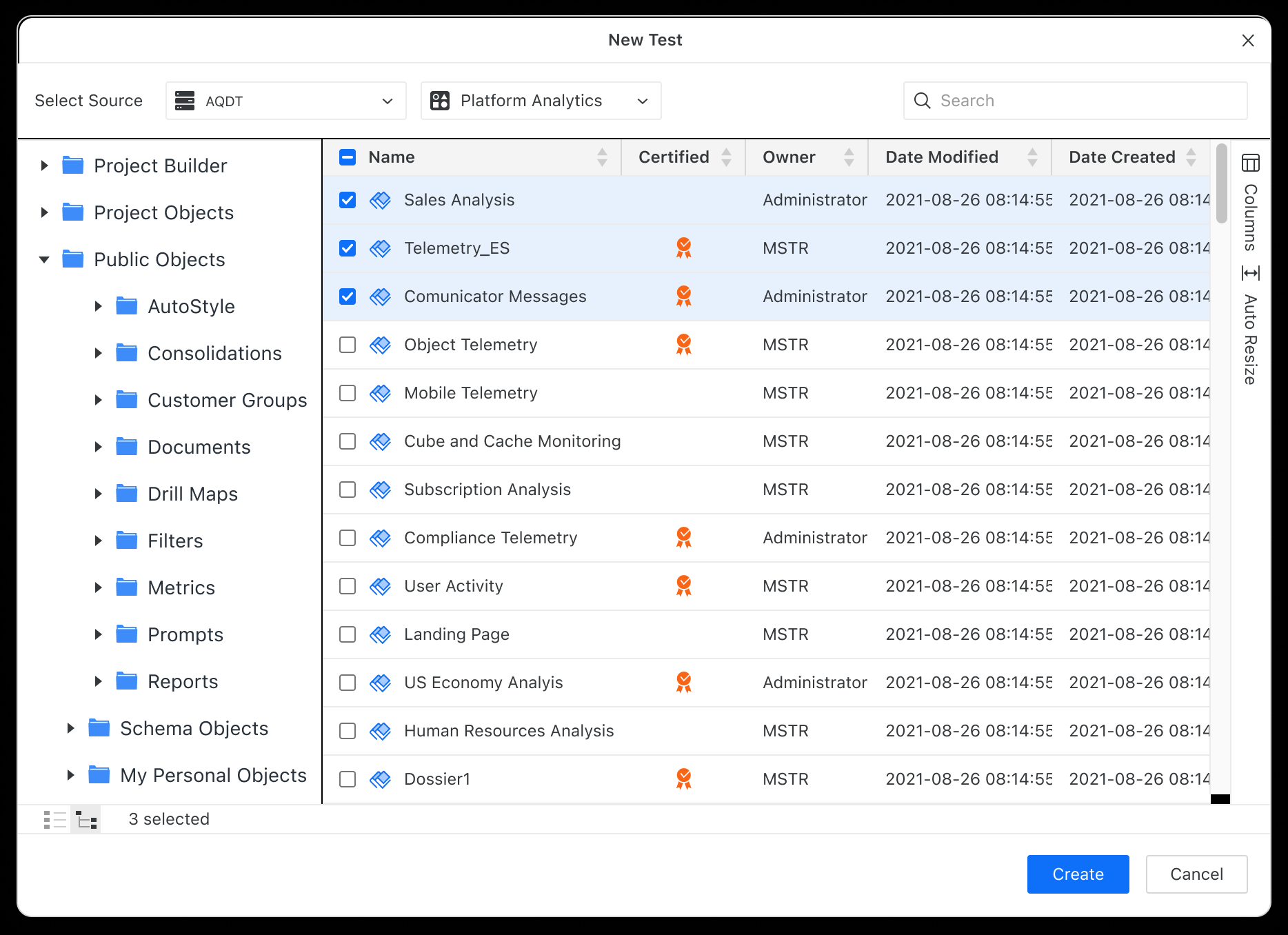
Select the objects to create a snapshot in a desired state and click Create.
Starting in Strategy One (October 2025), you can choose cubes and Mosaic models. Starting in Strategy One (January 2026), you can choose cards and reports.
-
If any of the included objects contain prompts, you can modify the prompt settings, as well as provide any answers.
-
After all prompt settings are established, click Save to save the baseline test. You can find the new test in the Test Center.


Baseline Test Results
-
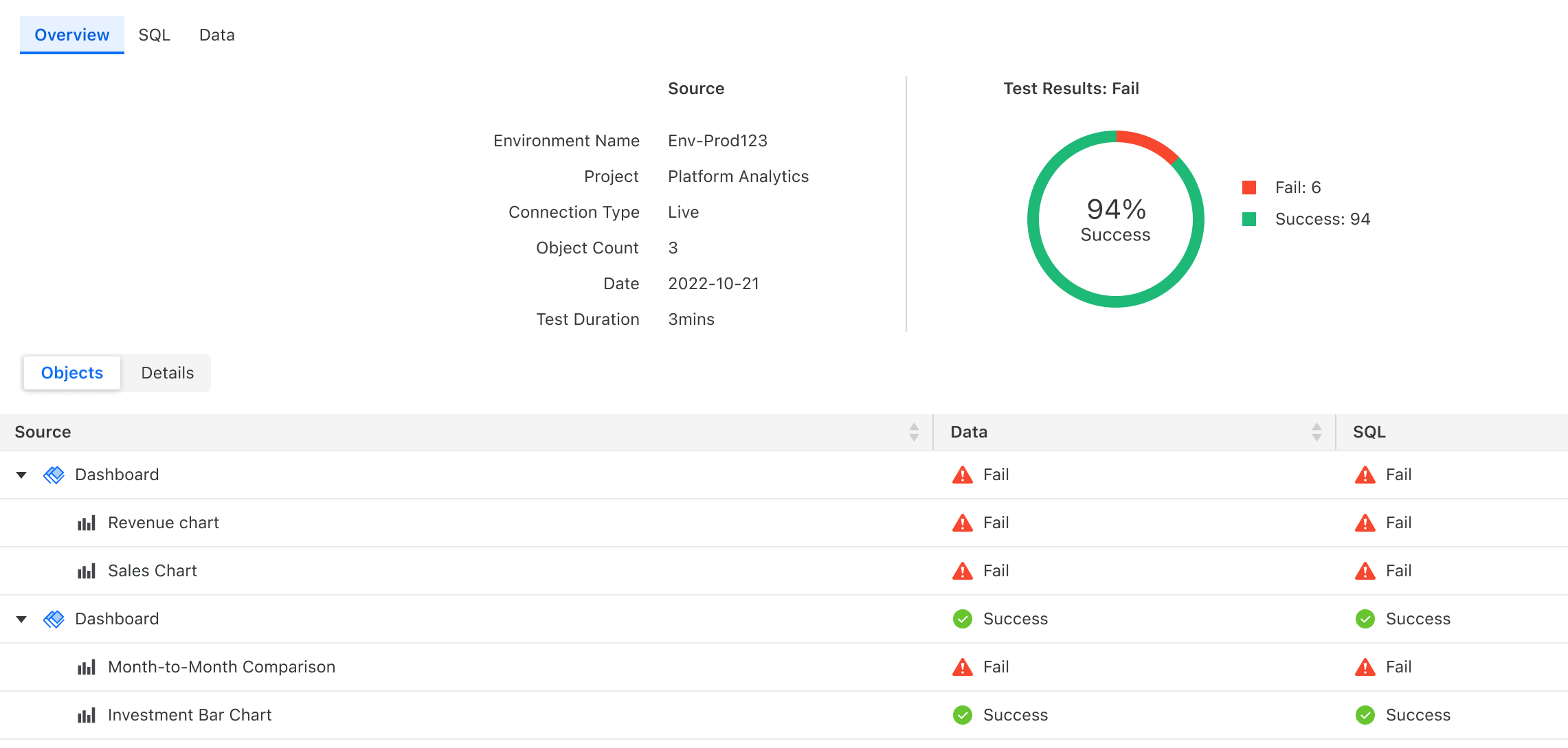
To see specifics, right-click a test result and select View Result.
-
By default, you see the Overview page. The Overview page provides a high level summary of the test execution result (pass or fail) for each content object. For dashboards, each visualization displays.
-
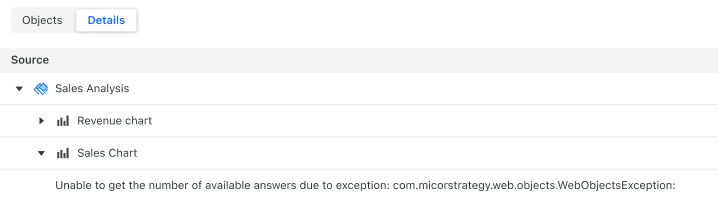
To check discrepancies and error messages, select Details.
- Starting in Strategy One (April 2026), you can archive the errors. Right-click the header and select one of the following:
- To archive errors thrown at the Objects level, select Archive
- To archive all entries of the same error type, select Archive All with Same Error
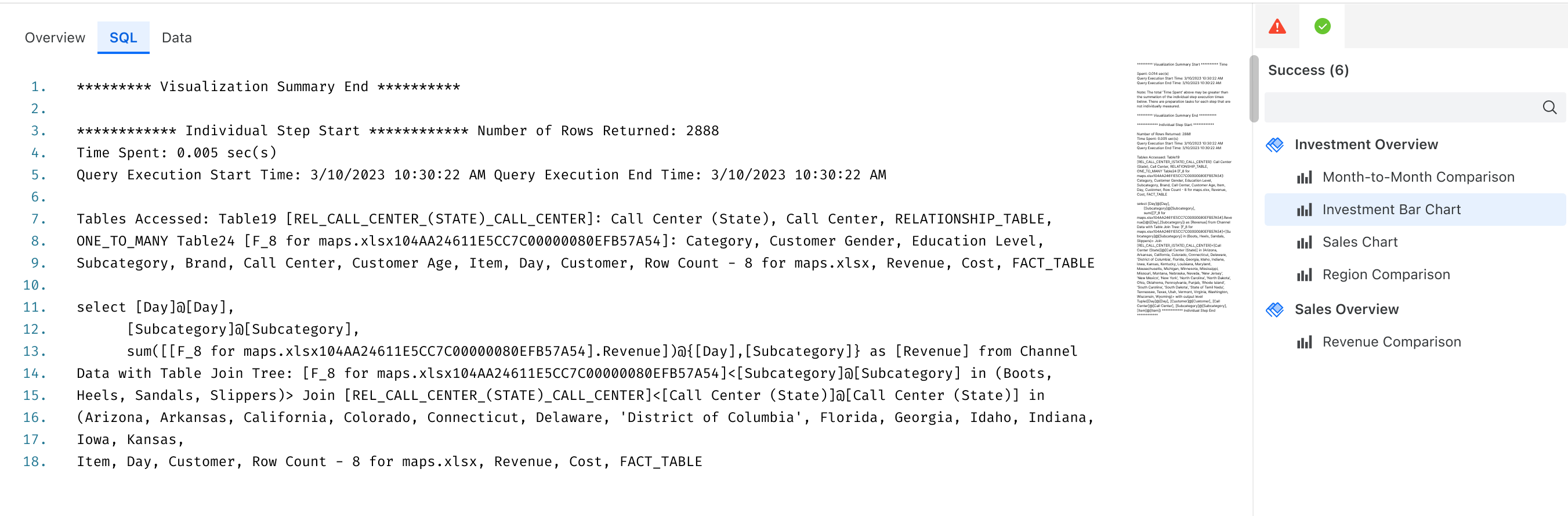
- To switch to the SQL view, click SQL. This page displays query SQL for each object or visualization. Objects with execution errors display an Execution Failed icon.
-
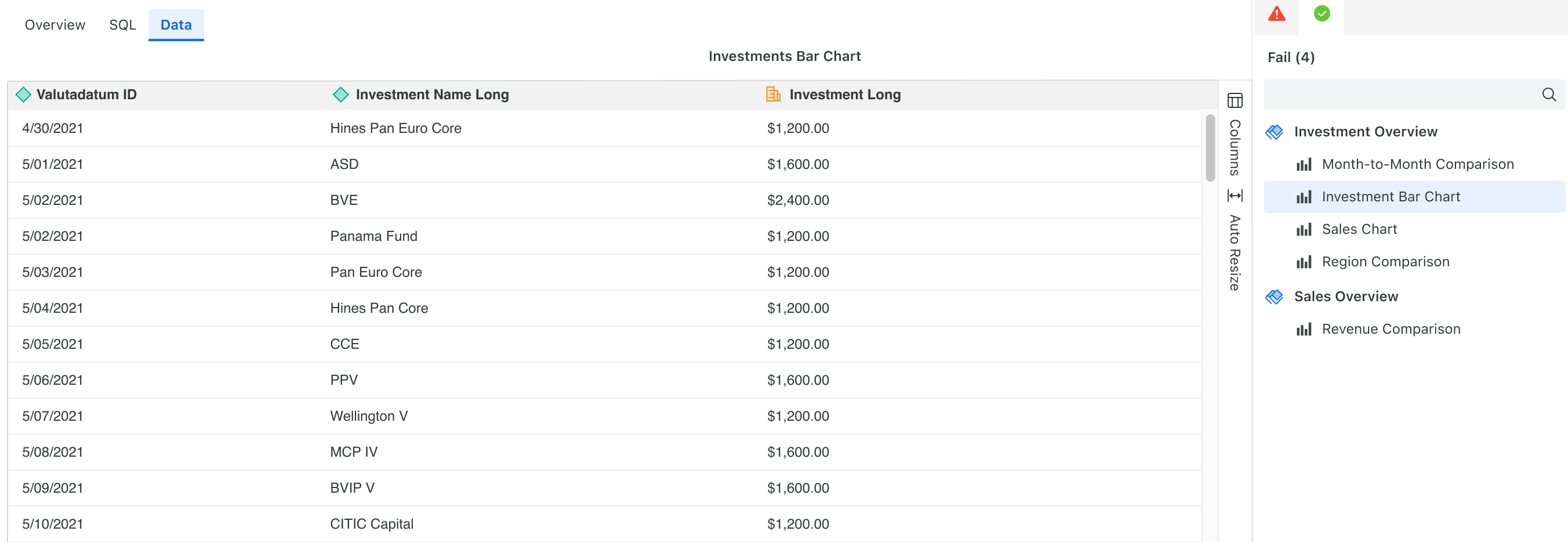
To switch to the Data view, click Data. This page visualizes raw dashboard result data for each object or visualization.