Strategy One
Documentation
Starting in Strategy One (March 2026), you can view documentation directly in Workstation as well as any web browser.
Starting in Strategy One (February 2026), you can include dependents and components in exported documentation.
Starting in Strategy One (January 2026), you can add new information to exported documentation, such as folders in object categories. Strategy One (January 2026) also improve performance for large environments, enhances API statuses for clearer background process tracking, and introduces user interface refinements such as required-field indicators, storage configuration guidance, and additional status/size cues.
Starting in Strategy One (December 2025), you can perform documentation tasks in Workstation. Users can generate detailed, exportable documentation by object type, folder, or programmatically via REST APIs and Python scripts.
You must have the Use project documentation and Monitor cluster privileges to access the Documentation blade, generate documentation, and use related REST API/Python script functionality.
You must configure the Strategy One Storage Service. This service is required to enable document generation, storage, and export functionality in Workstation.
If you have fencing enabled, you can not generate project documentation. To create project documentation, fencing must be at least temporarily disabled. For more information on fencing, see Configure Fencing.
Create New Documentation
- Open the Workstation window.
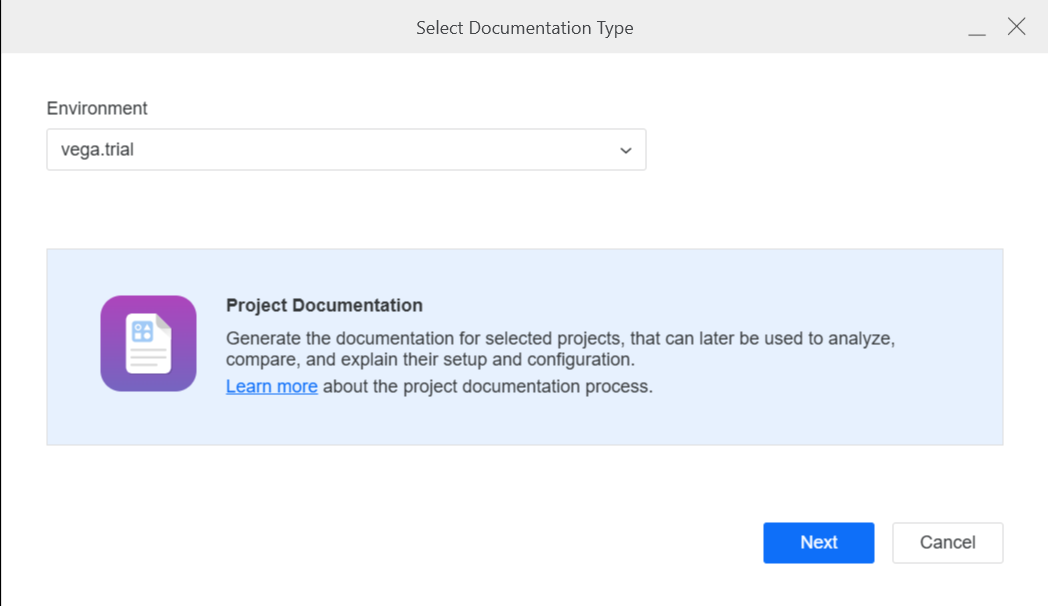
- In the Navigation pane, under Administration, click Documentation.
-
In the Basic Configuration tab, add a Name. Select the Projects to include. You can include one, multiple, or all available projects.
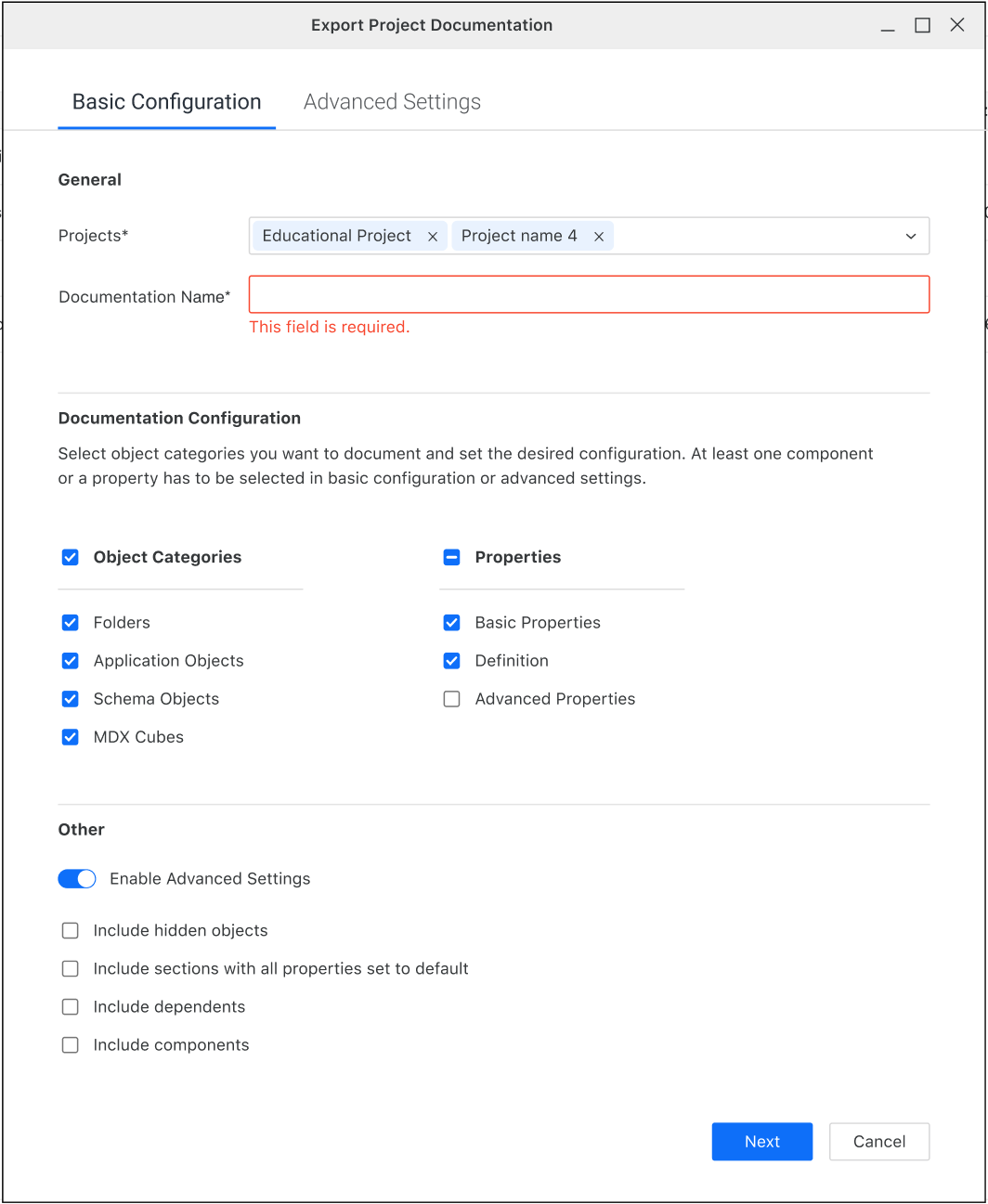
Some fields may vary depending on your Strategy One version.
- You can select object categories you want to document. To create documentation, you need at least one object type and property selected. The currently supported objects are:
-
Schema Object Types: Attribute, Fact, Function, Hierarchy, Logical Table, Security Filter, Transformation, Warehouse Partition Mapping, Metadata Partition Mapping.
-
Application Object Types: AutoStyle, Base Formula, Consolidation, Custom Group, Data Mart Report, Dashboard, Derived Element, Document, Drill Map, Filter, HTML Document, Hypercard, Intelligent Cube, Metric, MTDI Cube, Predictive Metric, Prompt, Report, Search, Shortcut, Subtotal, Template.
-
If you want to be more granular with your object categories and basic properties selections:
-
Toggle on Enable Advanced Settings.
-
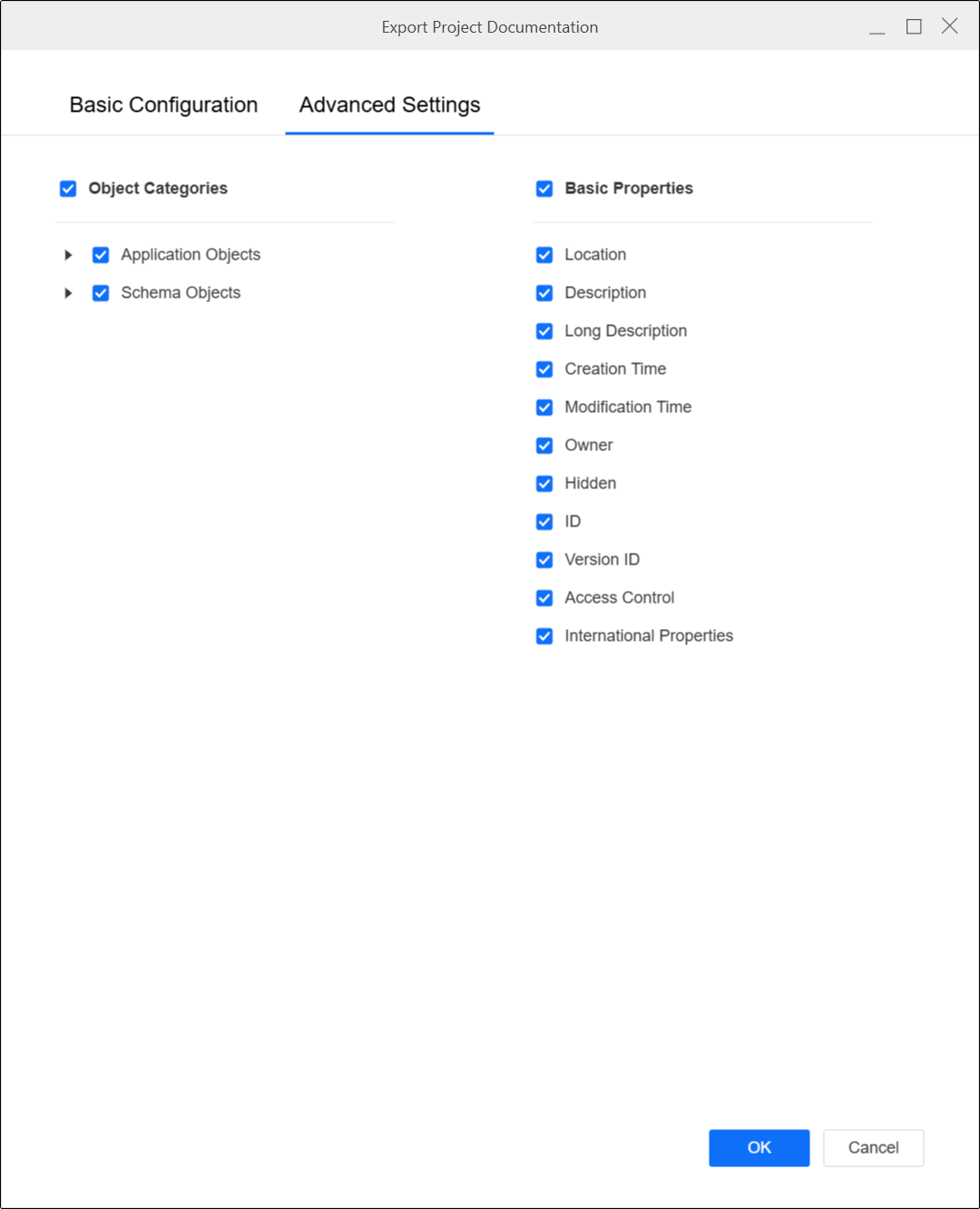
Click the Advanced Settings tab.
-
Select the object categories and basic properties to include.
-
- Click OK.
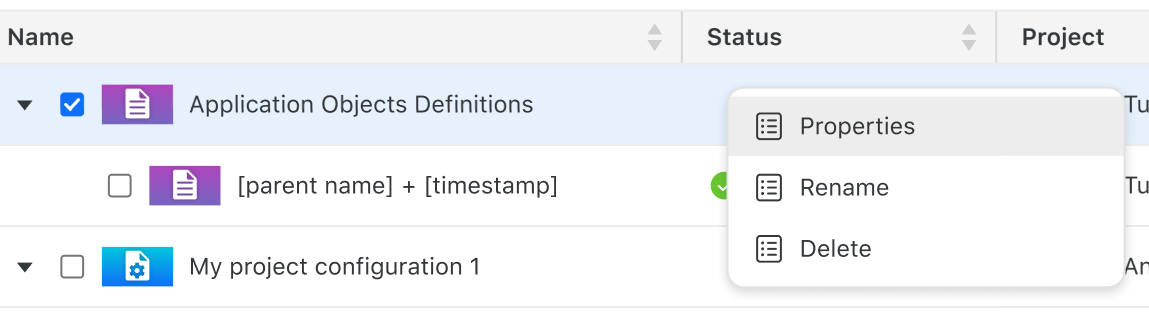
- To view the configuration, right-click the documentation and select Properties. You can update the Name and Description.
- To view each run of the documentation, expand the project documentation, as shown above.
- To regenerate the project documentation, right-click the project documentation and select Re-Run.
Export Documentation
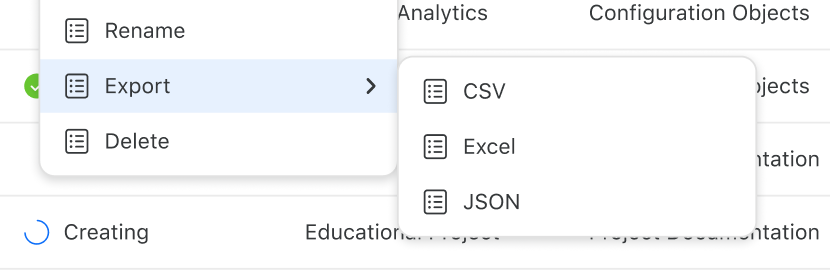
Users can generate and export documentation to download the output in Excel, CSV, or JSON format.
- Open the Workstation window.
- In the Navigation pane, under Administration, click Documentation.
- Right-click the documentation to export, point to Export, then select the format: CSV, Excel, or JSON.
View Documentation
Users can view project documentation
- Open the Workstation window.
- In the Navigation pane, under Administration, click Documentation.
- To view directly in Workstation, right-click the documentation to view and select Open.
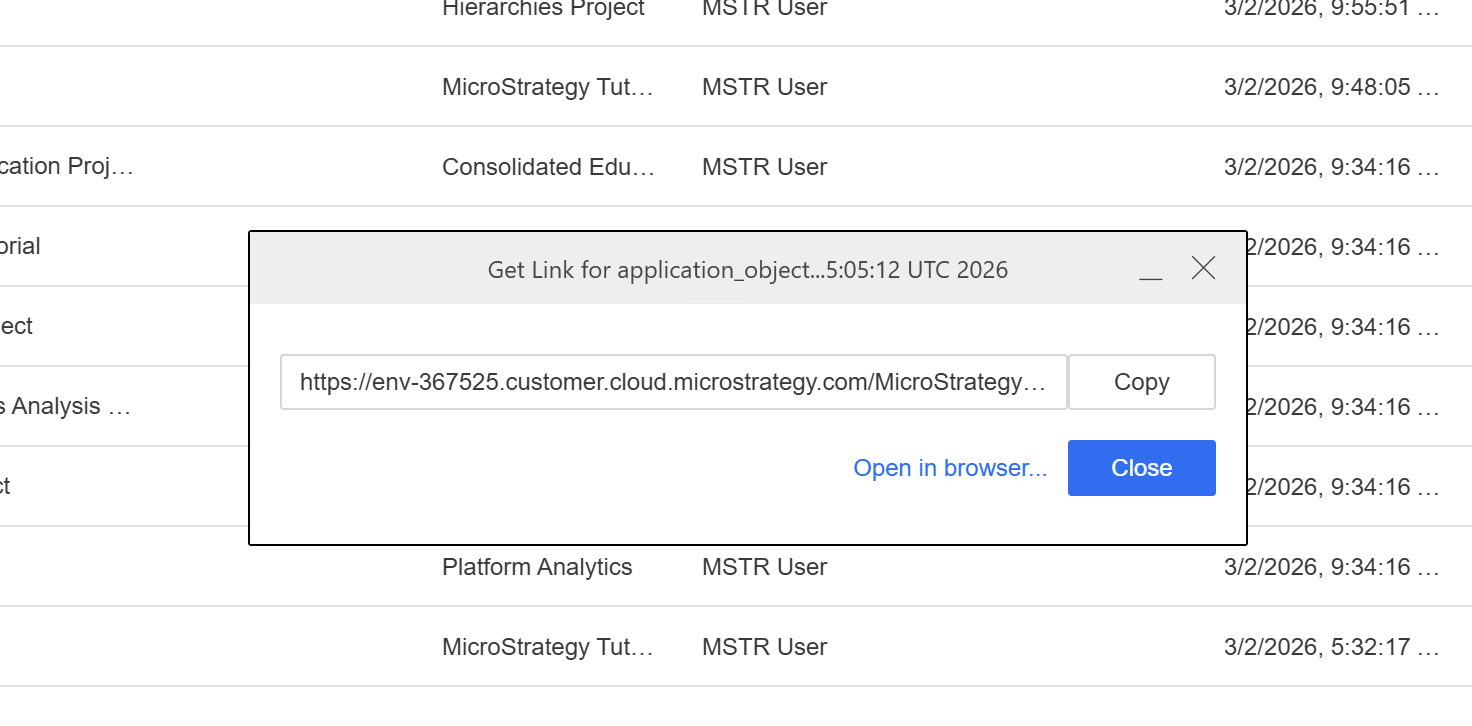
- To create a link instead, right-click the documentation to view and select Get Link. You can Copy the link or Open in Browser.