
Strategy One
Manage Gateways
You must update the metadata to enable gateway management.
You must have the Configure gateways and drivers privilege.
The Gateways tab displays Strategy-certified gateways for your environment. You can use the Gateways tab to filter, sort, view properties, edit security access, and disable or enable drivers on one or more gateways.
- Open the Workstation window with the Navigation pane in smart mode.
- In the Navigation pane, click Data sources.
- Click the Gateways tab.
If you do not have the Configure gateways and drivers privilege, an error may occur when you open the Gateways tab.
-
Select an environment from the drop-down list.
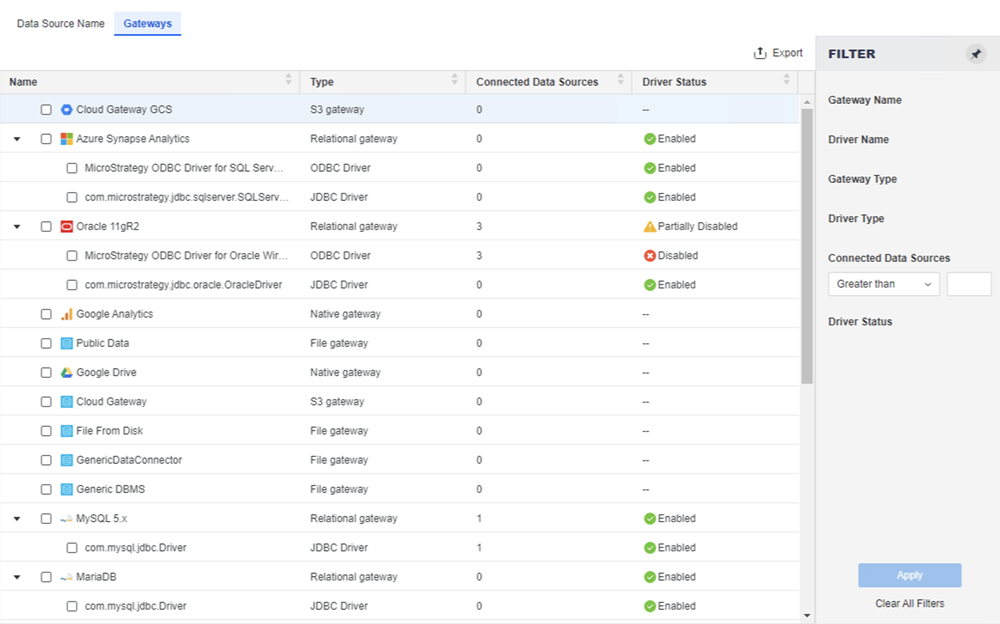
Details such as type, number of connected data sources, and driver status for the available gateways display in a grid.
-
To view information about a gateway's drivers, expand the gateway.
-
To change which columns display, click Columns. Select the check boxes for the columns you want to display; clear the check boxes for the columns to hide.
-
Filter the grid to focus on specific objects. Make multiple selections in the Filter panel and Apply them to the grid. You can filter on Gateway Name, Driver Name, Gateway Type, Driver Type, Connected Data Sources, and Driver Status.
The filter summary displays at the top of the grid. You can use it, as well as the Filter panel, to edit the filters.
-
To remove a specific filter, click Show More. Click the delete icon
 next to the filter. For example, you can remove the Driver Type filter but keep the Driver Status filter.
 -
To edit a specific filter, click Show More. Click the edit icon
 next to the filter and make changes. Click Apply.
 -
To clear all filter selections, click Clear All.
-
-
To view and manage gateway properties, right-click a gateway in the grid and choose Properties.
-
View gateway details such as the object ID and owner on the General tab.
- To change privileges for a specific user or user group, click Security Access in the left pane.
- To customize permissions, select the user or group. In the permissions band at the bottom of the window, select or clear the individual permissions.
- To change permissions for multiple users and groups all at once, click Advanced Security Access. When complete, click OK to return to the main Security Access page.
- For more details, see Disable and Enable Gateway Access.
- You can disable and enable drivers using the Drivers tab.
- Click OK to save the changes.