
MicroStrategy ONE
Level Metrics: Applying the Metric Condition to the Metric Calculation
The Filter setting: uncheck to exclude attributes absent in report or level (dimensionality) setting determines whether the metric filter is applied to the metric calculation. By default, the setting is selected. If it is cleared, filter attributes that are not on the report or in the level of the metric are not included in the metric calculation. For a detailed explanation of how the setting works, see Example of Filter Setting.
This setting can help you re-use the same metric in multiple reports. By clearing the Filter setting, the parts of the metric filter that are applied depend on what is included on the report. The example described in Re-Use Metrics with the Filter Setting, illustrates how the setting allows you to re-use metrics. For a definition and examples of metrics containing metric filters, see Conditional Metrics.
For brevity, this option is referred to as the Filter setting.
Example of Filter Setting
The following reports all contain revenue for books sold in California stores and shipped via Pronto Packages, but the revenue amount changes depending on the Filter setting.
- Create a filter with the following conditions and name it CA Books Pronto:
- Call Center = San Diego and San Francisco
- Category = Books
- Shipper = Pronto Packages
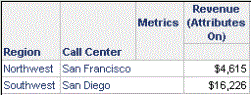
- Create a revenue metric and use the CA Books Pronto filter as the condition. By default, the Filter setting is selected. Name it Revenue (Attributes On).
- Copy the Revenue (Attributes On) metric and rename it Revenue (Attributes Off). Edit the metric to clear the Filter setting, by following the substeps outlined below:
- Select Level (Dimensionality) in the breakdown window (under the heading Metric is defined as).
- Click Advanced in the Definition window.
- Clear the Filter setting: uncheck to exclude attributes absent in report or level (dimensionality) check box.
- Click OK.
- Click Save and Close.
- Create a report with the Region and Call Center attributes on the rows and the Revenue (Attributes On) metric on the columns. Execute the report. The results are displayed below:
- Change to SQL view and notice the WHERE clause, as shown below:
where a11.[EMP_ID] = a12.[EMP_ID] and
a..11[ITEM_ID] = a.13[ITEM_ID] and
a13.[SUBCAT_ID] = a14.[SUBCAT_ID] and
a11.[CUSTOMER_ID] = a15.[CUSTOMER_ID] and
a11.[EMP_ID] = a15.[EMP.ID] and
a11.[ORDER_DATE] = a15.[ORDER_DATE] and
a11.[ORDER_ID] = a15.[ORDER_ID] and
a12.[CALL_CTR_ID] = a15.[CALL_CTR_ID] and
a16.[REGION_ID] = a17.[REGION_ID]
and(a12.[CALL_CTR_ID] in (2, 4)and a14.[CATEGORY_ID] in (1)and a15.[SHIPPER_ID] in (1)The complete metric filter (Call Center, Category, and Shipper) is included in the metric calculation.
- Save the report as CA Revenue (Attributes On).
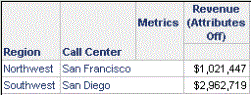
- Return to Design view. Delete the Revenue (Attributes On) metric and replace it with the Revenue (Attributes Off) metric. Execute the report. The results are displayed below:
- Why has the revenue increased substantially? Change to SQL view to check the WHERE clause:
where a11.[CALL_CTR_ID] = a12.[CALL_CTR_ID]
and a12.[REGION_ID] = a13.[REGION_ID]
and a11.[CALL_CTR_ID] in (2, 4)
With the Filter setting turned off, only those attributes in the metric filter which are on the report or in the metric level are included in the metric calculation. In this report, only Call Center meets those requirements, since it is on the template. Because the metric conditions of Category = Book and Shipper = Pronto Packages are excluded, the revenue is calculated for all categories and all shipping companies, increasing the revenue amount dramatically.
In the previous examples, the metric level has not changed from the default of report level, so the level does not affect the Filter setting. The next example in this procedure adds a metric level.
- Save the report as CA Revenue (Attributes Off).
- Copy the Revenue (Attributes Off) metric, renaming it Order Revenue (Attributes Off). Edit the metric to add Order to the metric level.
- Copy the CA Revenue (Attributes Off) report, renaming it Order CA Revenue (Attributes Off).
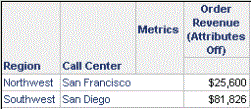
- Edit the new report. Delete the Revenue (Attributes Off) metric and replace it with the Order Revenue (Attributes Off) metric. Execute the report. The results are displayed below:
- The revenue amount has changed again. Check the WHERE clause in the SQL view to discover why:
where a11.[EMP_ID] = a12.[EMP_ID] and
a.11[CUSTOMER_ID] = a13.[CUSTOMER_ID] and
a.11[EMP_ID] = a13.[EMP_ID] and
a.11[ORDER_DATE] =a13.[ORDER_DATE] and
a.11[ORDER_ID] = a13.[ORDER_ID] and
a12.[CALL_CTR_ID] = a14.[CALL_CTR_ID] and
a14.[REGION_ID] = a15.[REGION_ID]
and a12.[CALL_CTR_ID] in (2, 4)and a13.[SHIPPER_ID] in (1)Now the metric calculation includes Call Center because it is defined on the template. It also includes Shipper because it is in the same hierarchy as Order, which is the metric level. Category is not included, since it is neither on the report nor in the metric level. The metric calculates revenue in all categories for orders shipped by Pronto Packages for the California stores.
Re-Use Metrics with the Filter Setting
The Filter setting can help you re-use the same metric in multiple reports. Clear the Filter setting so that the attributes on the report affect which parts of the metric filter conditions are applied. This eliminates the need to create and maintain multiple metrics, particularly if the metric and filter qualifications are complex.
For example, a revenue metric has a condition that filters for the Northeast region and the Electronics category. With the Filter setting cleared, attributes from the metric condition that are not on the report or in the level of the metric are not included in the metric calculation. Since the default of report level has not been changed, only the attributes on the report will affect the metric calculation, as shown in the table below.
|
Metric Conditions |
Attributes on the Report |
Metric Results |
|
Region = Northeast Category = Electronics |
Category |
Revenue for the Electronics category in all regions |
|
Region = Northeast Category = Electronics |
Call Center Category |
Revenue for all Electronics in all Call Centers in the Northeast Region |
Place the metric on a report that contains Category. Revenue is calculated for the Electronics category across all regions. The metric condition for Region is not included in the metric calculation because the Filter setting ignores any attributes in the metric condition that are not on the report.
Place the same metric on a report that contains Call Center and Category. Revenue is calculated for the Electronics category for all Call Centers in the Northeast Region. The metric condition for Region is now included in the metric calculation because the Filter setting only ignores any attributes in the metric condition that are not on the report or related to attributes on the report. Call Center and Region are in the same hierarchy and therefore related.
The same metric returns different results on different reports, because the report attributes determine which qualifications are used in the metric calculation. You could achieve the same results with two different metrics, each with its own filter. Re-using the metric and filter decreases the time spent creating and maintaining them, especially if the metric and filter are more complex than this simplified example.
The following procedure re-creates the example above, in particular showing how the report SQL is affected by the Filter setting.
For a more detailed description of metrics containing metric filters, including examples, see Conditional Metrics.
To Re-Use a Metric with the Filter Setting
- Create a filter with the following conditions and name it Northeast Electronics:
- Region = Northeast
- Category = Electronics
- Create a revenue metric and use the Northeast Electronics filter as the condition. Keep the metric level set at report level. By default, the Filter setting is selected. Save the metric as Northeast Electronics Revenue -- selected.
- Copy the Northeast Electronics Revenue -- selected metric and rename it Northeast Electronics Revenue -- cleared. Edit the metric to clear the Filter setting, as described below:
- Double-click the Northeast Electronics Revenue -- cleared metric.
- Select Level (Dimensionality) in the breakdown window (under the heading Metric is defined as).
- Click Advanced in the Definition window.
- Clear the Filter setting: uncheck to exclude attributes absent in report or level (dimensionality) check box.
- Click OK.
- Save and close the metric.
- Place the Northeast Electronics Revenue -- cleared metric on a report with Category. Switch to SQL View. As shown below, the WHERE clause does not filter for Region:
where a11.[CATEGORY_ID] = a12.[CATEGORY_ID]
and a11.[CATEGORY_ID] in (2)
This occurs because Region (or any related attributes) is not on the report or in the level of the metric.
- Next, create a new report. Use the same metric, but this time add Call Center to the grid. The WHERE clause does not filter for Category:
where a11.[CALL_CTR_ID] = a12.[CALL_CTR_ID]
and a12.[REGION_ID] in (1)
Again, since Category is not on the report or in the level of the metric, the Category qualification does not affect the metric calculation. Call Center (from the report) is related to Region (from the metric condition) so only Northeast is included on the report. In both cases, the report attributes determine which qualifications are used in the metric calculation. The same metric returns different results.
- To finish this example, place the Northeast Electronics Revenue -- selected metric on a new report with Category. Both the Region and Category qualifications are used because the metric's qualifications are not affected by the report's contents.
where a11.[SUBCAT_ID] = a12.[SUBCAT_ID]
and a.12[CATEGORY_ID] = A.13[CATEGORY_ID]
and (a11.[REGION_ID] in (1)
and a12.[CATEGORY_ID] in (2))