MicroStrategy ONE
Configuring How the Qualification Can Be Defined in MicroStrategy Web Prompts: Expression Settings
For hierarchy, attribute qualification, and metric qualification prompts, you can configure in MicroStrategy Developer how the user can define the attribute or metric qualification in the prompt when the prompt is executed in MicroStrategy Web.
Expression Settings for Attribute and Hierarchy Qualifications
The expression settings for attribute and hierarchy qualifications are described below:
- Expression type allowed: Select the type of expression that the user can create when the prompt is executed. The options are:
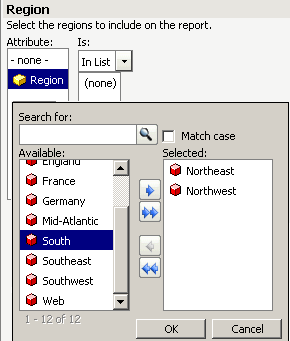
- Select: When the prompt is executed, the user selects an attribute, and then creates a list of attribute elements to include in or omit from the report.
The following prompt, which is being executed in MicroStrategy Web, allows the user to select the regions to include in the report:
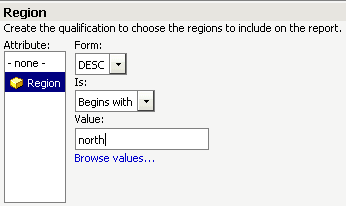
- Qualify: When the prompt is executed, the user creates an attribute qualification to answer the prompt. The user selects an attribute, an attribute form (such as ID or Description), an operator (such as Contains or Begins with), and a value to compare the attribute element to.
A MicroStrategy Web user can select Region, Description, Begins with, and north to include all northern regions in the report, as shown below:
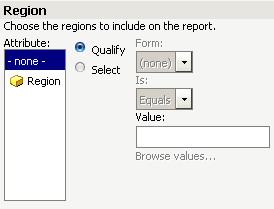
- Select and Qualify: When the prompt is executed, the user chooses to either select attribute elements or create an attribute qualification, as described above.
The following prompt, which is being executed in MicroStrategy Web, contains the radio buttons to select the expression type:
- Default qualification type (Available only if Select and Qualify is chosen above): Select whether the default qualification type should be Select or Qualify. The user can change from this default when the prompt is executed.
- Default operator: Select the default operator (such as In List or Contains) to use in the prompt's attribute qualification. When the prompt is executed, the user can accept this default operator or select a different operator, using the Is drop-down list as shown in the samples above.
- Allow import elements: By default, this check box is cleared, which indicates that files cannot be imported. Select the check box to allow a user to load a file containing a list of elements for an In List or Not in List type of qualification. The file is loaded when the prompt is executed.
-
Default operator between conditions: Choose either AND or OR as the default operator that is used between conditions in the prompt's definition. When the prompt is executed, the user can accept this default operator or select the other operator.
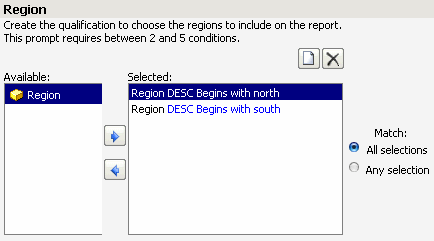
The following prompt, shown in MicroStrategy Web, allows multiple conditions. The user has created a condition on north and another on south. The AND operator was chosen as the default operator between conditions, so the All selections option is selected. This report would not return any results (a word cannot begin with both "north" and "south"), so the user can change the Match option to Any selection (representing the OR operator). The report will then return all northern and southern regions.
To enable multiple conditions, define the Minimum number of qualifications as a number larger than one.
Expression Settings for Metric Qualifications
The expression settings for metric qualifications are described below. Examples of each follow the descriptions.
- Default operator: Select the default operator (such as Equals or Greater than) to use in the prompt's metric qualification. When the prompt is executed, the user can accept this default operator or select a different operator.
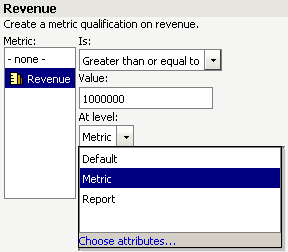
- Display output level selection check box: By default, this is selected, which indicates that the user can select an output level (metric level, report level, or a specific attribute) when the prompt is executed. Clear the check box to disable output level selection. An output level is the level at which the metric is calculated. For background information on metric levels, see Level Metrics: Applying the Metric Condition to the Metric Calculation.
- Default operator between conditions: Choose either AND or OR as the default operator that is used between conditions in the prompt's definition. When the prompt is executed, the user can accept this default operator or select the other operator.
In the following prompt, which is being executed in MicroStrategy Web, the operator is displayed in the Is field. The user is setting the output level to Metric, so that the metric qualification is calculated at the level defined in the metric.