Strategy One

Delete User Profile Folders

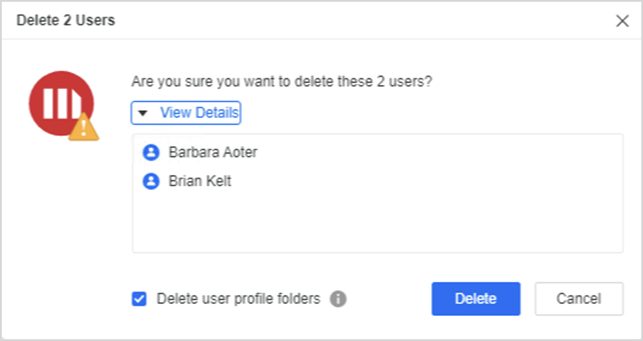
Starting in MicroStrategy ONE (June 2024), Administrators can delete user profile folders to keep the environments secure and scalable. Deleting user profiles when inactive and the user is ready to retire is essential, since it allows Administrators to reallocate resources, maintaining a scalable environment. Administrators can only delete profile folders from loaded projects. Deleting a user’s profile folders permanently deletes all objects inside these folders. This deletion can only be reverted by performing metadata backup.

To delete all user’s profile folders, all profiles must be loaded.

  1. Open the Workstation window.
  2. In the Navigation pane, click Users & Groups.
  3. In the left pane, click All Users, if the list of users is not displayed.
  4. Select the user or users to delete.
  5. Right-click the selection and choose Delete.
  6. Select Delete user profile folders.

    To delete all user’s profile folders, all profiles must be loaded.

  7. Click Delete.