Strategy One
Configure User Password Expiration
- Open the Workstation window.
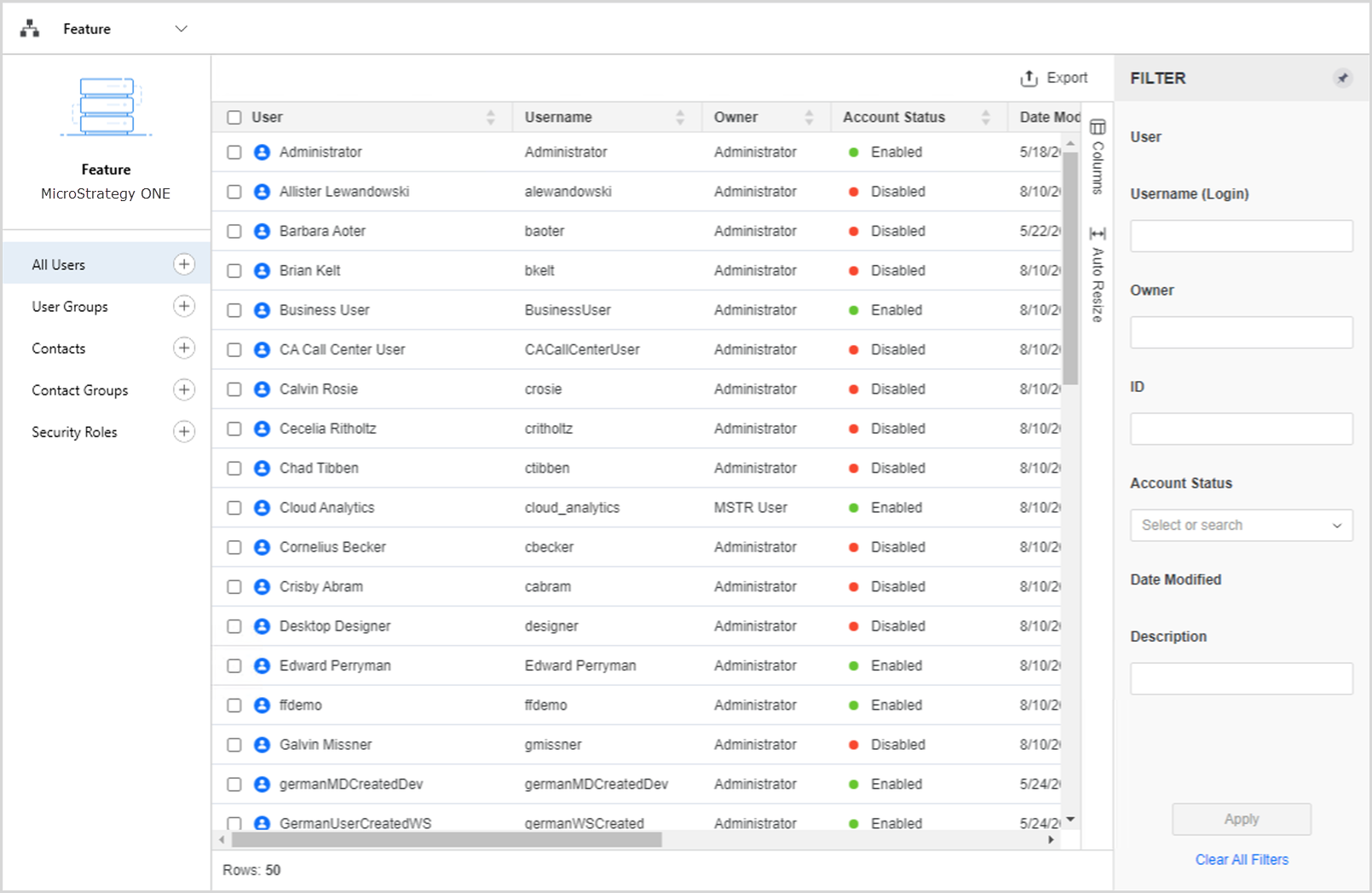
- In the Navigation pane, click Users
- Select an Environment from the upper-left drop-down list.
-
-
Double–click the user. The Account and Credentials section opens.
-
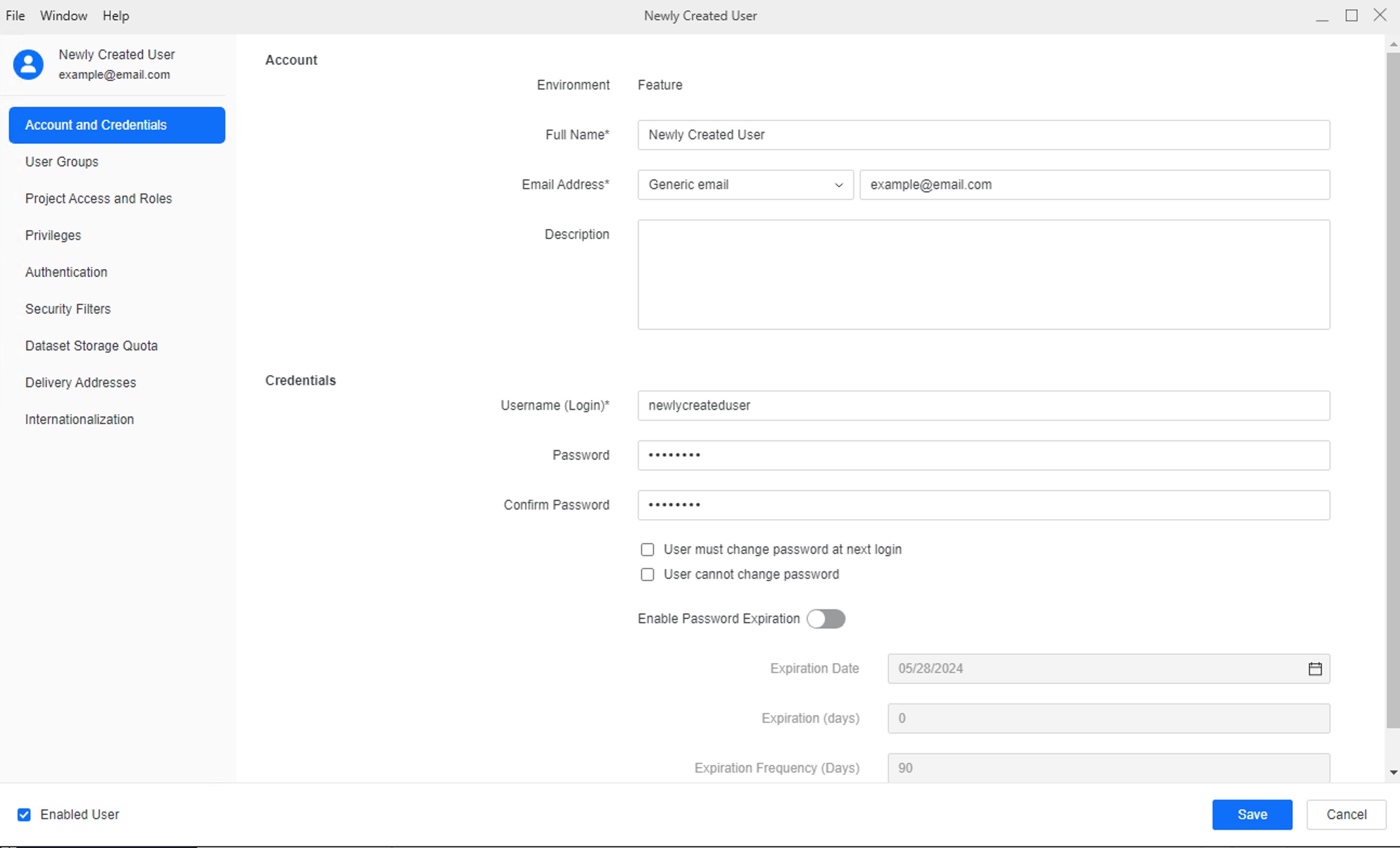
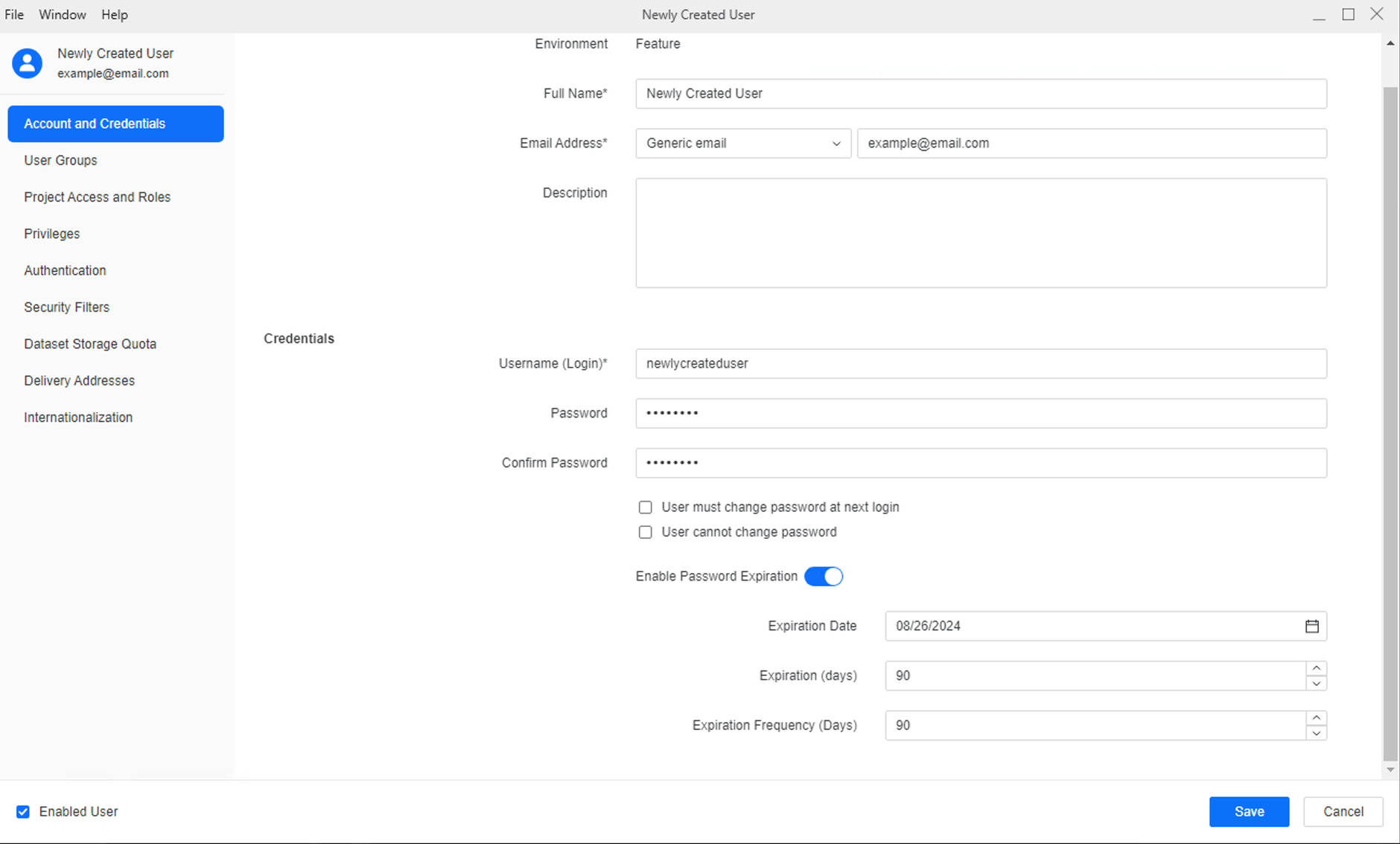
Turn on Enable Password Expiration.
-
The User Cannot Change Password check box must be cleared for this password expiration to be enabled.
-
-
Either select the Expiration Date or specify the number of days before Expiration.
-
As soon as you do one, the other is automatically filled in.
-
-
To specify how often the password must be changed (optional), specify the Expiration Frequency in days.
-
Click Save.