
Strategy One
Create File Subscriptions
Starting in Strategy One (March 2026), dashboards can be delivered as Excel or CSV files. For dashboards displayed as CSV, you can select the delimiter. You can also define how reports are formatted in Excel files, such as whether to expand page-by and customizing the header and footer.
Starting in Strategy One (July 2025), you can set multiple schedules for one subscription and create schedules in the subscription editor.
Starting in the MicroStrategy 2021 Update 7 October Monthly Release, Workstation allows you to create file subscriptions through Distribution Services. You can select one dashboard, document, or report to be delivered through a file device, define a schedule and message, and specify settings for the subscription object.
You can also add bursting to file subscriptions. Bursting in Strategy Distribution Services delivers reports and documents to a dynamic list of recipients with data sliced by a specific attribute. Bursting is used when you must send personalized slices of data to multiple file locations with a single subscription. Bursting allows easy distribution of data to multiple file devices dynamically and delivers data in a single execution enhancing the performance.
| Bursting is unavailable by default. It is only available for reports and documents that have at least one attribute in the page-by section.
Check out the video below to learn more!
-
Open the Workstation window.
-
In the Navigation pane, inside the Administration group, click
 next to Subscriptions.
 -
Choose an environment and project, then click Select.
-
In Name, enter a descriptive name for the subscription.
-
From the Type drop-down, choose File.
-
In the Content pane, click
 . Select content to add to one subscription, such as one dashboard, document, or report.
 -
In the Content pane, click More
 next to each dashboard or report to change the delivery format.
Supported formats for dashboards are .mstr files and PDF and, beginning in Strategy One (March 2026), Excel and CSV files. Supported formats for reports are CSV, Excel, HTML, PDF, and plain text files.
-
If you select Plain Text, select the delimiter character from the Delimiter drop-down list.
-
If you select PDF for a dashboard, you can define PDF settings such as the range, page size, and showing page numbers. Click Settings
 to display the PDF Settings window. After you define the settings,
click Save to return to the subscription.
to display the PDF Settings window. After you define the settings,
click Save to return to the subscription. -
If you select Excel for a dashboard, define the Range by specifying which pages and chapters to include, select whether each page or each visualization is exported to a worksheet by defining the Contents, and determine whether to Show Filters.
-
If you select Excel for a report, beginning in Strategy One (March 2026), define the Range by specifying whether to expand all page-by fields and export the page-by information, selecting whether to Export the Report Title and Export Filter Details, and customizing the Header and Footer text.
-
If you select CSV for a dashboard, define the Range by specifying which pages and chapters to include and select the delimiter character from the Delimiter drop-down list.
-
-
Starting in Strategy One (July 2025), expand the Schedule drop-down list and choose existing schedules or click Add New Schedule. For information on creating schedules, see Create and Edit Schedules.
Prior to Strategy One (July 2025), choose from time-based schedule objects or event-based triggers and choose a schedule to control how often the subscription occurs. For information on creating schedules, see Create and Edit Schedules.
-
Once the schedule is set, you can optionally specify the date when the subscription should stop by selecting the date in Expire on or Stop After and choose a Timezone, if available.
-
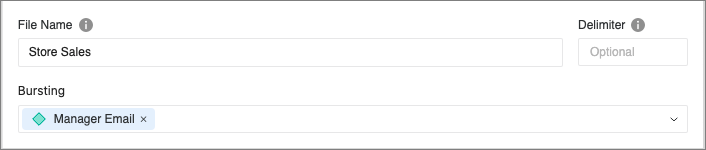
If you have selected a report or document with at least one page-by attribute, you can select an attribute for Bursting.
-
Enter the desired File Name with the necessary macros for customized file delivery.
-
Select File locations from Users, if you wish to deliver the files to users' file delivery addresses. Click
Add User to add users for the file delivery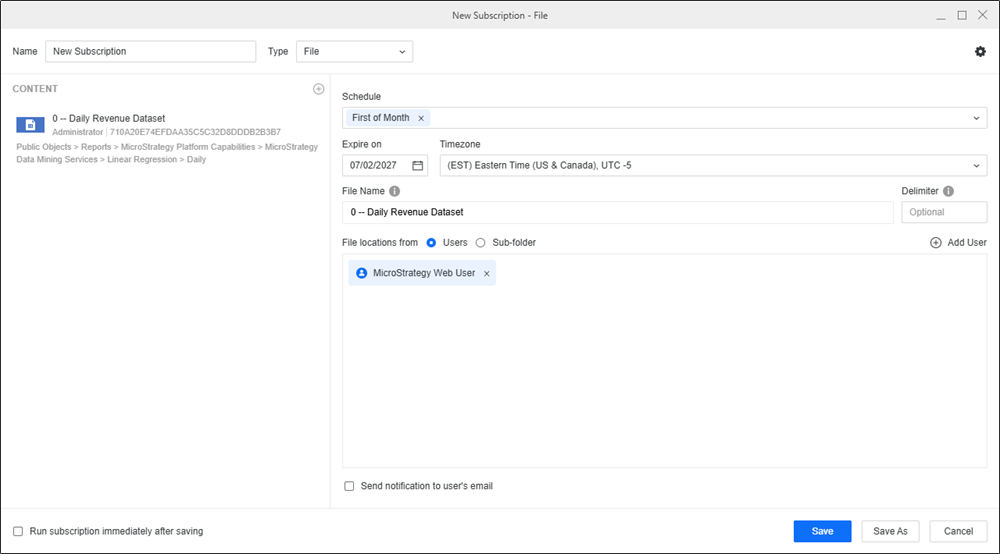
-
Select File locations from Sub-folder, if you wish to deliver files to a file device or a user specified file location. Select the file devices from the drop-down or type in a path for a specific file location.
-
Click
to adjust subscription-level settings . You can set the contact security level, as well as choose the compression and zip file password. To learn more about the contact security level, see Create FTP Subscriptions.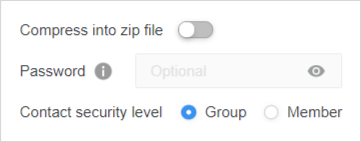
-
If necessary, you can opt to Send notifications to user’s email and Run the subscription immediately after saving.
-
Click Save.