
Strategy One
View and Edit Security Access for Projects
ACL security is very crucial in determining object security. It is often required to assign child objects different access from the parent and assign them consequently to the children objects. The ACL concept of parent-child relationships applies to the folder-object structure in Workstation and Admin & Modeling.
You can view and edit the following security access areas for projects that you have permission to access.
-
Project
-
Root Folder
-
Freeform Objects
Follow the steps below to control the Access Control List (ACL) for the security areas mentioned above, as well as their corresponding permissions.
- Open the Workstation window.
- In the Navigation pane, click Projects.
-
Right-click a project and choose Properties.
-
In the left pane, click Security Access.
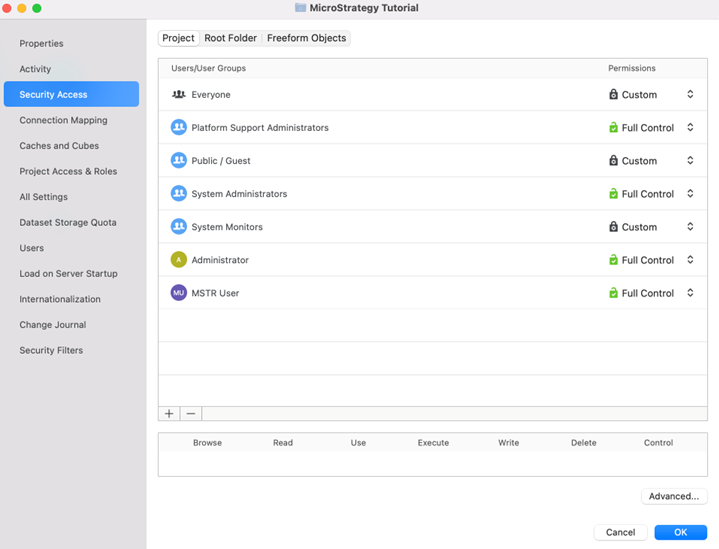
- At the top, click Project, Root Folder, or FreeForm Objects.
- Select the level of permission for each user or user group using the Permissions drop-down list.
- To customize permissions, select the user or group. In the permissions band at the bottom of the window, select or clear the individual permissions.
- To change permissions for multiple users and groups all at once, click Advanced Security Access. When complete, click OK to return to the main Security Access page.
- If you are setting access for the project root folder, specify how the children of the folder inherit ACLs:
- To apply the change only to the folder where the change was made, without affecting existing children, select Do not make any changes to the children. Any new folders or objects added to this folder will inherit the updated ACL permissions.
To merge existing and new ACL permissions, select Merge selected permissions.
To propagate only the selected rows, choose Overwrite selected permissions. If multiple changes are made to multiple rows of users and user groups, any unchecked rows apply only to the current folder, while the checked rows are propagated to—and replace—the child folders and child objects.
To propagate the entire ACL permissions to child folders and child objects, regardless of the currently selected check boxes, select Overwrite all permissions.
- Click OK.