
Strategy One
Configure the Default Report Export Settings
Starting in Strategy One (April 2026), you can configure the default settings for exporting to Google Sheets.
- Open the Workstation window.
-
In the Navigation pane, click Applications.
-
Create or edit an application.
-
In the left pane, click Export Settings.
-
To configure the Excel export settings:
-
Select the Configure Export to Excel Settings.
-
Select whether to Expand All Page-By Fields.
-
If page-by fields are expanded, use the drop-down list to select to export each Page-By on a Separate Worksheet or All Page-By on One Worksheet.
-
Select whether to Export Page-By Information. This lists the page-by element above the report grid for that page.
-
Expand More Settings.
-
Select whether to Export the Report Title.
-
Select whether to Export Filter Details.
-
Select whether to Customize the Header and Footer.
-
To customize the header, type text into the Header box. As you type text in a box, type a curly bracket { to display dynamic text in the suggestions list, then select the text to include. From the drop-down list, select where to display the header:
-
Display Before Standard Headers (The standard headers include the report title, filter details, and page-by information.)
-
Display After Standard Headers
-
Replace Other Headers
-
-
To customize the footer, type text into the Footer box. As you type, type a curly bracket { to display dynamic text in the suggestions list, then select the text to include.
To view a list of dynamic text, click the information icon
 next to Customize the Header and Footer.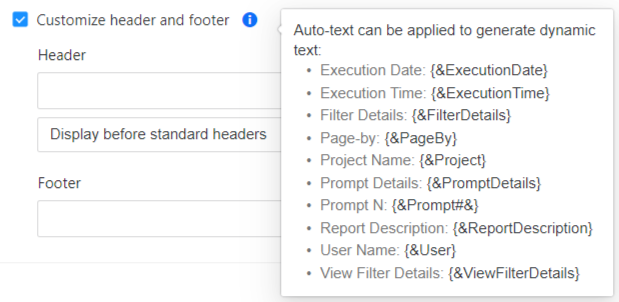
-
-
Starting in Strategy One (April 2026), to configure the Google Sheets export settings:
-
Select the Configure Default Settings for Google Sheets Exports check box.
-
Select whether to Expand All Page-By Fields.
-
If page-by fields are expanded, use the drop-down list to select to export each Page-By on a Separate Worksheet or All Page-By on One Worksheet.
-
-
Select whether to Export Page-By Information. This lists the page-by element above the report grid for that page.
-
Expand More Settings.
-
Select whether to Export the Report Title.
-
Select whether to Export Filter Details.
-
Select whether to Customize the Header and Footer.
-
To customize the header, type text into the Header box. As you type text in a box, type a curly bracket { to display dynamic text in the suggestions list, then select the text to include. From the drop-down list, select where to display the header:
-
Display Before Standard Headers (The standard headers include the report title, filter details, and page-by information.)
-
Display After Standard Headers
-
Replace Other Headers
-
-
To customize the footer, type text into the Footer box. As you type, type a curly bracket { to display dynamic text in the suggestions list, then select the text to include.
To view a list of dynamic text, click the information icon
next to Customize the Header and Footer.
-
-
To configure the PDF export settings:
-
Select the Configure Export to PDF Settings.
-
Select whether to Expand All Page-By Fields.
-
-
Continue to another element or, if you have completed customizing your application, click Save.