Strategy One
Add an Image or Fill a Background of a Dashboard Page
Starting in Strategy One (December 2025), you can add either a URL or upload an image and set it as a dashboard background. You can also use a single color to fill the background for a single Dashboard page instead of using the Dashboard properties.
To add an image to your dashboard page
- In the dashboard, click the page you want to add a background to.
- Click the Background option, navigate to and select the image and click Upload.
-
To specify the image location using a URL, enter the URL of the image in the Enter URL or Upload URL field and click OK.
Both absolute URLs (https://www.example.com/etc/logo.jpg") and relative paths (such as "/images/logo.jpg") are supported. Both URLs should point to a valid image file.
Relative paths point to locations that are relative to the application that they were originally created for. As a result, a relative path defined for Strategy Workstation does not work with Strategy Library and displays with broken images.
The use of dynamic text, such as {attribute}, that resolves to a URL is not supported.
To add a background fill to your dashboard page
- In the dashboard, click the page you want to add a background to.
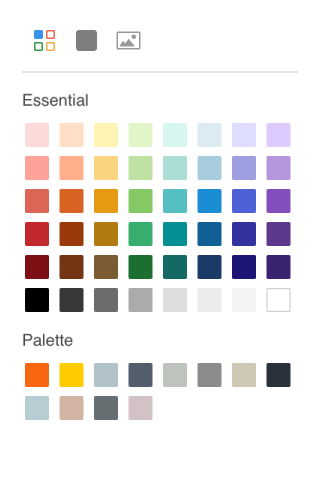
- Click the Background option, and select the a color from the color palette.