
Strategy ONE
About Mapping MDX Cubes
When a Strategy architect defines a project, much of the process centers on identifying logical entities, such as attributes and facts, that exist in physical tables. For example, an architect might identify that the key for the Customer attribute exists in the table LU_CUSTOMER. Once the logical entities are identified, the architect can then define a logical and physical model in the Strategy metadata. This model is referenced by the Strategy SQL Engine to generate SQL when a user executes a report.
In the context of MDX cube sources, an MDX cube, instead of a single table, contains all the metadata information necessary to define a logical model and physical model. When you, as the architect, need to add an MDX cube to a project in Strategy, you can choose an MDX cube by using the MDX Cube Catalog or Select Cube dialog box, as described in Importing MDX Cubes.
When an MDX cube is imported into Strategy, by default, a Strategy MDX cube is created that maps to the definition of the source cube in the MDX cube source. Intelligence Server automatically creates new attributes, metrics, hierarchies, and other objects that reflect the data and levels of the imported MDX cube. Although these objects, referred to as managed objects, are part of the project, they are not related to the existing project schema and schema objects.
For example, within a given project, a new managed object named Year has no relation to a Year attribute that is mapped to relational data. A new schema is created for each MDX cube source database instance used in a Strategy project. If you plan to use your MDX cube source as its own system of data which does not relate to any other data sources within the Strategy project, managed objects provide a quick way to integrate your data into Strategy.
However, if you plan to create relationships between your MDX cube source data to data from a different data source included in the Strategy project, you can map MDX cube data to existing attributes in the project. This allows data to be joined across sources in Report Services documents, which ensures that a consistent logical model is maintained. Mapping MDX cube data to existing attributes can also facilitate the use of Strategy features such as security filters.
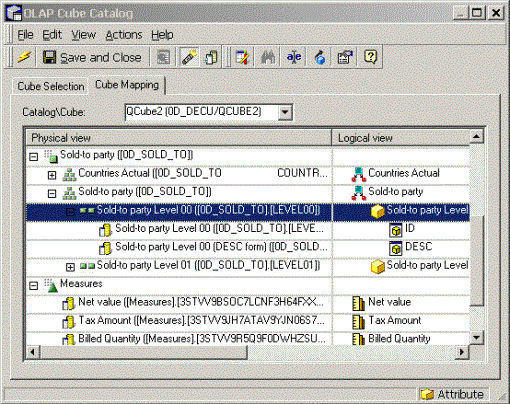
All MDX cube mapping tasks can be completed using the Cube Mapping tab in the MDX Cube Catalog.
After you have imported an MDX cube, you can perform the same mapping tasks available in the Cube Mapping tab of the MDX Cube Catalog by editing the MDX cube with the MDX Cube Editor. To use the MDX Cube Editor, right-click an MDX cube in Developer and select Edit.
Once an MDX cube is imported into Strategy, you can use Strategy's Data Mining Services features to perform predictive analysis on your MDX cube data. For steps on how to include predictive analysis with your MDX cube data, see the Advanced Reporting Help.
After the MDX cube is mapped, it can be used to build reports and documents in Strategy. For information on creating MDX cube reports, see Reporting on MDX Cubes.