
Strategy ONE
Formatting the background of selected items in Grid/Graphs used as selectors
A Grid/Graph can be used as a selector to control other Grid/Graphs. (For an introduction to selectors, see the Dashboards and Widgets Creation Guide.) By default, the background for items selected in the Grid/Graph is automatically chosen to provide contrast with the Grid/Graph's background, but you can specify the color for the selected items. The color is displayed in Presentation Mode in MicroStrategy Web.
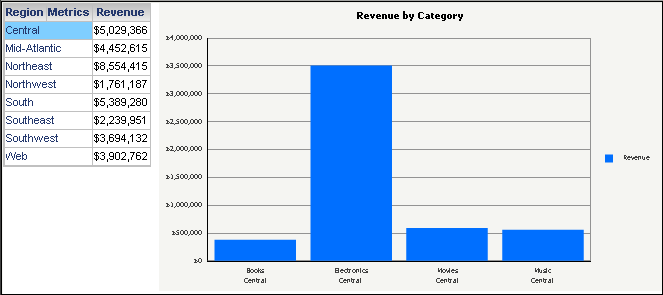
For example, a document contains two Grid/Graphs. The one on the left, which is displayed as a grid, shows revenue by region. Region is used as a selector, targeting the Grid/Graph on the right, which is displayed as a graph. The graph shows revenue by category and region. When a region is selected in the grid, the graph is updated to display data for that region only.
By default, the grid's background is set to transparent, and the background for selected items is set to automatic. In Flash Mode, the grid is displayed automatically with a white background (transparent to the section's background, which is white). The selected item (Central) is displayed in blue to provide contrast, as shown below:
If you change the grid's background for selected items to dark gray, the selected item's background is dark gray in Flash Mode, as specified, and the grid's background is still automatically displayed in white, as shown below:
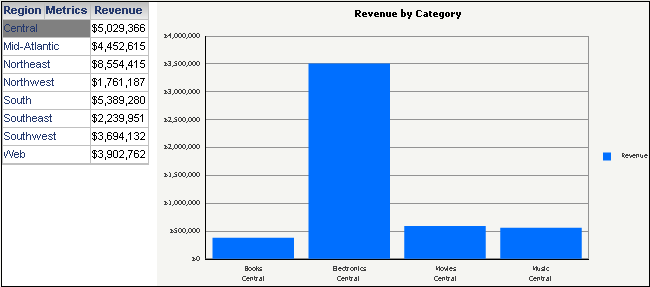
In all other modes except Express Mode, the background of the selected item is automatically defined to provide contrast with the Grid/Graph's background. This example appears in blue in all other modes, as shown in the first example above.
Prerequisite
The following steps assume that the document contains a Grid/Graph used as a selector.
Formatting the background of selected items in a Grid/Graph used as a selector
-
In MicroStrategy Web, open the document in Design or Editable Mode.
-
Right-click the Grid/Graph container and select Properties and Formatting. The Properties and Formatting dialog box opens.
-
From the left, select Color and Lines.
-
From the Color palette, select the background color of the Grid/Graph by doing one of the following:
-
To apply the default background color (transparent), click No Fill.
-
To apply a solid background color, select the background color from the palette. You can access additional colors by clicking More Colors.
-
To apply a color gradient, click Gradients. The Gradients dialog box opens. For images that show gradients, see Using gradient colors.
-
From the Color 1 palette, select the first color to use for the gradient.
-
From the Color 2 palette, select the second color to use for the gradient.
-
Select the Horizontal or Vertical option to determine the direction in which two colors are blended together, then select a shading style.
-
Click OK to return to the Properties and Formatting dialog box.
-
-
-
When the Grid/Graph is used as a selector to control other Grid/Graphs, you can specify the background color used to display selected items in the Grid/Graph. From the Selection Color palette, select the background color for items that are selected by the user by doing one of the following:
-
To apply the default selection color, click Automatic.
-
To apply a solid selection color, select the color from the palette. You can access additional colors by clicking More Colors.
-
-
Click OK to apply your changes.