
Strategy ONE
Creating, editing, and deleting view filters
You can create and add the following types of qualifications to a view filter:
-
Attribute qualifications, which include the following:
-
An attribute form qualification filters data based on an attribute form. For example, you can display data for only those customers whose last names start with the letter H.
-
An attribute element list qualification filters data based on a list of attribute elements belonging to an attribute. For example, the attribute Customer has elements which are individual customer names. You can choose to display income data for only those customers that you select.
-
-
A metric qualification filters data based on the value of a metric. For example, you can choose to display data only for employees whose tenure is longer than ten years.
-
Set qualifications, which include the following:
-
A metric set qualification restricts data based on the value, rank, or rank percentage of a metric associated with attributes. For example, you can display sales numbers only for products whose current inventory count falls below a certain level.
-
A relationship set qualification restricts data based on relationships between attributes. For example, you can display stores selling Nike shoes in the Washington, DC area, or customers from the same region as a specific customer, Hugh Abarca.
-
-
Dynamic conditions dynamically update the qualifications in a view filter when a user chooses items in a selector. For example, a user can select the Books and Music categories in a selector. The grid is then filtered to display data only for Books and Movies. You can combine dynamic conditions with other qualifications to create more complex filtering than is possible with selectors alone.
For a detailed description of view filters, including examples, see Using view filters on Grid/Graphs. For detailed descriptions of each type of qualification listed above, including examples, see the Basic Reporting Guide.
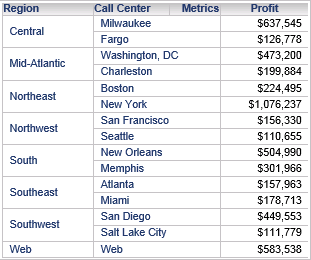
You can group qualifications, change the order in which qualifications are evaluated, determine how qualifications are combined, and so on. You can also determine the level at which a metric qualification is applied to the data. For example, you create a document with a dataset that contains Region, Call Center, and Profit, as shown in the image below.
Create a grid that contains Region and Profit, as shown below. Data in the grid is displayed at the Region level. The grid contains eight rows, one for each region.
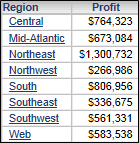
Create a view filter on the grid, with a metric qualification for profit values greater than $500,000. You can apply the metric qualification to the grid at one of the following levels:
-
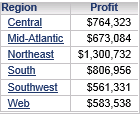
Template level: The metric qualification is applied to the data at the level of the grid or graph.
Because the data in the grid is displayed at the Region level, the metric qualification filters the grid to display only the regions with profits greater than $500,000, as shown in the image below.
-
Dataset level: The metric qualification is applied at the level of the dataset that is used to provide data for the grid or graph.
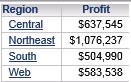
Because the level of the dataset in the example document is Call Center, the metric qualification filters the grid to display only the regions that contain call centers with profits greater than $500,000. The metric qualification is evaluated at the Call Center level, even though Call Center is not included in the grid.
Prerequisites
-
You must have MicroStrategy OLAP Services to use a view filter. To evaluate OLAP Services, contact your MicroStrategy Account Executive or email MicroStrategy directly at
info@microstrategy.com. -
The document contains the grid or graph to add a view filter to.
To create, modify, or delete a view filter
-
Open the document in Design or Editable Mode.
-
Right-click the Grid/Graph and select Edit View Filter. The View Filter Editor opens.
If the Grid/Graph is a shortcut, you cannot create a view filter because the Grid/Graph is linked to the dataset. The Edit View Filter option is not available. You can unlink the report (for instructions, see To unlink a linked Grid/Graph shortcut), but then changes made to the dataset are no longer passed to the Grid/Graph in the document.
To add qualifications to the view filter
-
Select the appropriate options to define each qualification to add to the view filter, as described in the links below:
-
To create a condition based on an attribute, see To add an attribute qualification to a view filter.
-
To create a condition based on a metric, see To add a metric qualification to a view filter.
-
To create a condition to restrict attributes based on the value, rank, or percentage of a metric, see To add a metric set qualification to a view filter.
-
To create a condition to restrict data based on the relationships between attributes, see To add a relationship set qualification to a view filter.
-
To allow users to change qualifications in a view filter by choosing items in a selector, see To add a dynamic condition to a view filter.
-
-
If you have created at least two qualifications, you can change the operator used to combine the qualifications. Click the operator displayed between the qualifications, then select an operator, such as AND or AND NOT.
-
If you have created at least two qualifications, you can rearrange the order in which the qualifications are evaluated. Conditions displayed at the top of the view filter are evaluated before qualifications displayed at the bottom of the view filter. Click and drag a qualification to its new location in the view filter.
-
If you have created at least three qualifications, you can group qualifications together. Grouped qualifications are evaluated together when the view filter is applied to the data.
-
To group qualifications, hover the cursor over the space between two qualifications, then click Group Conditions. The qualifications are grouped together and shifted to the right.
-
To ungroup qualifications, hover the cursor over the space between the grouped qualifications, then click Ungroup Conditions. The qualifications are ungrouped and shifted to the left.
-
-
To delete a qualification, hover the cursor over the qualification, then click X.
-
To delete the entire view filter, delete all the qualifications.
-
Click Save.
To add an attribute qualification to a view filter
Prerequisite
This procedure assumes that you are already editing the view filter to add the qualification to. For steps, see Creating, editing, and deleting view filters.
-
In the View Filter Editor, if the Add Condition option is not displayed, click the arrow icon next to Add Dynamic Condition, then select Add Condition from the drop-down list.
-
At the top of the View Filter Editor, click Add Condition. The options to create a new qualification are displayed.
-
In the Based On list, select the attribute to filter.
-
Define the qualification by doing one of the following:
-
To create a qualification based on attribute elements in a list:
-
Under Select, do one of the following:
-
To include data only for elements that you select, click In List. For example, you can format data for Books and Movies only.
-
To include data for all elements except those that you select, click Not in List. For example, you can format data for all product categories except Books and Movies.
-
-
Select each attribute element to include in the qualification.
-
-
To create a qualification based on attribute form values:
-
Under Qualification, select the attribute form to filter. For example, you can filter based on the attribute element's ID form, one of its description forms, or the DATE form if the attribute is time-based.
-
From the list of operators to the right, select a comparison operator, such as Greater Than or Less Than.
-
Do one of the following:
-
To compare the attribute form to a specific value, type the value in the field.
-
To compare the attribute form to another attribute form, select the attribute that contains the second form. Select the second attribute form from the list.
-
-
-
-
Click the Apply icon
 to create the qualification. The qualification is created and displayed in the View Filter Editor.
 -
To edit an attribute qualification once you have created it, click the qualification, then select the appropriate options to define the qualification, as described in the steps above.
-
To finish defining the view filter, see To add qualifications to the view filter.
To add a metric qualification to a view filter
Prerequisite
This procedure assumes that you are already editing the view filter to add the qualification to. For steps, see Creating, editing, and deleting view filters.
-
In the View Filter Editor, if the Add Condition option is not displayed, click the arrow icon next to Add Dynamic Condition, then select Add Condition.
-
At the top of the View Filter Editor, click Add Condition. The options to create a new qualification are displayed.
-
In the Based On list, select the metric to filter.
-
Select a comparison operator, such as Greater Than or Less Than.
-
Do one of the following:
-
To compare the metric to a specified value, type the value in the field.
-
To compare the metric to the value of another metric, select the metric in the list.
-
-
If the Break By column is displayed, select the attribute level at which to restart counting metric values.
-
From the Calculate on drop-down list, do one of the following:
-
To evaluate the qualification at the level of the grid or graph, select Template Level (default).
-
To evaluate the qualification at the dataset level, select Dataset Level.
For an example of the difference between template level and dataset level, see Creating, editing, and deleting view filters.
-
-
You can determine whether to apply the view filter's attribute qualifications when the metric qualification is evaluated. Do one of the following:
-
To apply the attribute qualifications, select the Include existing attribute conditions when evaluating this metric condition check box.
-
To evaluate the metric qualification without taking the attribute qualifications into account, clear the Include existing attribute conditions when evaluating this metric condition check box.
-
-
Click the Apply icon
 to create the qualification. The qualification is created and displayed in the View Filter Editor.
 -
To edit a metric qualification once you have created it, click the qualification, then select the appropriate options to define the qualification, as described in the steps above.
-
To finish defining the view filter, see To add qualifications to the view filter.
To add a metric set qualification to a view filter
Prerequisites
-
You have already created a metric qualification on which to base your new metric set qualification. The metric qualification must be applied at the dataset level. For steps, see To add a metric qualification to a view filter.
-
This procedure assumes that you are already editing the view filter to add the qualification to. For steps, see Creating, editing, and deleting view filters.
-
In the View Filter Editor, hover the cursor over the metric qualification, then click Create a Set. The Create a Set dialog box opens.
-
Under Select attributes to create the set, select one or more attributes to filter.
-
Click OK to apply your changes. The new metric set qualification is created and displayed in the View Filter Editor, as shown in the image below.
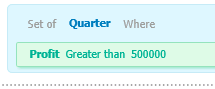
-
To edit the attributes included in the qualification, click the list of attributes that you selected when creating the qualification. For example, in the image above, click Quarter. The Create a Set dialog box opens. Select each attribute to include in the qualification, then click OK.
-
To edit the qualification that your metric set qualification is based on, you must first convert the metric set qualification back into the original metric qualification. Complete the following steps:
-
Hover the cursor over the metric set qualification, then click Convert to Condition.
-
Click the qualification to edit, then select the appropriate options to edit it, as described in To add a metric qualification to a view filter.
-
Repeat the appropriate steps above to redefine your metric set qualification using the edited qualification.
-
-
To finish defining the view filter, see To add qualifications to the view filter
To add a relationship set qualification to a view filter
Prerequisites
-
You have already created the qualification or group of qualifications to create the relationship set qualification based on. For steps, see To add an attribute qualification to a view filter or To add a metric qualification to a view filter.
-
This procedure assumes that you are already editing the view filter to add the qualification to. For steps, see Creating, editing, and deleting view filters.
-
In the View Filter Editor, do one of the following:
-
To filter based on a single qualification, hover the cursor over the qualification, then click Create a Set. The Create a Set dialog box opens.
-
To filter based on grouped qualifications, hover the cursor over the space between the qualifications, then click Create a Set. The Create a Set dialog box opens.
-
-
Under Select attributes to create the set, select the check box next to the name of each attribute to include in the relationship set qualification. The selected attributes define the output level at which the qualification is calculated. For example, if a metric set qualification is Sales > 1000, Sales could mean sales per day, month, category, or region.
-
You can determine how the attributes in the output level relate to the filter qualifications that the relationship set qualification is based on. From the Related by drop-down list, select one of the following:
-
To define a specific logical table that establishes the relationship, from the drop-down list, select the metric that belongs to the table.
-
To have MicroStrategy determine how to relate the output level and the filter qualifications, select System Default (default).
-
-
You can determine whether or not to apply the conditions that the relationship set qualification is based on to the Grid/Graph filtered by the qualification. For example, a grid must list customers from the same region as a specific customer, Hugh Abarca. To achieve this, you create a relationship set qualification based on the qualification Customer = Hugh Abarca. If you apply the qualification to the grid as well as the relationship set qualification, only Hugh Abarca is displayed in the grid. If you apply the qualification only to the relationship set qualification, the qualification is used only in the context of the filter, and the grid displays all customers in the selected customer region, not just Abarca.
Do one of the following:
-
To apply the filter qualification to both the relationship set qualification and the Grid/Graph, select the Apply this qualification independently of the relationship filter check box.
-
To apply the filter qualification only to the relationship set qualification and not to the Grid/Graph, clear the Apply this qualification independently of the relationship filter check box (default).
-
-
Click OK to apply your changes. The new relationship set qualification is created and displayed in the View Filter Editor, as shown below:
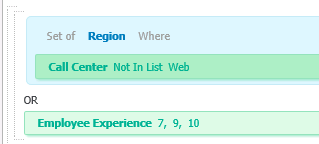
-
To edit the attributes included in the qualification, to edit the table to use to establish the relationship between attributes, or to change whether to apply the qualification to the grid or graph as well as the view filter, click the name of the attributes that you selected for the qualification. For example, in the image above, click Region. The Create a Set dialog box opens. Select the appropriate options to define the relationship set qualification, then click OK.
-
To edit one of the qualifications that you created the relationship set qualification based on, you must first convert the relationship set qualification back into individual qualifications. Complete the following steps:
-
Hover the cursor over the relationship set qualification, then click Convert to Condition.
-
Click the qualification to edit, then select the appropriate options to edit it. For steps, see the appropriate link below:
-
Repeat the appropriate steps above to redefine your relationship set qualification using the edited qualification.
-
-
To finish defining the view filter, see To add qualifications to the view filter.
To add a dynamic condition to a view filter
Prerequisite
This procedure assumes that you are already editing the view filter to add the qualification to. For steps, see Creating, editing, and deleting view filters.
-
In the View Filter Editor, if the Add Dynamic Condition option is not displayed, click the arrow icon next to Add Condition, then select Add Dynamic Condition from the drop-down list.
-
At the top of the View Filter Editor, click Add Dynamic Condition. A new dynamic condition is created and displayed in the View Filter Editor.
-
To rename the dynamic condition, hover the cursor over the condition and click Rename. Type a new name and press
ENTER. -
To finish defining the view filter, see To add qualifications to the view filter.
-
After you define the view filter and save it, create an attribute element selector with the dynamic condition that you just created as the target of the selector.