
MicroStrategy ONE
Adding prompts in the Report Editor
Adding a prompt to the Template definition pane in the Report Editor
You can add Object prompts to the Template definition pane of the Report Editor.
This procedure assumes you have already created and saved a prompt. For steps to create an Object prompt, see Filtering data based on metrics, attributes, or other objects: Object prompts.
To add a prompt to the Template definition pane in the Report Editor
- In MicroStrategy Web, if you are creating a new report, open Design Mode. For steps to do this, see Creating a report with the Report Editor. If you are adding the prompt to an existing report, from the Home menu in the Report Editor, select Design.
-
In the All Objects pane on the left, navigate to the folder where the prompt you want to add to the report is located and open it.
To search for the prompt, type the name of the prompt in the Find text field and press Enter or click the Find icon.
-
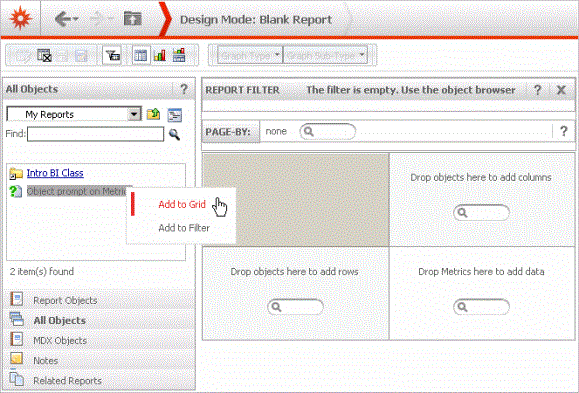
Drag and drop the prompt to the desired location on the report's grid. Alternatively, right-click the prompt and select Add to Grid as shown in the image below, then move it to the desired location on the report's grid.
- Add more prompts or other objects to the report if desired.
- If you want to see what your report looks like when executed against the data source, and if you want to see how a prompt works for a user, once your report has one or more attributes and metrics in it and you have added a prompt, from the toolbar select Run Report.
- Save the report.
Adding a prompt to the Report Filter pane in the Report Editor
You can add Filter Definition prompts to the Report Filter pane of the Report Editor. You can also add an Object prompt that is made up of filters or reports.
This procedure assumes you have already created and saved a prompt. For steps to create a filter definition prompt, see Filtering data on an attribute, attribute form, attribute element, or metric: Qualification Prompts. To create an Object prompt, see Filtering data based on metrics, attributes, or other objects: Object prompts.
To add a prompt to the Report Filter pane in the Report Editor
- In MicroStrategy Web, if you are creating a new report, open Design Mode. For steps to do this, see Creating a report with the Report Editor. If you are adding the prompt to an existing report, from the Home menu in the Report Editor, select Design.
-
In the All Objects pane on the left, navigate to the folder where the prompt you want to add to the report is located and open it.
To search for the prompt, type the name of the prompt in the Find text field and press Enter or click the Find icon.
-
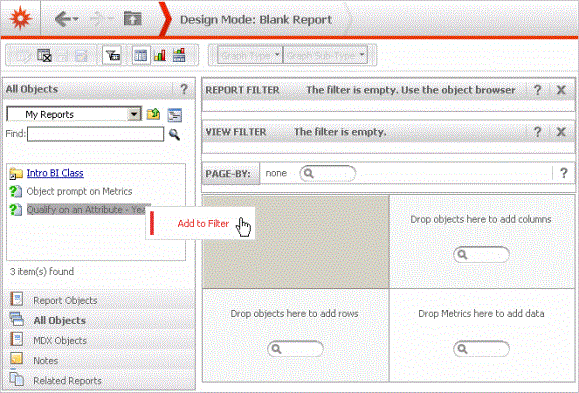
Drag and drop the prompt onto the Report Filter pane. Alternatively, right-click the prompt and select Add to Filter as shown in the image below:
- Add more prompts or other objects to the report if desired.
- If you want to see what your report looks like when executed against the data source, and if you want to see how a prompt works for a user, once your report has one or more attributes and metrics in it and you have added a prompt, from the toolbar select Run Report.
- Save the report.
Adding a prompt to the page-by pane in the Report Editor
Page-by lets you turn a long report into a set of individual pages. The pages are created based on the objects on the report, allowing users to see manageable subsets of otherwise large quantities of data. For background information on page-by fields, see Grouping data by page.
You can add Object prompts to the page-by pane of the Report Editor.
This procedure assumes you have already created and saved a prompt. For steps to create an Object prompt, see Filtering data based on metrics, attributes, or other objects: Object prompts.
To add a prompt to the page-by pane in the Report Editor
- In MicroStrategy Web, if you are creating a new report, open Design Mode. For steps to do this, see Creating a report with the Report Editor. If you are adding the prompt to an existing report, from the Home menu in the Report Editor, select Design.
-
In the All Objects pane on the left, navigate to the folder where the prompt you want to add to the report is located and open it.
To search for the prompt, type the name of the prompt in the Find text field and press Enter or click the Find icon.
-
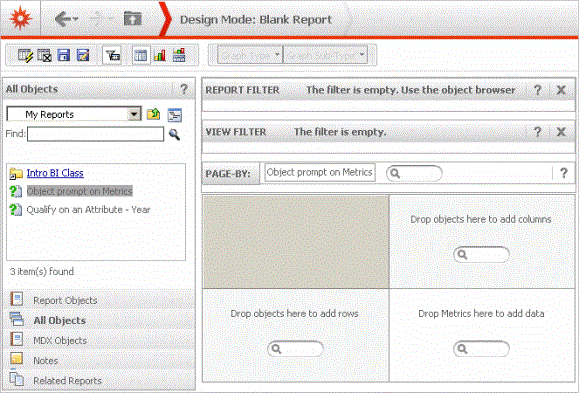
Drag and drop the prompt onto the page-by pane.
The image below shows an Object prompt called Object Prompt on Metric in the page-by pane:
- Add more prompts or other objects to the report if desired.
- If you want to see what your report looks like when executed against the data source, and if you want to see how a prompt works for a user, once your report has one or more attributes and metrics in it and you have added a prompt, from the toolbar select Run Report.
- Save the report.