
MicroStrategy ONE
Filtering data based on metrics, attributes, or other objects: Object prompts
Object prompts provide users the ability to add additional objects to a report. You can let users select from almost any object available in MicroStrategy. The objects the user selects in the prompt are placed on the report. This essentially allows users to create their own reports, although you use the Object prompt to control what objects they can choose to include on their reports.
For example, you can create a prompt that allows users to choose from a list of existing stand-alone filters to apply to the report. Or, you can create a prompt that displays the Day, Month, Quarter, and Year attributes to users, so the user can specify the granularity of the report. Object prompts enable you to provide versatile reports to users.
The Customer Distribution Trend report contains two Object prompts. The report's display is shown below:
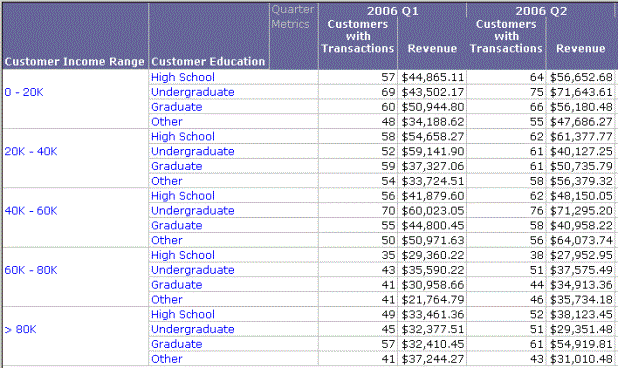
The first prompt, called Demographics List, contains a set of attributes that users select one or more answers from. Answer choices include the attributes Customer Income Range, Customer Age Range, and Customer Gender. The second prompt, called Psychographic List, contains another set of attributes users can choose from. Its answer choices include the attributes Customer Education, Customer Household Count, Customer Housing Type, Customer Marital Status, and so on.
By separating the user's choices into two Object prompts, the designer is able to group the attributes according to user analysis needs. In this case, a user can focus on customer demographics and customer psychographics separately when the user is considering what data to see in the resulting report. Additionally, data for various combinations of demographics and psychographics can be compared by running the report again and answering the prompts differently.
Object prompts can be used in many places, including the following:
- Object prompt containing attributes: Any place that can accept a list of attributes.
- Object prompt containing metrics: Embedded in a Set qualification filter, as well as any place that accepts metrics.
One prompt can contain different types of objects, such as both metrics and attributes, or attributes and custom groups. However, if the prompt mixes metrics with another type of object, either the metrics or the other objects are removed when the prompt is executed in a report. For a more detailed explanation, see the Advanced Prompts chapter in the Advanced Reporting Help.
For a table of where to use all prompts, see Reports: Adding prompts to a report, metric, or filter.
Creating Object prompts
When you create an Object prompt, you can decide whether users can select from a specified list of MicroStrategy objects, or you can define a specific search that presents an up-to-date set of objects for users to select from. Including a search object in the Object prompt, rather than specifying the exact object names, allows users to select from new objects that might not have been part of the project when you first created the prompt.
To create an Object prompt
- In MicroStrategy Web, on the Home page, click New Prompt.
- Click Object Prompt.
To create the list of objects from which the user can select
You can only use objects of one type in an Object prompt. For example, you can include metrics or attributes in a single Object prompt, but not both. To prompt for multiple object types in the same report, you must create an Object prompt for each object type.
On the Definition tab, choose one of the following options:
- Use a pre-defined list of objects: This option lets you define a specified list of objects.
- Click Add, select the objects, then click OK.
- To delete an object from the list, select the object and click Remove.
- To remove all the items from the list, click Clear.
- To change the order in which the objects are displayed in the prompt, select an object and click the Up and Down arrows to move the selected object.
- Use the results of a search object: A search object will search for and display specific project objects when the user executes the report. This lets you prompt the user with the most up-to-date objects in the project.
Click Select Search, select the object, then click OK.
To specify a title and instructions
For considerations when determining a title and description, see Components of a prompt.
- On the General tab, type a Title, which is used as the default object name when you save the prompt, although you can change it.
- Type text in the Instructions field, which is displayed when the prompt is run during report execution.
To restrict the number of prompt answers
- You can specify whether the user is required to answer the prompt before running the report. To require users to answer the prompt, select the Prompt Answer is Required check box.
- Set the maximum and/or minimum number of prompt answers allowed, if desired. Select the Minimum number of answers and/or the Maximum number of answers check boxes, and enter the numbers in the fields.
To allow personal answers
Personal answers allow a user to save prompt answers for this prompt, and then reuse the answers on any report that this prompt is used on. For more information on personal answers, and how they can be used, see Components of a prompt.
To determine whether personal answers can be saved for this prompt, select one of the following options from the Personal answers allowed drop-down list:
- None: No personal answers can be saved. Every time a user sees the prompt, he must answer it manually (if it is required) or ignore it.
- Single: Only one personal answer can be saved for this prompt. When the prompt is used again (on this report or a different one), the personal answer is displayed. A user can keep the personal answer, or add or delete selections. He can save his changes as a new personal answer, but only one personal answer can be saved for the prompt.
- Multiple: Multiple personal answers can be named and saved, allowing different answers for the same prompt. When the prompt is used again (on this report or a different one), the personal answers are available. The user can select one of them, or answer the prompt manually.
To specify the layout and display style of the prompt
-
On the Style tab, from the Display style drop-down list, specify a presentation style, such as Check box, for the prompt. This is how the prompt is displayed to the user.
-
To ensure that the prompt's text fields and options are a fixed size, select the Fixed textbox width and/or the Fixed textbox height check boxes, and specify the size of the prompt's text fields and options in the fields.
Specifying the size of the textbox can be beneficial when users answer prompts on a smaller screen of a mobile device.
-
To determine how prompt options are arranged, from the Orientation drop-down list, select Vertical or Horizontal.
To determine the number of prompt answers displayed in a row or column (depending on alignment), select the Items per column/row check box and enter the number in the field.
-
You can determine whether to allow users to use a search box to locate prompt answers. Searching for objects allows analysts to quickly locate specific objects to use to answer the prompt. From the Show search box drop-down list, select one of the following options:
- To display the search box, select True.
- To not display a search box, select False.
-
If you are using the Shopping Cart display style, you can select the Use folder structure check box to display the prompt choices in a folder structure. This option, available for search objects, is useful when the same object with the same name is saved in multiple folders. Use the up and down ordering arrows to reorder prompt objects.
To allow users to navigate above the root folder when searching, select the Allow navigation above search root check box.
-
For an object prompt that uses a search object and the Tree display style, the Use folder structure check box is selected and cannot be changed. You can select whether or not empty folders are shown in the tree when the prompt is executed. Select or clear the Do not show empty folders check box. Note that selecting it can impact performance.
The search object must search within subfolders. For background information on search objects and steps to create them, see the MicroStrategy Developer Help (formerly the MicroStrategy Desktop Help).
To save your prompt
Click Save As, navigate to the folder where you want to save the prompt, type a Name and Description for the prompt, and click OK. Your new prompt is saved.
You can now add your new prompt to a report, metric, or filter. For a table showing how to add each prompt type to a report, metric, or filter, see Reports: Adding prompts to a report, metric, or filter.
You can also set a default prompt answer, which allows the user to complete report execution quickly, as they do not need to answer the prompt but can simply run the report using the default answer. For steps to specify a default prompt answer, see Components of a prompt.