
MicroStrategy ONE
Defining the Dimensionality of Metrics: Level Prompts
A level prompt allows the user to select, during report execution, the level of calculation (or dimensionality) for a metric. For example, a report shows sales totals by time and allows the user to choose whether the totals are calculated for the year, the month, the week, and so on.
For background information on metric levels, see Level Metrics: Modifying the Context of Data Calculations.
When the definition of multiple metrics would differ only in level, it is useful to create a level prompt to avoid having to create multiple metrics.
You can define a default prompt level, which is displayed when the prompt is executed. This allows users to complete report execution more quickly, since they do not need to answer the prompt, but can simply run the report using the default level. The user can select the default, or specify his own level. A default prompt level is particularly useful if a large percentage of your users will select the same level for this prompt. By default, the default level is the report level, with standard filtering and standard grouping. You can remove or edit this level, and add more levels.
An object prompt allows prompting only on the target, while a level prompt allows prompting on all components of the metric—target, filtering, and grouping. For definitions of these components, see Level Metrics: Modifying the Context of Data Calculations. For an example of an object prompt, see the Building Query Objects and Queries, for Designers chapter of the Basic Reporting Help.
Example: Level Prompt
Report Requirement
Create a report listing items with sales calculated at either the Category or the Subcategory level. The item's revenue is displayed as a percent of the Category or Subcategory revenue. At run time, the user must be able to select the Category or Subcategory level, as well as the filtering and grouping settings of the metric, as shown below:
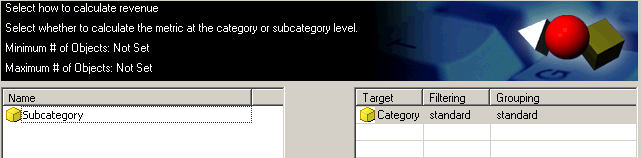
When the prompt is answered with Category, as shown above, the report looks like the following. The Category/Subcategory Revenue amount is the same for each item; it changes only when the Category changes, as determined by the prompt answer. The item revenue is divided by the category revenue, to yield the percentage.
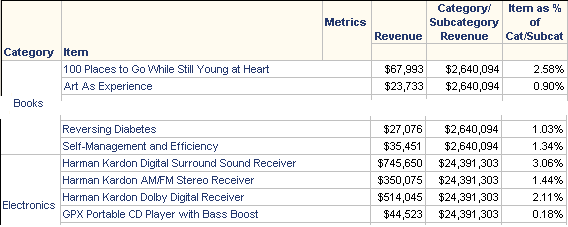
This report contains 360 rows, so only portions of the report have been reproduced above.
If the prompt is answered with Subcategory instead, the report looks like the following. Note that while the Revenue values are still the same, the Category/Subcategory Revenue amounts change when the Subcategory (not shown on the report) changes. The percentages are now greater, since the item revenue is compared to the subcategory revenue, not the larger category revenue.
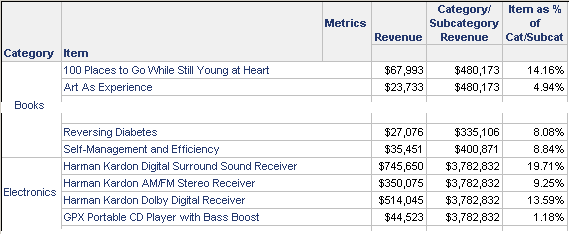
This report contains 360 rows, so only portions of the report have been reproduced above.
Solution
Create a level prompt with Category and Subcategory. Create a revenue metric called Category/Subcategory Revenue, using the level prompt as the target of the level (dimensionality). When the report is executed, the user is prompted to specify the complete level of the metric, including the target, filtering, and grouping. The Category/Subcategory Revenue metric is then calculated accordingly.
This example differs from the one in Filtering Data Based on Metrics, Attributes, or Other Objects: Object Prompts. An object prompt allows prompting only on the target, while the level prompt allows prompting on all components of the metric—target, filtering, and grouping.
Creating a Level Prompt
To Create a Level Prompt
- In MicroStrategy Developer, choose File > New > Prompt.
- Select the Level prompt option.
- Click Next.
To Define the Prompt Type to Be Displayed to the User
- Select the attributes and/or hierarchies available to the user to determine the metric level at run time. Do one of the following:
- To choose specific objects, complete the following steps:
- Select Use a pre-defined list of objects.
- Click Add.
- Select the objects from the Available objects list and click > to move them to the Selected objects list.
You can choose multiple objects by pressing CTRL or Shift while selecting the objects.
- Click OK.
- Click Modify to add more objects.
- Click Remove to remove the selected object.
- Click Clear to delete all the objects in the list.
- Select the object to move and click the Up or Down arrow to change the order that the objects are displayed in the prompt.
- To use a set of objects from a search object, select Use the results of a search object. To display the object path (folder hierarchy) when using a search, select Display using folder structure, which is useful when the same object with the same name is saved in multiple folders. Do one of the following:
- To use an existing search, click ... (the browse button). Navigate to the search object, select it, and click OK..
- To create a new search, click New.
- To allow users to choose from all the attributes and hierarchies available in the project, select List all attributes and hierarchies (no restriction).
To Specify a Title and Instructions
Think about a name and instructions carefully, with your users in mind. The title and instructions that you provide for a prompt can make the difference between users finding prompted report execution confusing and users completing rapid report execution that displays exactly the data they want to see. For examples of effective and ineffective titles and instructions, see the Building Query Objects and Queries, for Designers chapter in the Basic Reporting Help.
- Click Next.
- Enter a Title, which is used as the default object name when you save the prompt, although you can change it.
- Enter text in the Instructions field to appear when the prompt is run during report execution.
To Allow Personal Answers
Personal answers allow a user to save prompt answers for this prompt, and then reuse the answers on any report that this prompt is used on. For more information on personal answers and how they can be used, see the Building Query Objects and Queries, for Designers chapter in the Basic Reporting Help.
- To determine whether personal answers can be saved for this prompt, select one of the following options from the Personal answers allowed drop-down list:
- None: No personal answers can be saved. Every time a user sees the prompt, he must answer it manually (if it is required).
- Single: Only one personal answer can be saved for this prompt. When the prompt is used again (on this report or a different one), the personal answer is displayed. A user can keep the personal answer, or add or delete selections. He can save his changes as a new personal answer, but only one personal answer can be saved for the prompt.
- Multiple: Multiple personal answers can be named and saved, allowing different answers for the same prompt. When the prompt is used again (on this report or a different one), the personal answers are available. The user can select one of them, or answer the prompt manually.
To Define a Range Within Which the User's Answer Must Fall
- To restrict the user to entering values within certain ranges (optional):
- Select the Minimum objects check box and enter the lowest number of objects allowed in the prompt answer.
- Select the Maximum objects check box and enter the highest number of objects allowed for the prompt answer.
- Select the Prompt answer required check box to require users to answer the prompt before running the report.
For considerations about required and optional prompt answers, see the Building Query Objects and Queries, for Designers chapter in the Basic Reporting Help.
- Click Next.
To Specify a Default Prompt Level
A default prompt level can allow users to complete report execution more quickly, since they do not need to answer the prompt, but can simply run the report using the default level. The levels that you define here are displayed when the prompt is executed. The user can select the default, or specify his own level. A default prompt level is particularly useful if a large percentage of your users will select the same level for this prompt.
By default, the default level is the report level, with standard filtering and standard grouping. You can remove or edit this level, and add more levels.
- To add another level, click Modify.
- Select the object(s) to use as the target(s) from the Available objects list and click > to move them to the Selected objects list.
- Click OK.
The target is the attribute level at which the metric calculation groups. For more information, see Target: The Context of a Calculation.
- To change the filtering of a level, click in the Filtering column of the level and select the new filtering option.
Filtering governs how the report filter interacts with the metric calculation. For more information, see Filtering: Interaction with Report Filters.
- To change the grouping of a level, click in the Grouping column of the level and select the new grouping option.
Grouping determines how the metric aggregates. For more information, see Grouping: How Aggregation is Performed.
- To delete the selected level, click Remove.
-
To return to the default report level and delete any additional levels, click Reset.
By default, the metric filter is applied to the metric calculation. You can instead exclude filter attributes, so that filter attributes that are not on the report or in the level of the metric are not included in the metric calculation. For more information on this behavior, see Level Metrics: Applying the Metric Condition to the Metric Calculation.
To change this behavior, click Advanced, set Filter setting: uncheck to exclude attributes absent in report or level (dimensionality), and click OK.
- Click Finish.
- Select the folder in which to save the new prompt, enter a name, and click Save.
All level prompts must be added to a metric, and then the metric is added to a report.