Strategy One
Create and Edit Consolidations
Starting in Strategy One (October 2025), optionally enter a description of your change when saving a consolidation.
The Consolidation Editor used in this procedure uses the Modeling service infrastructure. Make sure the service is properly configured and running before creating standalone consolidations.
Create Consolidations
- Open the Workstation window.
- Choose File > New Consolidation.
- Select the environment and project where you want to create your consolidation.
-
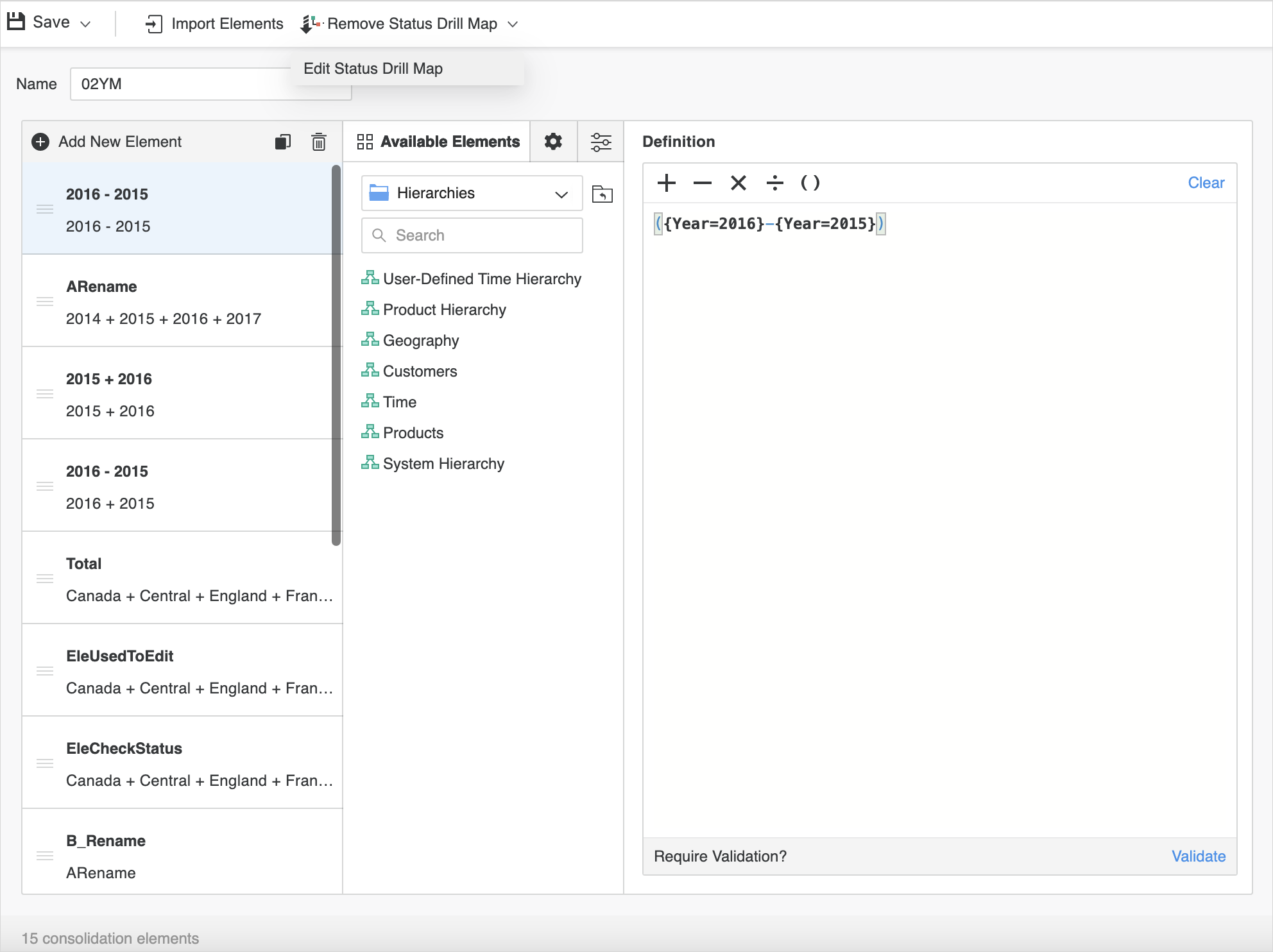
The Consolidation Editor contains the following sections:
- The left pane contains an element list that includes the consolidation element you add.
- The Definition pane on the right allows you to define the elements.
- The center pane contains the Elements, Format, and Options tabs. The Elements tab includes an object browser to browse and select the attribute elements to define a consolidation element.
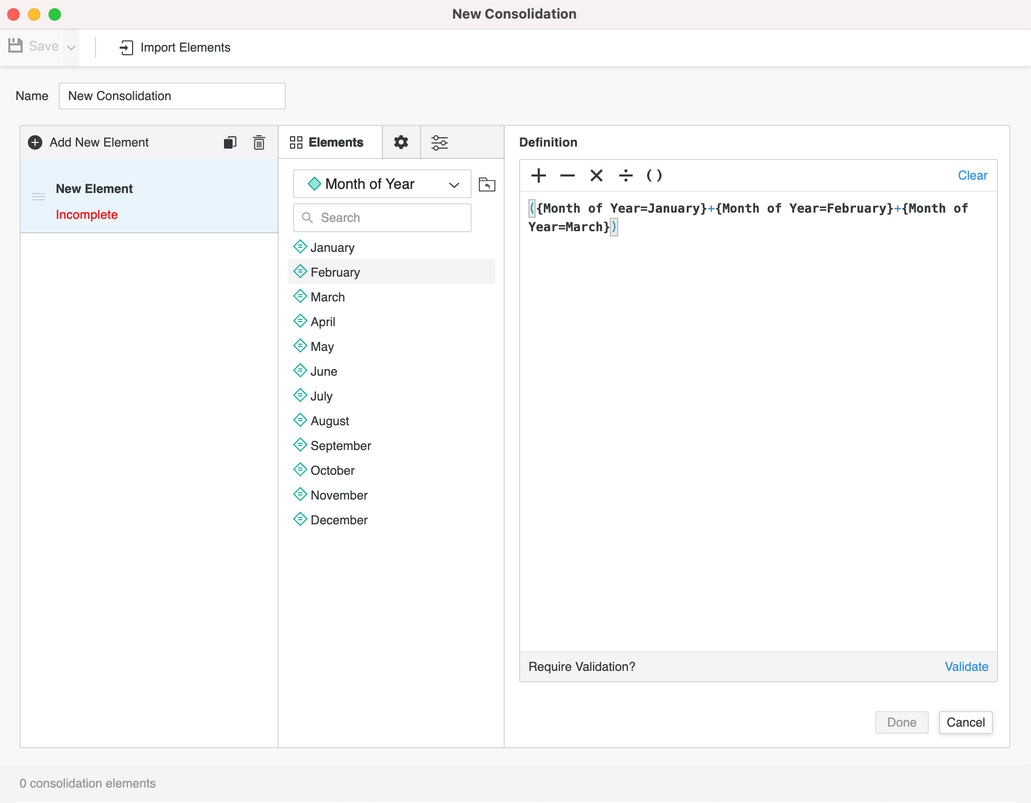
- Click and define New Element by dragging attribute elements from the object browser on the Elements tab or other consolidation elements from the element list into the Definition pane. You can also type an expression directly in the Definition pane. Click Validate once the definition is complete.
- Click Import Elements to import elements from other consolidations within the same project.
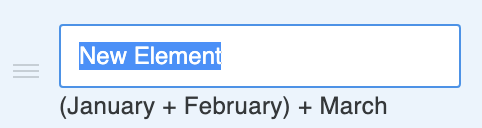
- To rename an element, double-click it and type the new name.
- To delete or duplicate an element, use the icons in the top right of the element list.
- Drag the elements to rearrange them.
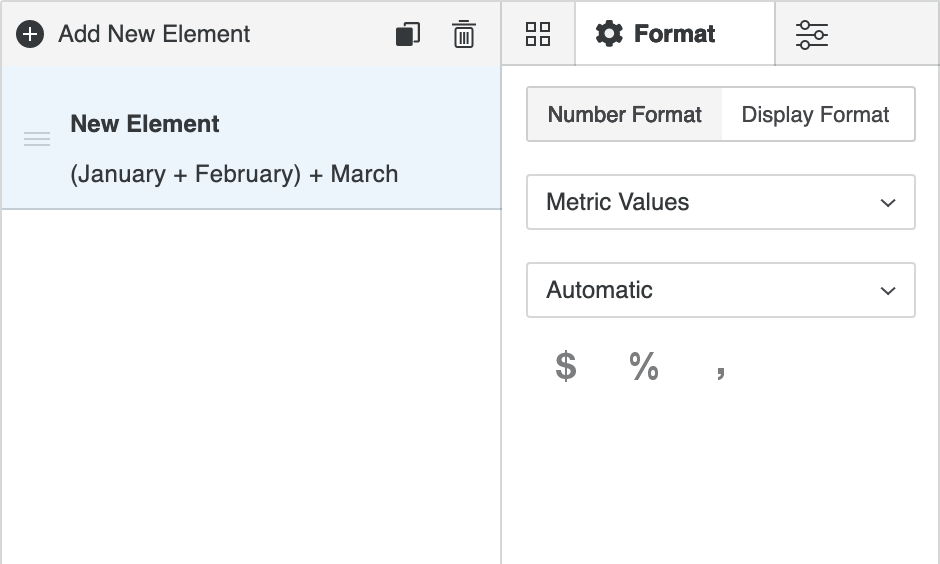
- To format elements, click the Format tab. Select the element or elements to format in the element list; you can format multiple elements in the same way at the same time. You can define the Number Format and the Display Format (font, borders, padding, and background color) for the metric values and the element name separately.
-
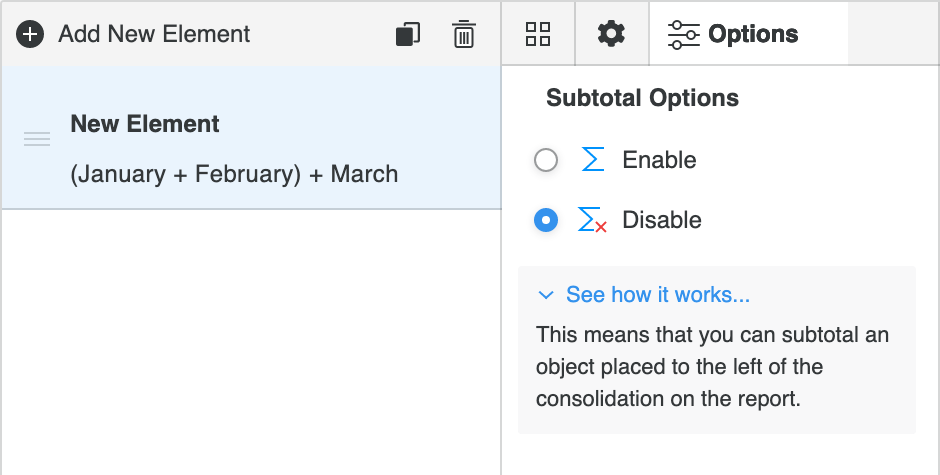
To determine how to subtotal elements, click the Options tab. When subtotals are enabled, objects to the left of the consolidation in a report can be subtotaled. If subtotals are disabled, objects to the left of the consolidation in a report cannot be subtotaled.
- Click Save.
-
Edit Consolidations
- Open the Workstation window.
- In the Navigation pane, click Projects and browse to the location of the consolidation to edit.
- Right-click the consolidation and choose Edit.
Associate a Drill Map with a Consolidation
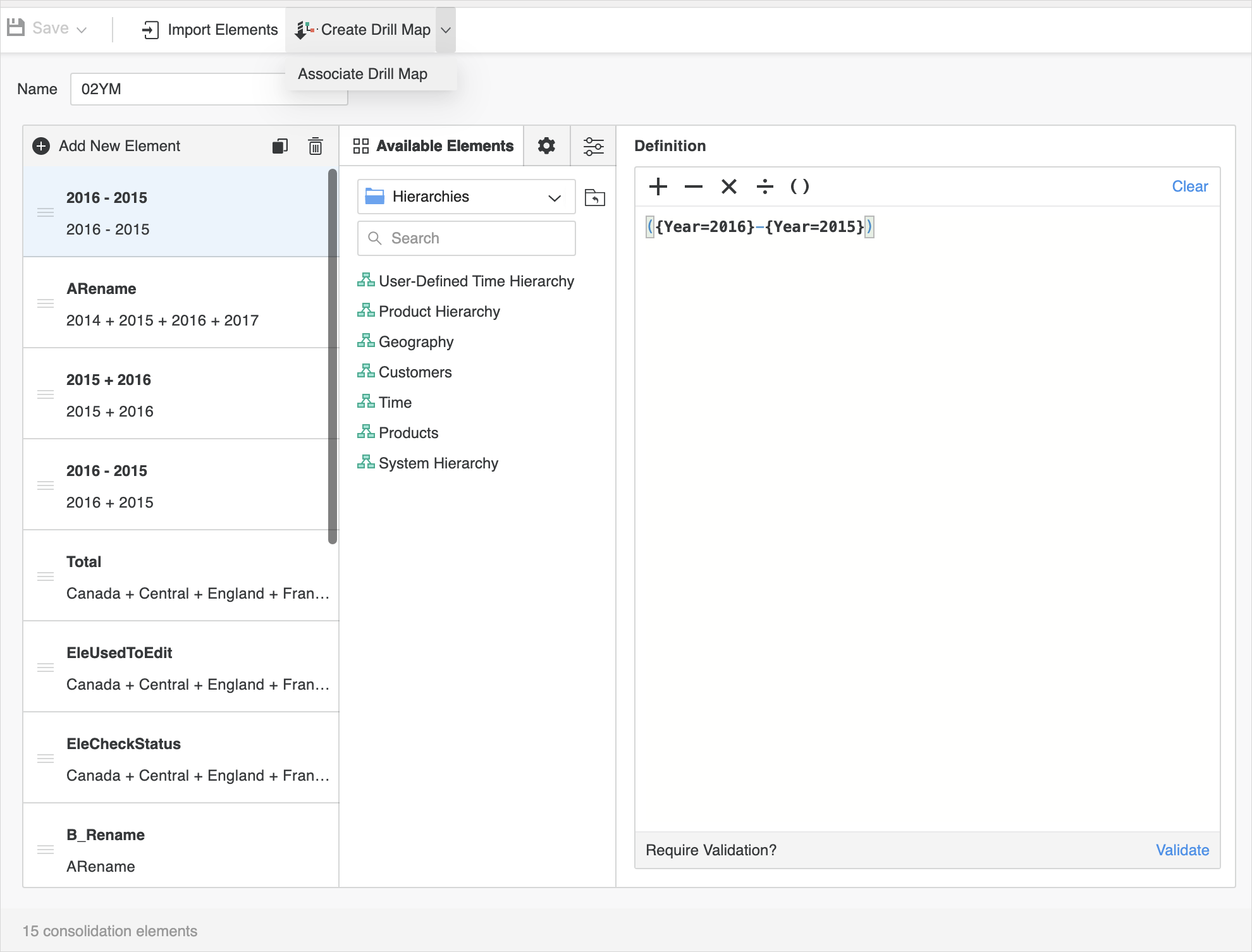
Create a Drill Map and Associate it with the Current Consolidation
-
Click Create Drill Map.
-
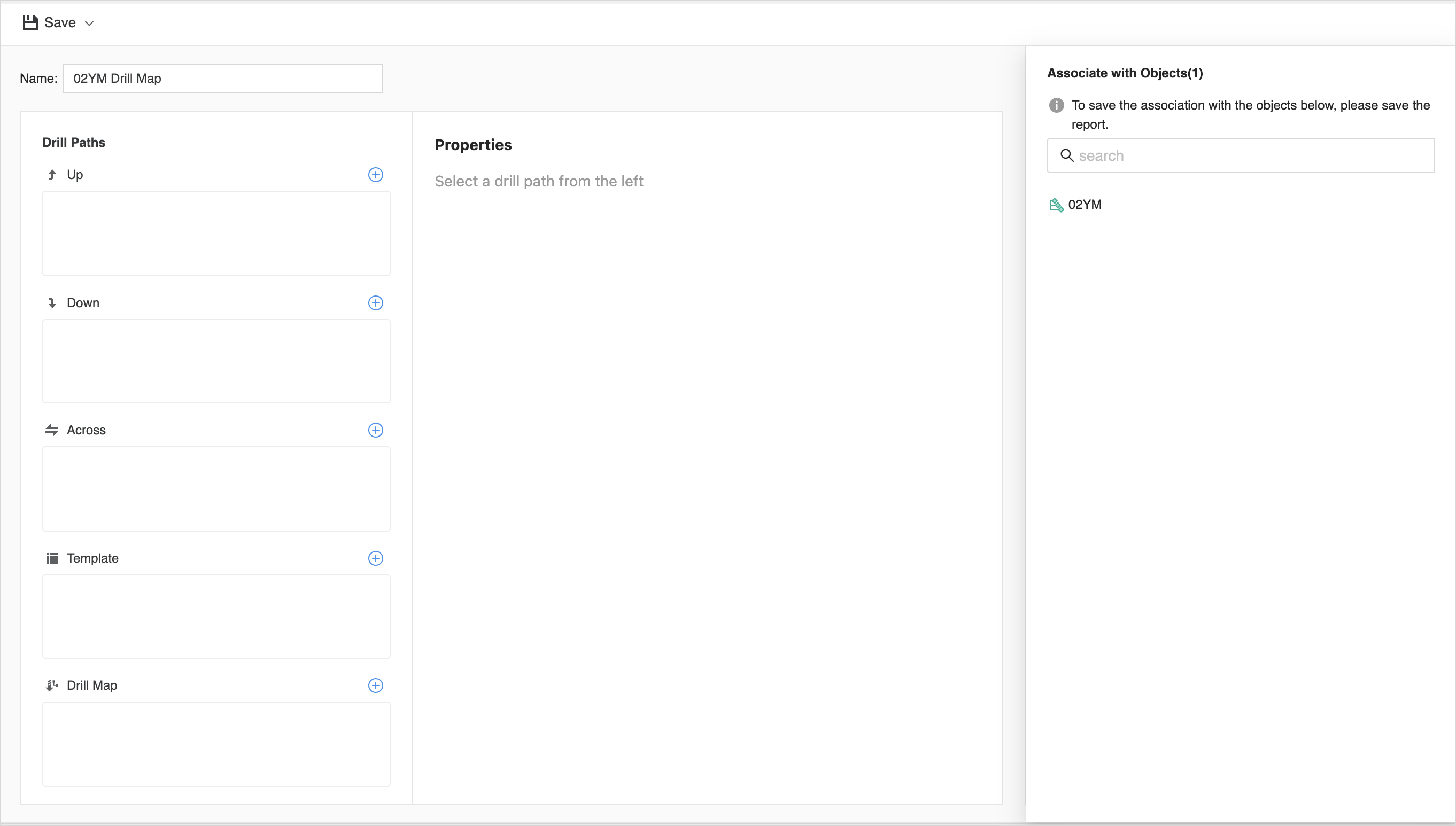
Edit the drill map and save it.
Associate an Existing Drill Map
-
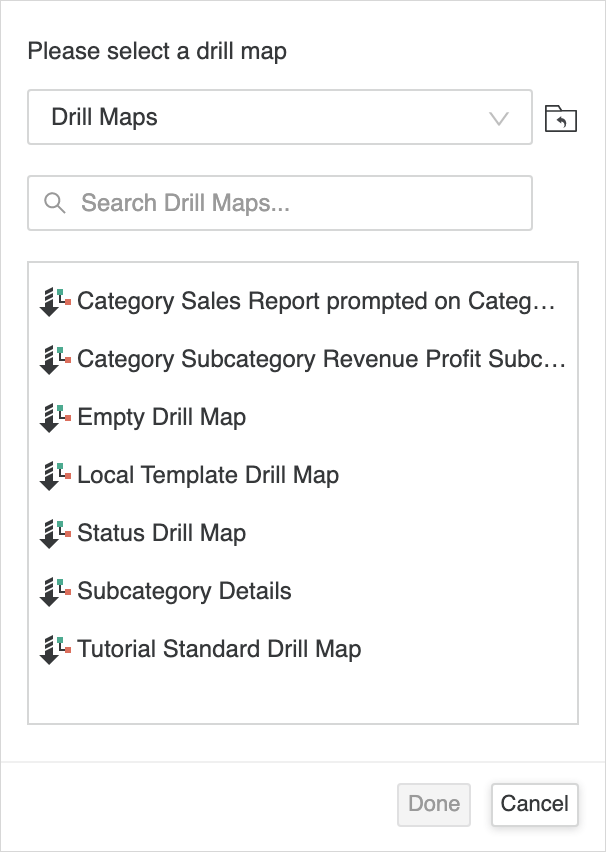
From the Create Drill Map drop-down list, choose Associate Drill Map.
-
Navigate to the target path and select an existing drill map.
Remove or Edit an Associated Drill Map
After a drill map is associated with the consolidation, the drop-down list contains the drill map name. In the image shown below, the drill map is named Status Drill Map.
-
To remove the relationship, click Remove Drill Map Name .
-
To edit the associated drill map, from the Remove Drill Map Name drop-down list, choose Edit Drill Map Name.