
Strategy One
Define Custom Subtotals in Modern Grids
Starting in Strategy One (November 2025), you can create and display custom subtotals for modern grids in dashboards.
Custom subtotals offer more control over the display characteristics of a subtotal than the regular subtotal function. You can use different subtotal functions for different metrics on the same display line. You can specify a name for the subtotal, the metrics to be totaled, the function used to calculate each total, and the level of each total. You can also omit totals for particular objects.
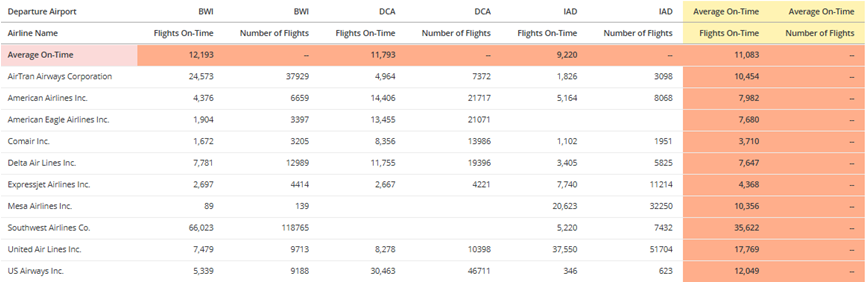
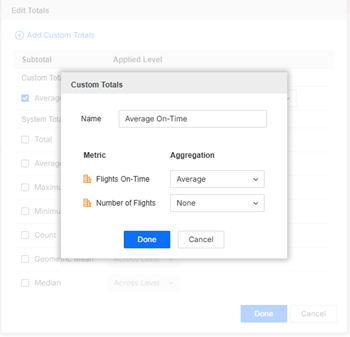
In the modern grid shown below, the Flights On-Time metric is averaged for all attributes, while the Number of Flights metric is not totaled. The Average On-Time custom subtotal is calculated across all the attributes, resulting in averages for each airport and airline.
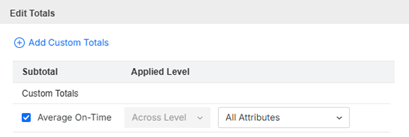
The definition of this custom subtotal is shown below.
Create and Display Custom Subtotals in Modern Grids
-
While editing the dashboard, click the modern grid to add subtotals to.
-
In the Editor panel or on the grid, right-click an object and select Edit Totals.
-
In the Edit Totals window, click Add Custom Totals.
-
In the Custom Totals window, type a Name for the custom total.
-
Each metric on the modern grid displays. For each metric, select the function to use to calculate that metric's subtotal. To omit a total for a metric, select None.
-
Click OK.
-
In the Edit Totals window, select the check box for your new custom subtotal.
-
The subtotal is applied across the grid level, that is, across any attributes available on the grid. From the list of attributes on the grid, select the attribute(s) to subtotal. For details, see Select the Level for Subtotal Calculation in Modern Grids.
-
Totals for rows display across the top of the grid.
-
Totals for columns display as a separate column set on the right. (The column set of an attribute displays below the attribute.)
-
-
Click OK.
-
By default, the totals for all metrics display at the top of the grid or modern grid. To move the subtotals to the bottom, right-click the subtotal label in the grid or modern grid, and select Move to Bottom.
- To move the subtotals back to the top, right-click the subtotal label and choose Move to Top.
-
By default, the total for all metrics in a modern grid's columns display in a column set on the right. To move the column set to the left, right-click the subtotal label in the modern grid and select Move to Left. The total column set displays between the attributes in the rows and the first column set.
-
To move the subtotals back to the right, right-click the subtotal label and choose Move to Right.
-
Edit a Custom Subtotal
Editing includes changing the name, the subtotal functions, and the calculation level. You can also hide the custom subtotal so it does not display.
-
While editing the dashboard, click the modern grid to add subtotals to.
-
In the Editor panel or on the grid, right-click an object and select Edit Totals.
-
To hide the custom subtotal, clear its check box.
-
You can edit the attribute level. From the list of attributes for the custom subtotal, select and clear the attribute(s) to subtotal. For details, see Select the Level for Subtotal Calculation in Modern Grids.
-
You can rename the custom subtotal and change the functions used to calculate for each metric.
-
Hover over the custom subtotal to edit and click Edit
 .
. -
Edit the Name.
-
For each metric, select the function to use to calculate that metric's subtotal. To omit a total for a metric, select None.
-
Click Done.
-
-
Click Done.
Delete a Custom Subtotal
Deleting a custom subtotal is permanent; you can instead hide it and then redisplay it later. See Edit a Custom Subtotal.
-
While editing the dashboard, click the modern grid to add subtotals to.
-
In the Editor panel or on the grid, right-click an object and select Edit Totals.
-
Hover over the custom subtotal to remove and click Delete
 .
. -
Click Done.