
MicroStrategy ONE
Attribute Qualification prompts
The Attribute Qualification prompt can be used to create a more focused prompt than the Hierarchy Qualification prompt. You determine a single attribute from which each user who executes the report can select elements to define his report filter. You can also let users select an attribute from a set of attributes, and then select elements from their chosen attribute.
For example, your report contains the attribute Region and the metric Revenue. You want users to be able to select specific geographical regions of the country for which to see revenue data, from among all regions.
You create an Attribute Qualification prompt, which prompts the user to choose attribute elements from the Region attribute. Using the MicroStrategy Tutorial project data, you might choose the following default answers for the prompt:
- Northeast
- Northwest
- Southeast
- Southwest
When you apply this prompt to the report and execute the report using the default answers, the report appears as shown in the following image.
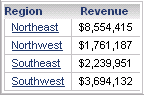
The Attribute Qualification prompt is more restrictive than a Hierarchy Qualification prompt but less restrictive than an Attribute Element List prompt. The Hierarchy Qualification prompt allows users to select from the widest number of attribute elements when they are choosing prompt answers to define their filtering criteria. The Attribute Element List prompt is the most restrictive, allowing users to choose from the fewest number of attribute elements to define their filter criteria.
To create an Attribute Qualification prompt
- In MicroStrategy Web, on the Home page, click New Prompt.
- Click Attribute Qualification Prompt.
To select the attribute from which the user can create the filter
You must determine which attribute will be displayed to the user when the user is prompted. (Alternatively, you can present the users with a list of attributes from which the user selects one attribute.) The user then selects elements from that attribute to be part of the filter he creates to filter data for the report.
On the Definition tab, choose one of the following options:
- Choose an attribute: You can present the user with a specific attribute to select elements from.
- Click Select Attribute, select the attribute or specify the name of the attribute, then click OK.
- Use a predefined list of attributes: Select this option to allow the user to choose attributes from a list of attributes that you select.
-
Click Add, select the attributes, then click OK.
- To delete an attribute from the list, select the attribute, then click Remove.
- To remove all the attributes from the list, click Clear.
- Use the results of a search object: A search object will search for and display specific project objects when the user executes the report. This lets you prompt the user with the most up-to-date objects in the project. Use this option to present the user with a list of attributes, from which he can choose one.
Click Select Search, select the object or specify the name of the object, then click OK.
To determine which attribute forms to display to the user
The prompt displays the related attribute elements for users to select their filter criteria from. The attribute's forms can also be displayed.
An attribute form is a descriptive aspect of an attribute. Most attributes have at least two forms, ID and description (Desc). For example, the Product attribute has an attribute form called ID, which is made up of ID numbers that represent each attribute element (each product). The attribute form Last Name contains the last names for each attribute element, such as each customer in the Customer attribute, or each employee in the Employee attribute. Your project designer determines which attribute forms users see directly in a report's results (the report display forms), and which attribute forms users can see displayed in the Object Browser, for browsing purposes (the browse forms). You can select which of these display types users can select from when they answer the prompt.
From the Displayed forms drop-down list, select one of the following options:
- All attribute forms: This option allows users to see and select from attribute elements within all attribute forms. It is the default choice.
- Browse forms: This option allows users to see and select from only the attribute forms defined as browse forms. All attribute forms defined as browse forms are displayed in the Data Explorer when the user browses the related attribute.
- Report display forms: This option lets users see only the attribute forms defined as report display forms. All attribute forms defined as report display forms are included in report results for a report that uses the related attribute.
- Custom display forms: This option allows you to specify a customized set of attribute forms to display to users by selecting each attribute form from a list. In the list of attribute forms in the bottom left, select the attribute forms that you want to display, then click the Add icon to add the attribute forms to the list on the right. You can select more than one attribute form at the same time by pressing CTRL and clicking additional attribute forms. This option is available if the Choose an attribute option above is selected.
To specify a title and instructions
For considerations when determining a title and description, see Components of a prompt.
- On the General tab, type a Title, which is used as the default object name when you save the prompt, although you can change it.
- Type text in the Instructions field, which is displayed when the prompt is run during report execution.
To restrict the number of prompt answers.
- You can specify whether the user is required to answer the prompt before running the report. To require users to answer the prompt, select the Prompt Answer is Required check box.
- Set the maximum and/or minimum number of prompt answers allowed, if desired. Select the Minimum number of qualifications and/or the Maximum number of qualifications check boxes, and enter the numbers in the fields.
To allow personal answers
Personal answers allow a user to save prompt answers for this prompt, and then reuse the answers on any report that this prompt is used on. For more information on personal answers, and how they can be used, see Components of a prompt.
To determine whether personal answers can be saved for this prompt, select one of the following options from the Personal answers allowed drop-down list:
- None: No personal answers can be saved. Every time a user sees the prompt, he must answer it manually (if it is required) or ignore it.
- Single: Only one personal answer can be saved for this prompt. When the prompt is used again (on this report or a different one), the personal answer is displayed. A user can keep the personal answer, or add or delete selections. He can save his changes as a new personal answer, but only one personal answer can be saved for the prompt.
- Multiple: Multiple personal answers can be named and saved, allowing different answers for the same prompt. When the prompt is used again (on this report or a different one), the personal answers are available. The user can select one of them, or answer the prompt manually.
To specify the layout and display style of the prompt
-
On the Style tab, from the Display style drop-down list, specify a presentation style, such as Textbox, for the prompt. Depending upon the option you select, the prompt is displayed to the user when the report is executed.
-
To ensure that the prompt's text fields and options are a fixed size, select the Fixed textbox width and/or the Fixed textbox height check boxes, and specify the size of the prompt's text fields and options in the fields.
-
To determine how prompt options are arranged, from the Orientation drop-down list, select Vertical or Horizontal.
-
You can determine whether to allow users to use a search box to locate prompt answers. Searching for objects allows analysts to quickly locate specific objects to use to answer the prompt. From the Show search box drop-down list, select one of the following options:
-
To display the search box, select True.
-
To not display a search box, select False.
-
If you are using the Shopping Cart display style, you can select the Use folder structure check box to display the prompt choices in a folder structure. This option, available for search objects only, is useful when the same object with the same name is saved in multiple folders.
-
Select the Do not show empty folders check box if you do not want the search result to display empty folders.
-
To allow users to navigate above the root folder when searching, select the Allow navigation above search root check box.
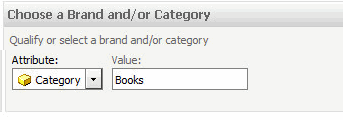
The following image shows the Textbox display style:
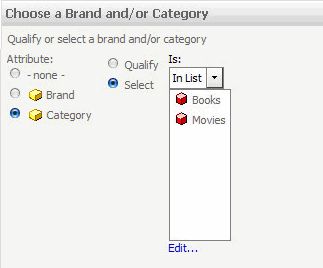
The following image shows the Radio Button display style:
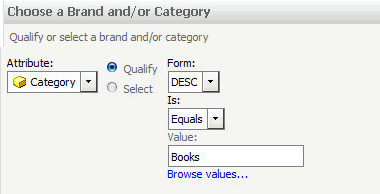
The following image shows the Pull Down display style:
The following image shows the List display style:
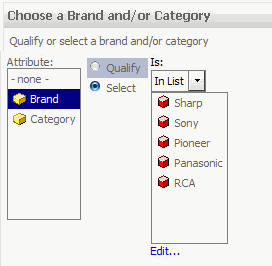
Specifying the size of the textbox can be beneficial when users answer prompts on a smaller screen of a mobile device.
To determine the number of prompt answers displayed in a row or column (depending on alignment), select the Items per column/row check box and enter the number in the field.
The Show search box option is not available if you are using the Textbox display style.
For an Attribute Qualification prompt that uses a search object and the Tree display style, the Use folder structure check box is selected and cannot be changed.
To specify how qualifications are displayed in the prompt
-
On the Qualification tab, determine the types of qualification expressions allowed in the prompt by selecting an option from the Expression type allowed drop-down list.
-
Determine the default condition (for example, Select or Qualify) that is displayed in the prompt by selecting an option from the Default expression type drop-down list.
-
Determine the default condition operator (for example, Greater than or Less than) that is displayed in the prompt by selecting an option from the Default condition operator drop-down list.
-
Determine how many elements are listed in each prompt answer list by selecting the Maximum number of elements per list check box and entering the number in the field.
-
To allow users to import a list of attribute elements from which they can choose, select the Allow element import check box.
-
To allow users to browse the elements in attribute qualification, select the Allow element browsing in attribute qualification check box.
-
Determine the default logical operator that is used between conditions by selecting an option from the Default operator between conditions drop-down list.
-
To allow users to modify expressions, select the Allow modification of the logical operator check box.
- To ensure that users can only use a single condition operator (AND/OR) between all of the conditions in an expression, select the Use a single logical operator between all conditions option.
- To ensure that users can choose a default operator to use between each condition, select the Allow the user to set independent logical operators between conditions option.
To save your prompt
-
Click Save As, navigate to the folder where you want to save the prompt, type a Name and Description for the prompt, and click OK. Your new prompt is saved.
-
You can now add your new prompt to a report, metric, or filter. For a table showing how to add each prompt type to a report, metric, or filter, see Reports: Adding prompts to a report, metric, or filter.
-
You can also set a default prompt answer, which allows the user to complete report execution quickly, as they do not need to answer the prompt but can simply run the report using the default answer. For steps to specify a default prompt answer, see Components of a prompt.