
MicroStrategy ONE
Filtering data based on dates
This filter is an attribute form qualification that enables you to filter data based on an attribute with a date data type. For example, you can create a date qualification on the Day attribute to return data for only those days between January 1, 2021, and February 6, 2021.
Use the following procedure to create a date qualification filter. The example after the procedure shows what happens to report data when the filter is used on a report.
Creating a filter based on dates
This procedure creates a date qualification based on the example described above. It uses the sample MicroStrategy Tutorial project.
To qualify on a date
-
In MicroStrategy Web, on the Home page, click New Filter.
-
In the pane on the left, navigate to the attribute with the date data type on which you want to qualify. Alternatively, type the name of the attribute in the Find field.
-
Right-click the attribute and select Add to Filter. You can also drag and drop the attribute to the right pane.
For this Tutorial example, select the Day attribute.
The right pane displays fields similar to the image below:

-
Select Qualify.
-
From the first drop-down menu, select the form you want to filter data based on.
For this Tutorial example, click the ID attribute form.
-
From the next drop-down menu, select the operator that describes how you want to filter data.
-
For this Tutorial example, select Between.
-
In the last field, type the value(s) or click the calendar to select a date to use to qualify on the attribute form. This is the value that will be compared against the data in your data source.
If you are using a date range in your filter, click the calendar again to select the second date. For example, if you want to filter data so the report shows results between January 1, 2021 and February 6, 2021, click the calendar and select January 1, 2021, then click the calendar again and select February 6, 2021.
You can compare the form to a dynamic date, which is a fixed offset of the current date, such as one month ago. For more information on dynamic dates, see the Advanced Reporting Help.
For this Tutorial example, use the drop-down list to select the date range January 1, 2021 to February 6, 2021.
-
Click the Apply icon to create your filtering condition.
-
Click Save As.
-
For this Tutorial example, name the filter Date Filter and save it in the My Objects Folder.
-
Click OK.
If you have multiple qualifications, be aware that it is possible to unintentionally change the evaluation order of a filter's qualifications simply by adding a new qualification and not looking at where the new qualification is added in the list of qualifications. For information on changing the evaluation order of qualifications, see Editing a filter.
The filter you created can now be added to reports. For steps, see Reports: Adding a filter to a report.
If you followed the Tutorial example in the procedure above, you created the Date Filter which excludes all data except the data gathered between January 1, 2021 and February 6, 2021. Now see what happens to report data when the filter is used on a report. Open the Basic Report from the Tutorial project, located in Shared Reports\MicroStrategy Platform Capabilities\Advanced Reporting Guide. The Basic Report, shown in the image below, displays all employee revenue:
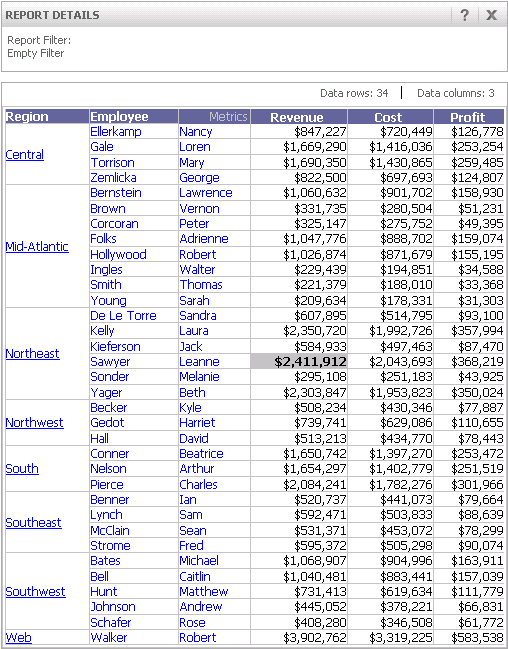
Notice the revenue amount of Leanne Sawyer. Next, add your Date Filter. To do this, from the Home menu click the Design icon. From the left pane, navigate to where you saved your Date Filter, and drag the filter into the report's filter pane. When you re-execute the report, it looks like the following image:
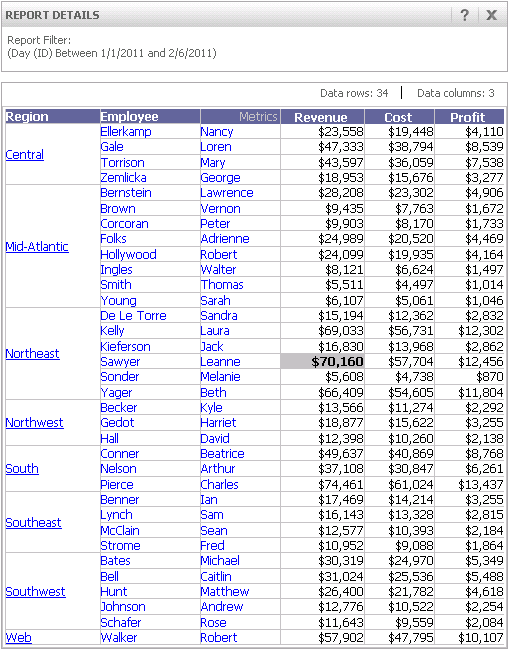
The report displays the revenues of employees for only the specified date range. Notice the new revenue amount for Leanne Sawyer.