
MicroStrategy ONE
Attribute element list qualification
The elements of a business attribute are the unique values for that attribute. For example, 2023 and 2024 are elements of the Year attribute, while New York and London are elements of the City attribute. On a report, attributes are chosen to build the report, but once the report is executed, the attribute's elements are displayed in the rows or columns.
The filter type called an attribute element list qualification qualifies (or filters) report data based on a list of attribute elements belonging to an attribute. For example, the attribute Customer has elements which are individual customer names. For a report containing the attributes Region, Customer, and Income Range, you can use an attribute element list qualification on the attribute Customer to obtain income data for only those customers you specify in your filter's list.
Attribute element list qualification example
You want to create a report that includes the revenue, cost, and profit by month for all employees last year. However, certain months are not representative of the normal business cycle, so they should be excluded from the report calculations. To do that, you create an attribute element qualification that excludes the months April, May, and December, which are elements of the Month attribute.
The steps to create this attribute element list qualification are in the procedure below. The example after the procedure shows how a report is affected when this filter is applied.
Creating a filter based on attribute elements
This procedure creates an attribute element list qualification based on the example described above. It uses the sample MicroStrategy Tutorial project.
To filter data based on business attribute elements
- In MicroStrategy Web, on the Home page, click New Filter.
- In the pane on the left, navigate to the attribute that has the elements by which you want to filter a report's data. Alternatively, type the name of the attribute in the Find field.
-
Right-click the attribute and select Add to Filter. You can also drag and drop the attribute to the right pane. For the Tutorial example described above, browse to the Attributes folder and select the Month of Year attribute.
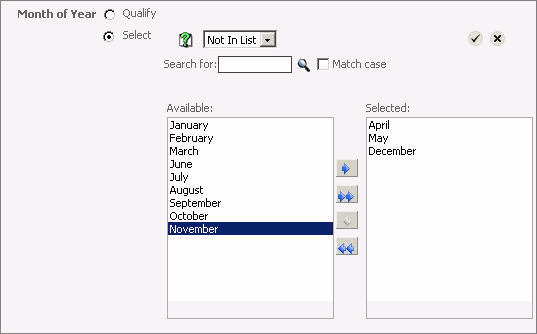
The right pane displays fields similar to the image below:
-
To create the list of elements that the filter will use to filter data, perform the following steps:
- Click Select.
-
From the In List drop-down list, select one of the following:
- To define what attribute elements the filter should include data for, select In List.
-
To define what attribute elements the filter should exclude data for, select Not In List.
For this Tutorial example, select Not In List.
-
The Available area on the left displays the elements that belong to the attribute you chose for this filter. Select an element and then click the right arrow to move the element to the Selected area. Press CTRL to select multiple elements. If the Available list contains a large number of elements, use the Search for field to locate the elements you want to select.
For this Tutorial example, select April, May, and December.
- Click the Apply.
- Click Save As. For this Tutorial example, name the filter Month and save it in the My Objects folder.
- Click OK.
If you have multiple qualifications, be aware that it is possible to unintentionally change the evaluation order of a filter's qualifications simply by adding a new qualification and not looking at where the new qualification is added in the list of qualifications. For information on changing the evaluation order of qualifications, see Editing a filter.
The filter you created can now be added to a report. For steps, see Reports: Adding a filter to a report.
If you followed the Tutorial example in the procedure above, you created the Month filter which excludes the months April, May, and December. Now see what happens to report data when the filter is used on a report. Open the Basic Report from the Tutorial project, located in Shared Reports\ MicroStrategy Platform Capabilities\. The Basic Report, part of which is shown below, displays employee revenue, cost, and profit for all months of the year:
Advanced Reporting Guide

In the Basic Report, Leanne Sawyer's contribution to revenue is $2,411,912. Next, add your Month filter. To do this, from the Home menu click the Design icon. From the left pane, navigate to where you saved your Month filter, and drag the filter into the report's filter pane. When you re-execute the report, it looks like the following image:

(To see the filtered report shown above, open the report named Filter - Month Report Filter from the Tutorial project, located in Shared Reports\MicroStrategy Platform Capabilities\Advanced Reporting Guide.) In this filtered report, the metrics have different values than in the unfiltered Basic Report. Sawyer's contribution to revenue is now $1,813,538. In the unfiltered Basic Report, the data was retrieved from the data warehouse for all months of the year. In the filtered report, the data for the months April, May, and December is not retrieved from the data warehouse, so the metrics cannot include this data in their calculations. As this filtered report shows, your top revenue-producing employees can be very different if you exclude the months April, May, and December.