
MicroStrategy ONE
Adding prompts in the Metric Editor
Adding a prompt to a metric's definition in the Metric Editor
You can add the following prompt types to a metric's definition in the Metric Editor:
- An Object prompt of attributes, to allow the user to select the attribute at which to calculated the metric. For steps to create a level metric, see the Advanced Reporting Help.
- A Numeric prompt, Big Decimal prompt, or Long prompt, which are all types of a Value prompt.
- You can use a Value prompt in the formula of a metric. For example, a user can enter the tax rate to be multiplied by the Revenue fact. For steps, see To add a prompt to a metric's definition in the Metric Editor below.
- For a non-group function, you can use a Value prompt as the input values of the function. For more information about non-group functions, see Metrics made up of metrics: Compound metrics.
You can create a conditional metric, which filters data for that metric. As part of the filter on the metric, you can use a prompt. For steps to create a conditional metric, see the Advanced Reporting Help.
To add a prompt to a metric's definition in the Metric Editor
This procedure assumes you have already created and saved a prompt. For steps to create a Value prompt, see Filtering data based on a single value or string: Value prompts.
- In MicroStrategy Developer, go to File > New > Metric.
-
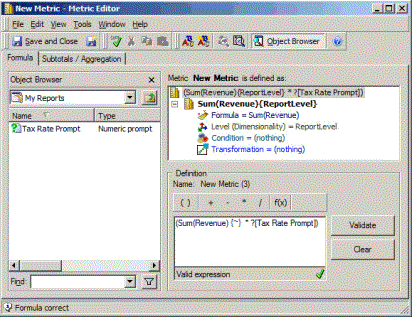
Create your metric's formula. Use the Object Browser on the left to locate the prompt to add to the metric's definition.
If the Object Browser is not displayed, from the View menu select Object Browser.
-
Drag the prompt onto the Definition pane at the bottom right, as shown in the image below:
- Save the metric, and add it to a report. For steps to do this, see Reports: Adding metrics to a report.
If you want to see what your report looks like when executed against the data source, and if you want to see how a prompt works for a user, once your report has one or more attributes and metrics in it, from the View menu select Grid View.