
MicroStrategy ONE
Displaying data as an overlay on an image: Image Layout widget
You can add an Image Layout widget to a document to display an image overlaid with colored areas or bubble markers. For example, you can display a map of the United States, with a bubble marker displayed over each state. You can have states with a high number of stores displayed using large bubble markers, and states with a low number of stores displayed using small bubble markers. As another example, you can display the layout of a store in the widget, with each aisle displayed as a separate region, then have MicroStrategy automatically color each aisle based on the number of visits each aisle receives. The image below shows an Image Layout widget with a map of a store, in which each section of the store is displayed as a separate colored region.
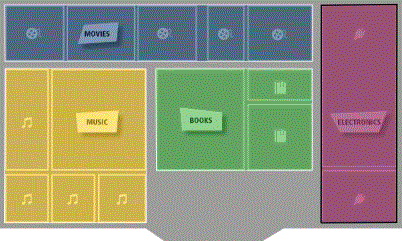
You can display the Image Layout widget on an iPad or Android tablet with MicroStrategy Mobile.
A shape file is an HTML file that contains the image that you want to display in the widget, as well as the location of each bubble marker or area you want to display on top of the image. MicroStrategy provides several default shape files for you to choose from, including a map of countries of the world and a map of states in the United States.
You can define your own shape file for use in the widget, such as the layout of a store or floor in a building, using the same steps as you would to customize an Image Layout visualization. You can also create multiple shape files and have the user choose which shape file displays in the widget.
You can also define an Information Window that displays when a marker or an area is tapped. For instructions on creating an Information Window, see Providing additional information to users: Information Windows.