
Strategy One
Subscription Editor in Library
Starting in Strategy One (February 2026), you can define a subscription level setting to send an email notification to the owner and recipient if an email subscription delivery fails. You can also search and set multiple schedules for one subscription.
Starting in Strategy One (October 2025), you can choose to run the subscription according to each recipient’s own time zone instead of the schedule's time zone.
Starting in Strategy One (August 2025), users can create and add new email addresses directly within the Subscription editor in Library, making recipient management more efficient.
With this enhancement, you can add new delivery destinations on-the-fly without exiting the subscription workflow, streamlining the subscription workflow for managing recipients.
Create a New Email Address
-
Open the Subscription Editor in Library using one of the below methods.
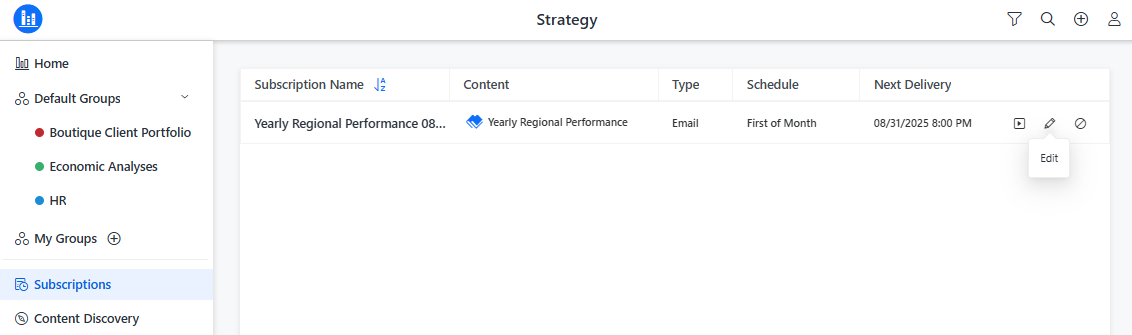
- Library Sidebar: Click Subscriptions on the left, point to a subscription, and then click the Edit icon.
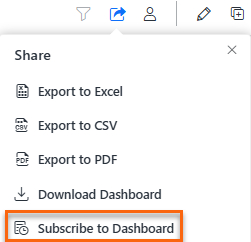
- Dashboard: On the Library toolbar, click the Share icon and select Subscribe to Dashboard.
- Library Sidebar: Click Subscriptions on the left, point to a subscription, and then click the Edit icon.
-
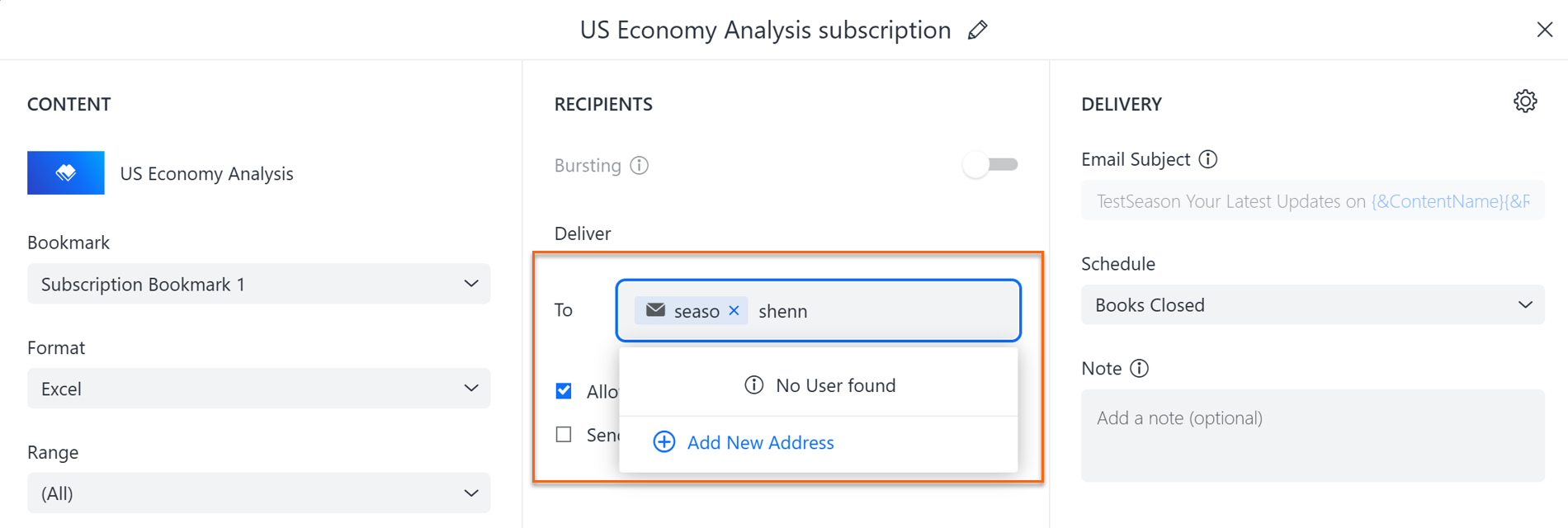
In the Subscription Editor, in the To text box, search for a recipient, and then click Add New Address.
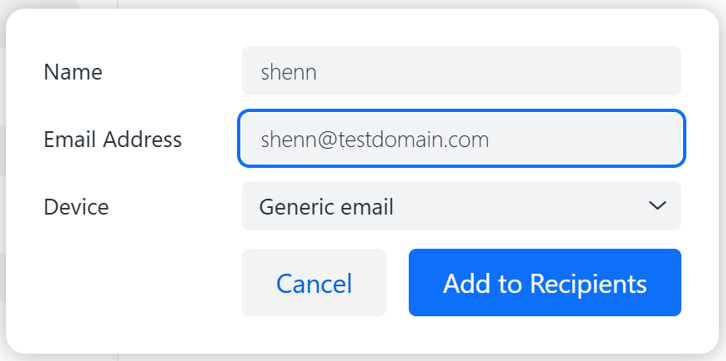
- In the window that opens:
- Next to Name, enter the recipient's name.
- In the Email Address text box, enter the new email address.
- From the Device drop-down list, select the appropriate delivery device. The devices available to you depend on your administrator's configuration.
- Click Add to Recipients.
- In Email Subject, type a brief description to help recipients quickly identify the content being delivered.
-
Starting in Strategy One (February 2026), you can set multiple schedules for one subscription. To select multiple schedules:
For more information on creating schedules, see Create and Edit Schedules.
- In the Delivery panel, expand the Schedule drop-down list.
- Select the check boxes next to the schedules you want to apply. You can also search for schedules in the Schedule box.
- Click OK
-
Starting in Strategy One (October 2025), to run the subscription according to each recipient’s own time zone, rather than the schedule's time zone, select the Use Recipients' Time Zones check box.
-
You can type an optional Note.
-
Starting in Strategy One (February 2026), you can send an email notification to the owner and recipient if an email subscription delivery fails. Expand the Send Notification for failed email delivery drop-down list and choose an option to send the notification to the subscription owner, recipients, both owner and recipients, or no notification.
To send the notification, ensure Enable email notification for failed email delivery is enabled. For more information on enabling this option, see project-level settings.
- Click Save.