Strategy ONE
View filters versus report filters
While they both share some filtering capabilities, view filters and report filters also offer their own unique filtering features that fit different filtering requirements.
The main difference between report filters and view filters is how they are evaluated by the system.
Report filters are a standard MicroStrategy reporting feature that enable you to filter the data retrieved from the data source. Since report filters are evaluated by querying the data source, report filters can perform various types of advanced qualifications, use prompts in qualifications, filter on objects not included in the report, and so on. For more information on report filters in general, refer to the Basic Reporting Help and Advanced Reporting Help.
View filters are an OLAP Services feature that enable you to filter the data available on a report after its data has been retrieved from a data source. View filters are evaluated without having to query the data source. While this enables view filters to be evaluated without the overhead of querying the data source, it also means that view filters only have access to the data available on the report. Due to this limited access to data, view filters cannot perform all of the advanced qualifications possible with report filters.
The table below compares the available features and feature requirements of view filters and report filters:
| Features and Feature Requirements | Available in View Filters | Available in Report Filters |
|
Attribute element and attribute form qualifications |
Yes |
Yes |
|
Simple metric qualifications |
Yes |
Yes |
|
Relationship qualifications |
No |
Yes |
|
Joint element list qualifications |
No |
Yes |
|
Custom expression qualifications |
No |
Yes |
|
Can define filtering at report run time by including a prompt in a qualification |
No |
Yes |
|
Can filter on objects not included in the Report Objects pane (See below) |
No |
Yes |
|
Can filter on objects included in the Report Objects pane, but not included in the report (See below) |
Yes |
Yes |
|
Evaluated without re-executing SQL and querying the data source |
Yes |
No |
|
Can be saved as a stand alone object and used in multiple reports |
No |
Yes |
|
Can quickly switch the level at which the qualification is evaluated from report level to the level of attributes displayed on the report |
Yes |
No |
|
Can be modified while viewing the report data |
Yes |
No |
Design considerations
The decision to use a view filter or a report filter to answer your business questions relies on two key factors, functionality and system management.
View filters and report filters both provide a rich set of filtering functionalities, which can be used to answer your business questions. However, since report filters are executed against the data warehouse, more advanced filtering is supported. You may need to use a report filter to implement some of your more advanced business questions. For example, you can define a report filter at report run time by including a prompt in the filter definition.
From a system management perspective, report filters and view filters provide two alternatives that affect memory and data warehouse usage.
Report filters help to reduce the memory size of reports by returning less data from the data warehouse. These results can be stored in a cache that decreases the time it takes to access and run the report. The drawback to this approach is that any modifications to the report filter cause the system to access the data source again to create a new report definition, which must be stored in the cache in place of the old definition. The cache still provides quick access to the new report, but this process causes an extra load on the system.
View filters can help reduce memory used by reports, by utilizing Intelligent Cubes. Intelligent Cubes are sets of data that can be shared as a single in-memory copy, among many different reports created by multiple users. Filtering on reports connected to Intelligent Cubes is only achievable with view filters. View filters provide much of the same filtering functionality as report filters, while allowing multiple users to perform analysis on a single Intelligent Cube.
Example: Report filter on an attribute not in the report
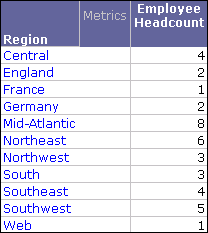
For this example, run the Employee Headcount by Region report in the MicroStrategy Tutorial project; the report is shown below. This report does not have a report filter.
Add a report filter (Country = U.S.) that qualifies on the attribute Country, which is not part of the report's definition. The result is the report shown below, which contains data for the regions in the U.S. only, as defined in the report filter.
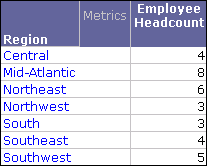
Although the report filter is based on an attribute not in the report itself, the report data is still affected because of the relationships among the objects in the report, which are all part of the same attribute hierarchy.
In contrast, a view filter can be created only on objects that are part of the report's definition. (The objects in a report's definition are displayed in the Report Objects pane.) This is because view filters only have access to data in the Report Objects pane of the report, rather than the entire data warehouse.
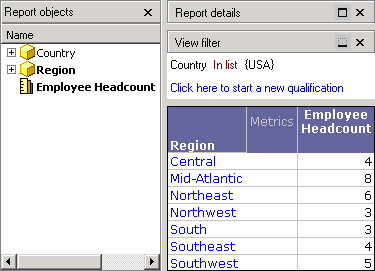
To provide the same type of analysis used in the first report that uses a report filter, include Country in the Report Objects pane of the report, but remove it from the grid. With Country in the Report Objects pane, you can create a view filter to restrict data to Regions in the US, as shown below.